Recently, Let’s Encrypt announced they will be ending support for expiration notification emails by June 4, 2025. With this upcoming change, many are looking to alternate ways to monitor certificate expiration dates. At NodePing, we offer the capability to monitor your SSL certificates with our SSL check. Our SSL check lets you monitor certificate validity as well as notify you when your certificate is about to expire, that way you can make sure your certificate renewals are happening as you would expect, and fix it when it’s not.
Using the SSL Check
Our SSL check isn’t just limited to monitoring port 443 on your web server. You can also monitor non-website TLS services by using the URL port convention. For example, setting the target to “https://example.com:8000”. The check can be used to monitor SSL certs on services such as DoH, MQTT, Websockets, email, anything that accepts a TLS connection.
The most popular use for the SSL check is to monitor for an expiration date and alert the user at a defined number of days before expiration. However, the SSL check is also useful for diagnosing certificate chain errors. This can be useful to diagnose missing intermediary certificates or mismatched certificates in the SSL chain, for example.
If you don’t have a NodePing account yet, give it a try! We offer a free, no-obligation 15-day trial. The best way to see if NodePing meets your needs is to try it out.
NodePing makes monitoring your cron jobs easy with our PUSH checks. Each time your server runs a cron job, you can also have that cron job send results to NodePing to track successes and failures. Ensuring cron jobs are running properly is crucial to reliable operations. It is good to know if the cron jobs on your servers are running as you would expect, and receive alerts when they aren’t.
PUSH checks rely on basic HTTP POST requests to NodePing, which lets you submit data to give you insights into your systems. This method provides a lot of flexibility, since PUSH checks have the option to track numeric values.
Getting Started
To get started, I need to think about the cron jobs that are important to me so I can decide which cron jobs I want to monitor. Most commonly, I like to submit results with backups that I automate. I have a variety of options with how I can integrate my cron jobs for backups with NodePing PUSH monitors. For example:
Insert the heartbeat into a script
Use NodePing’s premade PUSH clients
First, I’m going to create the check for my cron job monitor. I set a label that is easy for me to recognize, set the check type to PUSH. I have a single field I will call “backups” with min/max values of 0 and I also set the check frequency to one day, since this is a daily backup. I set my min/max values to 0 since my backup program returns an exit code of 0 on successful backup, and anything else is some sort of failure. NodePing will see the 0 and mark the check as passing, or if my backup program returns something other than 0, NodePing will mark the check as failing and send me notifications.
After creating that check, I open the check drawer so I can see my ID for the check and Checktoken. I will be using this information in my cron job.
Insert the Heartbeat Into a Script
My first option is that I can add submitting results to an already existing script. I use a program such as curl, netcat, wget, or openssl to do my HTTP POST. I can either insert the one liner at the end of my script and have it POST the same data every time, or, if the job fails, I can write my script to submit a pass or fail value, which I am doing in my backup example using ‘curl’. Below is a snippet of my backup script called do_backup.sh:
#!/usr/bin/env sh

# do backup
...

# Use backup tool's exit codes to decide success/failure
complete=$(echo $?)

curl -X POST -H "Content-Type: application/json" --data "{\"data\":{\"backups\":$complete}}" 'https://push.nodeping.com/v1?id=202306261809OGK26-3IQZJE0H&checktoken=OZS4N4G2-7A6U-4N86-8PV0-067F25B7TFHO'
In my curl command, I submitted the $complete variable’s value to NodePing. When I submit the value 0, the check is marked as passing by NodePing. However, if my backup utility exited with a code of 1, curl would submit that 1 to the NodePing PUSH check, and it would be marked as failing since I configured the check to pass only when the value is 0. This way, I will get a notification right away when a cron monitor fails or starts passes again. My cron job for my backup script runs every day at 1am:
0 1 * * * /bin/sh /usr/local/bin/do_backup.sh
If you do not wish to use curl, you can use something like netcat, wget, or openssl:
On GitHub, NodePing provides a repository with premade clients and modules to get started. NodePing currently provides POSIX shell, Python, and PowerShell client scripts. The premade client gives me the option to create my own module and export the data without having to worry about how to write the HTTP POST part. This means I can submit results, like above, by modifying an existing script to work as a PUSH module. I will create a module with the POSIX client, and modify my script to work with the client.
Configuring the Client
I visited the GitHub page to download a zip file or I can use git to fetch the code directly using the following command:
I then made a copy of the POSIX client. A convention I tend to follow is to create a folder named something like “backup_cron_job_202306261809OGK26-3IQZJE0H” where the name is the label of the PUSH check in NodePing and the check ID that is generated when the check is created.
I created the folders and copied the contents of the POSIX client with these commands:
# Use backup tool's exit codes to decide success/failure complete=$(echo $?)
echo "{\"backups\":$complete}"
The client will handle submitting this result for you. In the moduleconfig file, I removed the default contents and added backups to the file
I added my checkid and checktoken to NodePingPUSH.sh file
Lastly, I made the NodePingPUSH.sh script and my backups/backups.sh script executable. When I run the NodePingPUSH.sh script, it will run my backup, then submit a success or failure to NodePing. After making sure it worked right, I added the client to my crontab to run my backup at 1am, just as before, but using the PUSH client
I added the -l to the end of my cron job to let the client log the successes and failures locally as well.
Conclusion
There is a lot of flexibility with NodePing’s PUSH checks that allows me to monitor my cron jobs. I showed you how I can insert an HTTP POST request into my existing scripts that I run via cron, or I can use the NodePing PUSH clients (or write my own in another language if I chose). Cron job monitoring is possible with any language too, and is not limited to shell scripts. PUSH checks are a very versatile tool NodePing offers, and it can go far beyond monitoring cron jobs.
If you don’t yet have a NodePing account, feel free to try out our 15-day, free trial and get started, having the assurance that your cron jobs are running, and get notified when they are not.
Websites that use CDN or caching services like Cloudflare or Amazon Cloudfront can be a little tricky to monitor. You need to make sure all the regular website stuff is working along with additional monitoring for the backend web server and the caching service itself.
NodePing has you covered on both ends: the regular website monitoring and some powerful features specifically for monitoring CDN websites.
The Basics
When someone wants to connect to your website, there are 4 things that have to be working correctly:
DNS
Routing
SSL
Web Server response
DNS
If your DNS servers aren’t available, your visitor’s browser won’t be able to translate the FQDN in the URL to a routable IP address so monitoring each of your nameservers is vital to website availability.
Create a DNS check for each nameserver and be sure the query for your FQDN is being answered.
Routing
Now that the browser has the IP address of a web server, it needs to be able to reach out across the interwebs and request content. Incorrect routing and packet loss can make your website unreachable.
Use our PING and MTR checks to ensure that routing is working and that there is no packet loss.
We often get questions from site owners when the monitoring says their site is failing, but they can get to it fine from their device. Upstream connectivity issues are often the reason, and having the PING or MTR check in place and running from different geographical regions can help identify those troubles quickly.
SSL
Visitors expect websites to use industry best-practices for security, including transport encryption using TLS/SSL. You don’t want them to see that embarrassing “Unsafe” warning when they hit your website because your SSL certs are expired or incorrectly configured.
Create an SSL check to warn you before the cert expires.
Web Server Response
If everything mentioned above is firing on all cylinders, the web server will respond to the visitor’s request and reply with the expected content.
Using NodePing HTTP Content checks, you can verify that the web server is returning the expected HTTP response code and content.
With the basics of website monitoring nailed down, there’s a couple of additional challenges that caching services create that need special monitoring.
Monitor the Back-end Server
If your back-end server isn’t functioning, your CDN or caching service will continue to respond normally, at least for a while. But you’ll want to know right away if that back-end server is offline. You won’t be able to monitor that back-end server using the regular FQDN in the URL because it points to the caching service, not your back-end server.
NodePing can monitor a back-end server using an IP in the URL. The IP address can be either an IPv4 or an IPv6 address.
Note: When using IPv6, use square brackets around the IPv6 address.
To get the SSL to respond properly, use an HTTP Advanced check and send a special request header of “Hostname” set to the FQDN of the website.
Example: “Hostname” “example.com”
Cache-busting
To make sure the caching service or CDN is able to communicate properly with your back-end server, you need to send an HTTP request to the service with a URL it hasn’t cached. That will force the service to talk with your back-end server to get fresh content. To do that, it has to be a different URL each time it’s monitored. This is called cache-busting.
NodePing has a cool cache-busting feature on the HTTP Advanced check that will slightly change the URL each time it monitors so that it always causes the caching service to talk with your back-end server.
To use cache-busting, modify the URL query string. Add a non-essential element with the value of “{{now}}”. NodePing will replace that value with a millisecond timestamp each time the check is run.
Since each URL is unique each time, there will be no cached entry and the caching service will hit your back-end server on each check run. If the service isn’t able to reach your back-end server, it should return a 522 error or something similar, which will make the NodePing check fail and alert you to the issue.
Website Monitoring
Using a CDN or caching service with your website can speed things up but it can also make things break in ways that basic website monitoring may miss. NodePing’s features allow you to ensure that your back-end web server is up and running and that your caching service is operating as expected.
If you don’t yet have a NodePing account, please avail yourself to our 15-day, free trial. You’ll see why those who know, use NodePing.
In our recent post ‘Beyond “Is It Up?” – Website Monitoring should be Comprehensive‘ we talked about how website monitoring should be wider than just measuring if a website responds to requests. If you are responsible for website availability or performance you should of course be monitoring if the website responds in a timely manner, but you also should be monitoring status codes in the response, validating certificates and domain expiration, and DNS. In today’s post I wanted to extend that discussion to another critical component of your infrastructure: monitoring database accessibility and performance. Not only are databases a critical part of your web infrastructure, NodePing’s database monitoring can be a key element in your overall infrastructure monitoring that goes well beyond the web.
Monitoring Database Connectivity and Accessibility
As with any server monitoring, the first layer to consider is connectivity and accessibility. Depending on your network infrastructure, this might mean some combination of PING, MTR, and PORT checks. These check types can tell you if the database is accessible from places it should be, and make sure it remains inaccessible when it shouldn’t be. In fact, it is a good idea to monitor your firewalls and routers with these check types. At its most basic level, the PORT check tells us if your database servers are listening and responding on the expected ports. The flip side of this is also important. If your database should not be accessible from the Internet, running a check that monitors that can be just as important to make sure it stays that way.
In testing connectivity, the PORT check can test just about any service. For databases specifically, NodePing adds protocol aware monitoring for databases that respond to HTTP requests, as well as check types that understand the specifics of connecting to Redis, MySQL, PostgreSQL, and MongoDb databases.
Querying HTTP based databases with advanced HTTP check types
For databases with native HTTP support, using NodePing’s HTTP based check types can be really useful for monitoring the database performance, as well as monitoring specific responses. For example, internally we have used our own monitoring to keep track of CouchDB databases for years. This is useful for answering questions like
Is the database responding in a reasonable time frame?
Is the database accessible using SSL/TLS, and is the certificate valid or about to expire?
Is the database listening and accessible to non-encrypted ports? In our use case, this answer needs to be “No,” so NodePing’s capability to monitor that a port is not accessible is important here.
Are Couchdb views responding? We keep some indexes that don’t get constant use warm with monitoring checks.
Are the actual values returned within expected ranges? NodePing’s HTTP Parse check can make an HTTP request and then monitor specific fields within a JSON response to make sure it is within the expected range. This is particularly useful in monitoring a Couch view that uses reduce.
Running Queries on MySQL, PostgreSQL, and MongoDb
NodePing has specialized check types that can monitor MySQL, PostgreSQL, and MongoDB specifically. For these databases, NodePing’s monitoring can run a user-defined query and report on the response. This allows you to run a custom query to track performance metrics, data counts, or set up alerts based on whether the responses are within a defined range. If the expected response is a string, you can use regex to match the response to ensure it is what is expected. These responses can be used to trigger notifications, graph values in your database, and store the data for future reference and analytics.
Security considerations for database monitoring
We already mentioned a few of the considerations around the security implications of database monitoring. The database queries discussed above can use authentication where applicable. For HTTP connections, as well as MySQL and PostgreSQL, the checks can be used to verify the encryption and certificates. But a key element in monitoring databases is that in the vast majority of cases the databases should not be universally accessible. NodePing’s AGENT based checks allow you to run these checks from your own networks, which means you get the full robust monitoring of NodePing’s checks, without opening your database ports to the outside world. In addition, our PUSH check type allows you to script database verification and push the results into NodePing for alerts and reporting. This suite of check types and options together allow you to do robust monitoring for your databases without compromising your security. In addition, we recommend that you use authentication to provide the monitoring with the least required access to do the necessary monitoring.
Monitoring Should be Comprehensive
From the outset NodePing has sought to provide website and server monitoring at a price point that allows you to run all the checks you need cost-effectively. That’s because we believe that monitoring should be comprehensive. You should be monitoring all of the components of your infrastructure in a way that when you are notified, you know immediately where a sysadmin response is needed. Database monitoring is a critical component of this. NodePing’s database monitoring can be a key part of your overall solution to ensure your services are all working as they should, and quickly tell you where the problem is in order to minimize disruptions.
Give it a try! NodePing has a free, 15-day trial, so there is no risk to trying it out. We think you’ll be impressed by how easy it is to get comprehensive monitoring in place, including for your databases, and how cost-effective and timesaving it can be as a part of your overall infrastructure management.
In Part 2, I configured my Raspberry Pi to monitor temperature, humidity, and pressure with the Sense Hat. When I encountered issues with the Sense Hat needing weird tricks to properly measure temperature, I looked for alternative sensors. I found the DHT22/AM2302 sensors on Amazon to try out. I’ve noticed with some of these DHT22 sensors that you need to add an extra resistor along the way to the Pi’s GPIO pins. I like this one in particular because the resistor is integrated already. I grabbed my Pi from my server room and took it back home to configure it.
The DHT22 Sensor
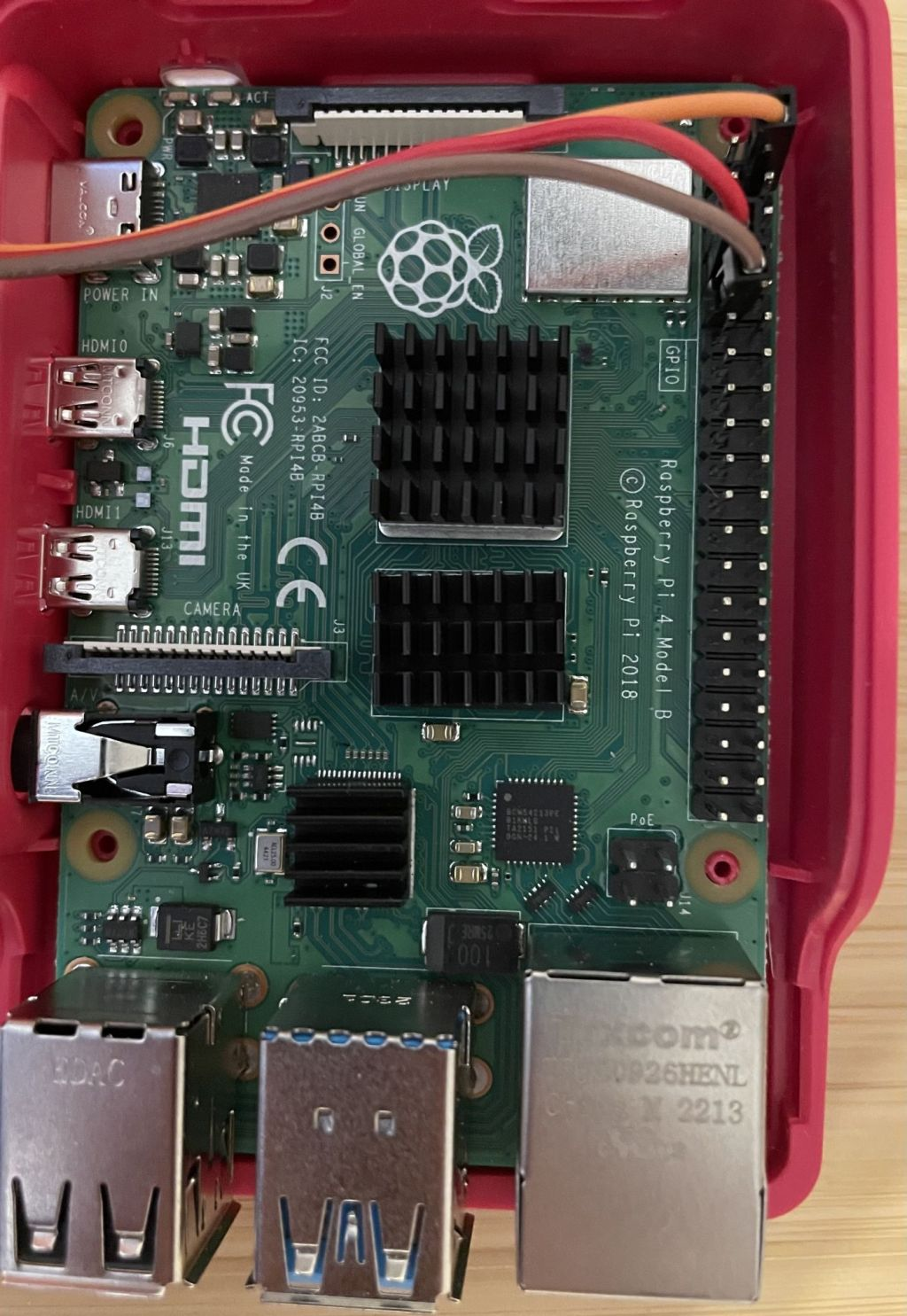
I won’t go much into detail on this sensor, but I found that compared to the other common DHT11 sensor, this one is most ideal because it has better accuracy and can be had for a similar price. So, I went with the DHT22 sensor. My package contained 2 DHT22 sensors, and six different colored cables. I wound up with orange, red, and brown cables. I connected the orange cable to power, red to data, and brown to ground. Below you can see how I connected the sensor to my Pi’s pinout. When looking at Raspberry Pi’s documentation, I connected orange to pin 2 (5V), red to pin 7 (GPIO 4), and brown to 9 (ground). If you intend on connecting the sensor to different GPIO pins, there will be some tweaking of the module needed on your part later.
The Software
I needed to install only a single piece of software to get this to work, in addition to a Python library. The software and Adafruit’s DHT Python library which I installed this way:
As in Part 2, I had to add my user to some groups to get my module working so I could collect temperatures and humidity:
$ usermod -aG video input gpio i2c pi
Creating the PUSH Check
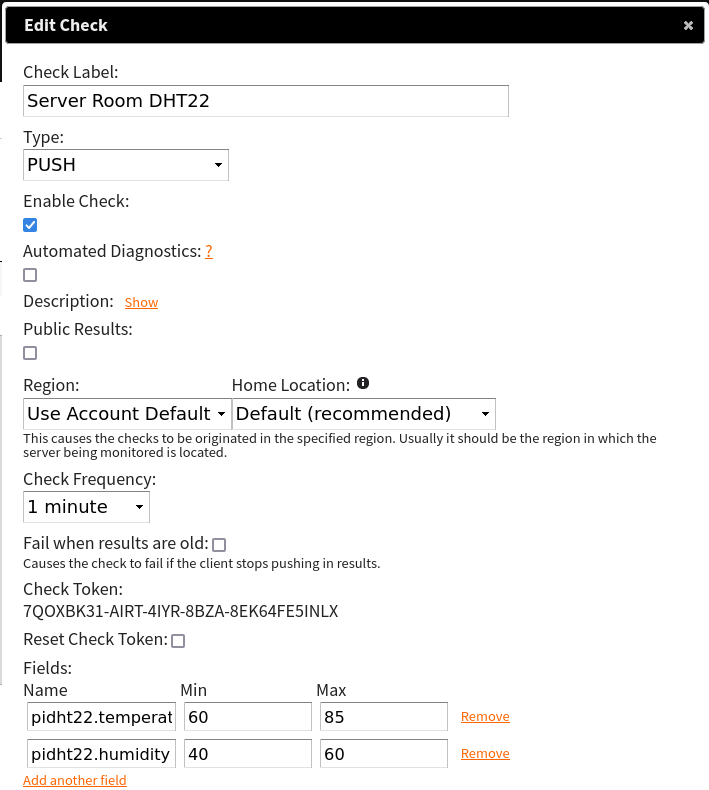
Before I can start submitting metrics to NodePing, I first need to create the check for me to submit results to. The check looks like this:
Below in the Fields section, the names should be:
pidht22.temperature
pidht22.humidity
Adjust the min/max values accordingly to what you consider a safe temperature and humidity. NodePing provides a DHT22 module for PUSH checks to work with the Raspberry Pi called “pidht22”. Since the DHT22 sensor does not have a neat LED array like the Sense Hat I used, it will only submit values to NodePing, and not do any of the cool LED displaying of information. If that is something you want, I suggest following our Part 2 guide with the Sense Hat.
Configuring the Client
Now that the check is created, I moved on to installing the PUSH client software on the Pi. To get the PUSH clients code, I can visit the GitHub page to download a zip file or I can use git to fetch the code directly using the following command:
From here, I made a copy of the Python3 client. A convention I tend to follow is to create a folder named something like “server_room_dht22-202306261809OGK26-QLJGGVM1” where name is the label of the PUSH check in NodePing, and the check ID that is generated when you create that check in the NodePing web interface.
You can call your folder whatever you want. I use this so I can easily find the right PUSH check in NodePing that corresponds to this PUSH client.
I will be using the pidht22 module to monitor my server room environment.
I copied the Python3 client code into the directory I made and cd’3d into that directory for easier editing:
$ cp -r PUSH_Clients/Python3/NodePingPython3PUSH/* push-clients/server_room_dht22-202306261809OGK26-QLJGGVM1/
$ cd push-clients/server_room_dht22-202306261809OGK26-QLJGGVM1/
To make the PUSH check work, I have to edit 2 files:
config.ini
metrics/pidht22/config.py
At the end of config.ini, there is a modules section. It should contain this information:
[modules]
pidht22 = yes
You also want to include your check ID and checktoken in the server section:
Next is the config.py file for the module. This file has two variables:
UNIT – set to “F” for Fahrenheit or “C” for Celsius
PIN – The GPIO pin to use for data (if you follow this guide and connect to the same pins I did, you don’t have to change this variable)
The client should be configured now. I will now test it by running:
python3 NodePingPythonPUSH.py --showdata
This will let me see the data that would be sent to NodePing without actually sending it. This is just for testing and is a good way to make sure I edited those files correctly without impacting any uptime stats for the check in NodePing.
Lastly, I need to set up cron to run my PUSH client on a regular interval. I want this one to run every minute, so the cron line will look like the one below. To edit my cron tab, I run crontab -e and add the following entry:
Now my check is running every minute and submitting my server room climate info to NodePing. This will allow me to track temperatures and humidity in the server room and notify me if the room is too hot/cold, humid/dry.
Ready to Roll
With the new sensor tested and running properly with NodePing’s PUSH checks, I gave it some days to trial run at home before I brought it back to my networking room to monitor temperatures and humidity.
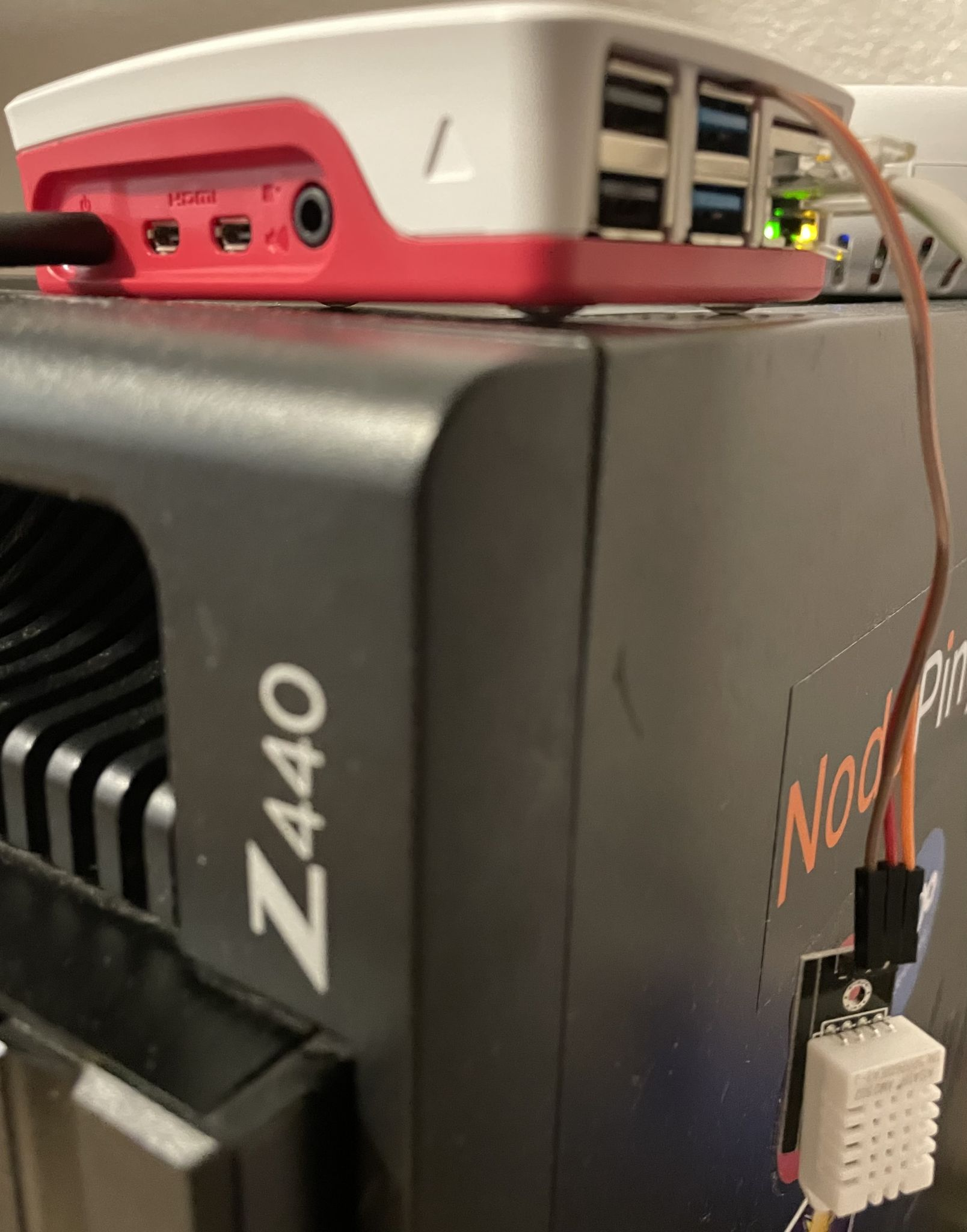
Testing atop the home server
One thing I have noticed with this DHT22 sensor is how steady temperature reporting is. Since I had to calibrate my check for the Sense Hat to account for CPU temperatures, the temperatures were always within +/- 3 degrees of the actual temperature. With this DHT22 sensor, since I have the sensor away from the Pi, the temperature reporting is more steady and makes for cleaner looking results. You can even see from the graph where the humidity dropped when I opened my window, as well as when I had stopped submitting results during testing.
Conclusion
In the end, I found the DHT22 sensor to be a better choice for temperature monitoring . The price is lower and the results are more reliable, and I don’t have to worry about the processor on the Pi messing with the sensor. Additionally, I can use any case I choose and have access to the rest of the GPIO pins if I choose to add more to the Pi.
If you find this to be useful to you and want to try this configuration for yourself you can find all the code needed on the NodePing github. If you don’t yet have a NodePing account, please sign up for our free, 15-day trial.
In the world of email communication, Simple Mail Transfer Protocol (SMTP) plays a crucial role in ensuring the seamless delivery of messages. However, like any other technology, SMTP is not immune to issues that can disrupt email flow and affect business operations. To maintain a healthy and reliable email infrastructure, it is essential to monitor SMTP servers continuously. In this blog post, we will explore how NodePing can be used to monitor for SMTP functionality, packet loss, blacklisting, deferred queues, and MX/SPF records.
NodePing is a versatile and powerful server monitoring service that allows businesses to monitor their infrastructure’s performance and uptime. With its extensive range of monitoring checks, NodePing provides an excellent solution for monitoring SMTP servers and ensuring they are operating optimally.
Monitoring SMTP Functionality
Verifying the functionality of your incoming SMTP server is crucial to ensure that it can receive emails without any hiccups. NodePing’s SMTP check allows you to periodically test your SMTP server by trying to send a test email to a designated email address. If the test email is accepted, it indicates that your SMTP server is functioning correctly. In case of failures, like timeouts or server errors, NodePing will promptly alert you, enabling you to troubleshoot and rectify the issues.
Monitoring Packet Loss
Packet loss can severely impact the performance of your SMTP server and lead to email delivery delays or failures. NodePing’s ICMP PING check is a valuable tool to monitor packet loss and routing issues to to your SMTP server. By regularly performing ping tests, you can assess packet loss trends and determine whether network-related issues are affecting your email delivery. If a failure is seen, NodePing automated diagnostics will send you MTR results so you can quickly troubleshoot where the issue originates. Addressing packet loss problems promptly will lead to a smoother email experience for your users.
Monitoring SMTP Blacklisting
Blacklisting can be detrimental to email delivery, as it prevents messages from reaching their intended recipients. NodePing’s RBL check allows you to monitor your SMTP server’s IP addresses against popular DNS-based blacklists (RBLs) such as Spamhaus and Barracuda. By configuring blacklisting checks at regular intervals, you can quickly identify if your server’s IP addresses have been blacklisted, enabling you to take immediate action to resolve the issue and maintain a good sender reputation.
Monitoring Deferred Queues
When your SMTP server is unable to deliver emails to the recipient’s mailbox immediately, it sits in the deferred queue. If emails in your deferred queues are piling up, you likely have a delivery issue. NodePing’s PUSH check can watch your deferred queues and send you notifications if they rise above what you’re comfortable with; allowing you to investigate and resolve the underlying problems before they escalate.
Monitoring MX Records
MX (Mail Exchange) DNS records play a crucial role in email delivery by specifying the mail servers responsible for receiving emails for a domain. NodePing’s DNS check allows you to monitor the MX records of your domain to ensure they are correctly configured and that your DNS servers are responding with those records properly. Regular checks of MX records help you keep incoming mail flowing.
Monitoring SPF Record
Your SPF record is actually a TXT DNS record that specifies which servers are allowed to send email from your domain. If that record is missing, compromised, or your DNS servers aren’t responding, sending email may be blocked or delayed. NodePing’s DNS check will make sure your SPF record is available and hasn’t been hacked. That will keep your outgoing mail flowing.
In conclusion, email monitoring is essential to ensure the reliability and efficiency of your message communications. NodePing provides a comprehensive suite of checks that empower you to monitor for blacklisting, SMTP functionality, packet loss, deferred queues, along with MX and SPF records. By leveraging NodePing’s monitoring capabilities, you can proactively identify and address issues affecting your SMTP server’s availability and performance, leading to better email deliverability and improved customer satisfaction.
Remember, a robust email infrastructure is the backbone of modern businesses, and investing in reliable monitoring tools like NodePing with automated diagnostics is a step towards a smoother and more efficient communication system.
Start monitoring your SMTP servers with NodePing today by signing up for our free, 15-day trial and stay one step ahead of any potential email delivery challenges!
Great services need great boxes to run on. How do we know if a server or VPS host is performant and reliable?
We use dozens of different hosts for NodePing and our standards for performance and reliability are really high. There are many SaaS out there that host only on AWS. Putting all your eggs in one basket is nice for billing but would make our service fragile and vendor-dependent. We spread our boxes around to make it resilient and better represent the Internet’s disperate architecture for monitoring.
We have to take new boxes out and put them through their paces; kick the tires and make sure they’re solid. This is how we test out a new provider before we use a dedicated server or VPS.
Blacklisted
As soon as we have our IP assignments from the provider, we check to make sure the IPs aren’t listed in any spam blacklists using NodePing RBL checks. Most of our hosts don’t send any actual email but our public probes do a lot of SMTP connections to ensure our customers’ mail servers are functioning properly. If the IPs are blacklisted, we’ll need a clean IP from the provider or cancel and look elsewhere.
We’ll leave this RBL check running once an hour to make sure it doesn’t get listed half way through our testing period.
Blacklisted IPs can be a good indicator of provider quality even if the server won’t be sending any email. A provider that can’t keep spammers out of their service is unlikely to be able to keep a reliable network.
Incoming Traffic
Solid networks can be hard to find. We test for inbound packet-loss and routing issues using NodePing PING checks. We’ll sometimes test from a few different geographical regions to ensure global routing is stable. Anything less than 100% uptime for 30 days is unacceptable for us. If the provider had announced planned maintenance well in advance, we’d use NodePing’s maintenance feature to ensure the uptime stats remained accurate despite planned outages. In our decade-plus experience, a network that sees even one episode of packet-loss or route failure is going to continue to see them and isn’t stable enough for our use.
We’ll do the same for IPv6 addresses as routing and packet-loss can be independent of the IPv4 stack. Some providers have a hard time keeping their IPv6 blocks broadcasted and we’ve seen IPv6 completely fail while IPv4 continued to function normally.
We enable automated diagnostics for all our PING checks so we can see where on the route the packet-loss or routing failure is happening. Getting immediate MTRs can show us the weak links in a network and if we see issues with some of the usual suspects, we will for sure dump it. Yes, I’m looking at you, Cogent!
Outbound Traffic
Sometimes a network issue seems to only impact outbound routing. We use the AGENT functionality to assign additional PING checks to originate from the server being tested towards some of the other servers it would be connecting to if it’s moved into production. The AGENT software will run NodePing checks just like the public probes but originating from our test host. It’s a great way to detect outbound packet-loss and routing issues from the server. Again, anything less than 100% uptime on this test and the service isn’t going to make muster.
System Load
The performance of a VPS can be greatly impacted by issues outside our control. Two of the most frequent system load issues we’ve seen on VPS are noisy neighbors and host server backups.
A good provider won’t oversell their VPS host servers and will suspend anyone who is abusing more than their fair share of resources. If we end up on a box with noisy neighbors, the system load on our VPS will likely spike, starving our processes from getting the CPU, memory, networking, or storage I/O they need to function properly.
We’ve also come across providers where we saw system load rise every Saturday around midnight (GMT) for 30 mins or so. Turned out their backup process was overwhelming the disks and causing load issues on all the VPS on the host.
These types of issues are simple to find using PUSH checks that monitor the system load. Since we aren’t using these boxes for anything yet, we have to set the thresholds pretty low to detect load issues caused by resource starvation. This is one test that we’ll give a bit of slack to a provider if it fails though. Noisy neighbors or hungry backups can happen to any provider and we’ll give them a chance to find and address the cause. If it keeps happening though, pull the plug on that provider. It’ll just be worse once you start using the machine and an ongoing headache trying to get their support to do anything about it.
If a server can keep humming along for 30 days without any of the checks above failing, there’s a pretty good chance that provider and network are going to be solid and reliable. I hope this look into our vetting process will help you with your provider search for those elusive reliable networks and servers.
If you don’t yet use NodePing, please sign up for our free, 15-day trial and see for yourself how our monitoring can increase your uptime.
In today’s world, VPNs have become more popular and widely used. Some common use cases have been road warrior VPNs when you are on the go, site-to-site VPNs for satellite offices, and remote connections back to the office for those who work from home (WFH). Since VPNs have become so central to many of our activities, it is important to ensure that the VPN setup you are using is both available and working as intended. This sort of monitoring is readily available with our AGENT feature.
The NodePing AGENT is designed to run NodePing monitors on your own private infrastructure. The AGENT allows you to run checks you want from any network, as long as you can stand up a Linux computer to run the AGENT. This includes locations we do not have a public probe, like your local networks, and even over VPN connections. Once you have an AGENT created and running, you can assign checks to the AGENT as the location, and the checks will run on the AGENT automatically. Most of our check types are available to use to monitor services and connectivity, which allows you to monitor your VPN resources without having to allow our public probes into your network. No firewall changes needed!
The AGENT can work with many different VPN setups. For example, configuring your AGENT computer or VM to be a WireGuard peer to monitor a WireGuard VPN. This works with other VPNs as well, such as monitoring OpenVPN connections or you can monitor IPSec or IKEv2 VPNs. With connectivity to your remote network, you can run your checks to ping internal servers, do local DNS queries, which can be useful if you have a split-DNS configuration, or HTTP connections to your local servers, and it can test outbound connectivity to the Internet.
To get started running the AGENT, you need to first create an AGENT check on NodePing. This can be done either by signing into your account on our website, or via the API. You can find this information in our documentation. The AGENT check creates the AGENT instance so you can assign checks to it. The AGENT software also sends a heartbeat so you can ensure the AGENT is running and doing its jobs. To create the AGENT check, follow these steps:
Click “Add new check”
Select AGENT from the Check type drop down
Label the AGENT to identify it, adding a meaningful location to the label. This label is what will appear in the locations list when you assign checks to run on the AGENT
Set the Check Frequency. 1 minute is recommended
Optionally set “Fail when heartbeat is old” so you can know if the Agent is not submitting results
Set notifications for the check
Then save the check
Next, to run the AGENT software on your computer, install NodeJS on your Linux distribution of choice, then you can proceed with installing the AGENT. The instructions can always be found on our GitHub repository, but for now, here’s the short version as an example:
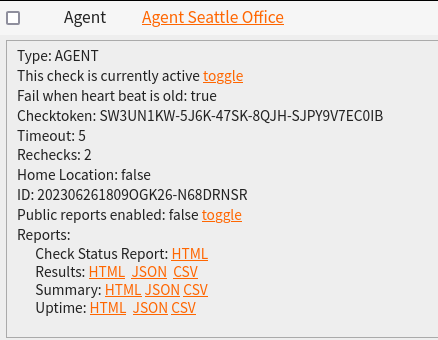
The Check ID and Checktoken in the example above are used to tie this instance of the AGENT running on your computer to the check running on NodePing. They can be found with the check information on the NodePing site:
The install command will set up the AGENT to run, and at this point you can now create checks to be assigned to this AGENT. To do that, create a check, and in the “Region” dropdown, select the name of the AGENT you just created. After creation, you should begin to see the checks running on your AGENT.
Additionally, if you want to take advantage of our Automated Diagnostics or our other Diagnostic Tools, you can start the Diagnostic Client on your computer as well:
Now that you have the AGENT software running on your computer, and the AGENT check set up and connected, we can start assigning checks to run on this AGENT. In this scenario, let us assume we have an internal web server at 192.168.20.150, an internal DNS server we want to query at 192.168.20.100 and make sure it is returning 192.168.20.150 for our internal webserver FQDN internal.example.com, and lastly test to see that we can ping something on the Internet too so we know our clients can connect to the Internet through the VPN.
For the Web server, let’s set up an HTTP check to run on the AGENT
Note the “Region” dropdown and that I selected the AGENT I created earlier.
Next we want to make sure that we are getting the proper internal IP address for that web server:
Here, we configure the check to make a query to the internal DNS server 192.168.20.100 and expecting the answer 192.168.20.150 for internal.example.com.
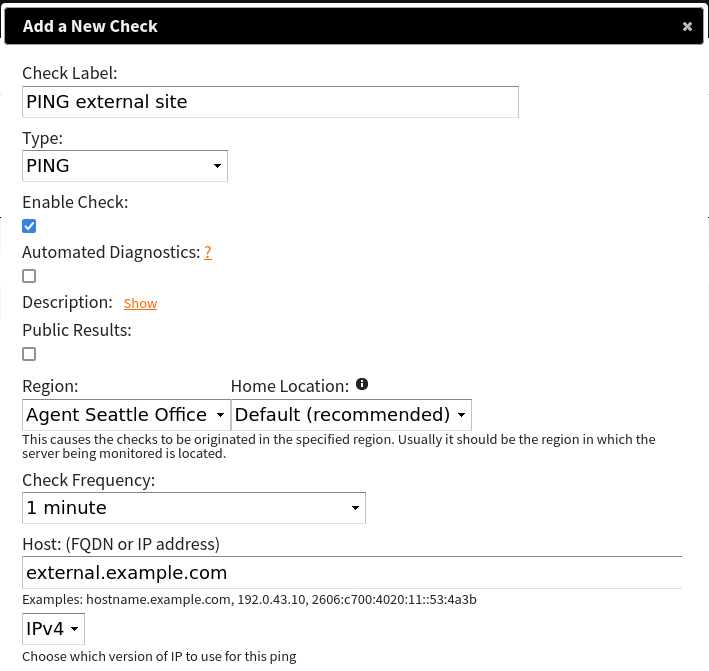
Lastly, we want to ping an external server to see that clients can reach the Internet. This is useful if you do want your VPN clients going out to the Internet too. For this example, we would ping external.example.com (note these aren’t real websites):
This is all only one example of many ways you could configure your VPN monitoring. Our AGENT is capable of handling all sorts of different monitoring tasks you may want to throw at it.
The NodePing AGENT is a robust feature we provide as a part of our Premiere plan. If you don’t yet have a NodePing account, please sign up for our free, 15-day trial and try out our on-premises monitoring and see how our AGENT can help you with monitoring your VPN connections.
NodePing has been providing distributed Internet availability monitoring since 2011. During that time we’ve made billions of HTTP requests, connected to a huge number of SSH servers, and sent boat loads of PINGs. Our systems have been listening for dropped volume levels on audio feeds, verifying SSL certificates, testing the response from email servers, checking DNS servers, and monitoring a whole slew of Internet services on every continent (except for Antarctica, yet).
The missing component, until recently, was monitoring for private networks. All of the monitoring mentioned above was availability monitoring from the Internet and required access through periphery firewalls to services. That works well for public facing services, but it leaves out a lot of services and systems that are not (and should not be) publicly accessible. We’ve been working for a few years to find just the right approach to safely and reliably provide private network monitoring, and we think we’ve found it in our new AGENT check type.
Our AGENT check allows you to install a small agent on a machine in your local network and run most of our standard check types just about anywhere you have a Linux box available. The software is small and very efficient, and is a really easy install. Once it is running, you can assign checks to your private location using our normal UI, or through our API.
The agent runs on node.js, and the code is available on github for you to review and audit. The software can run under a regular user, and does not need any elevated privileges. Only your account has access to run checks on your agent instances.
So now you can easily assign PING, HTTP, SSH, DNS, PORT, and most of our other check types to a machine on your private network, to monitor services that should not be accessible from the Internet. Monitor your private Intranet, make sure your private database servers are accepting connections on your network, and verify internal DNS responses. This solution scales well, is easy to start, simple to maintain, and like the rest of NodePing’s monitoring services, it just works.
Since our AGENT check runs our standard check types, it is a great compliment to our PUSH check type, which remains available and actively supported as well. The PUSH check type is designed for you to customize and monitor basically anything on your local machine that is quantifiable by a local script. Together, these check types allow you to fully monitor your private networks and resources, safely and reliably.
The AGENT check is available now on all Provider accounts. If you don’t have a NodePing account yet, we offer a 15 day free trial. Give it a try!
It’s the access point of your business. The bridge between you and the world. It’s how potential customers find and judge your business. They scan your landing page, consider your prices and products, and ideally, fork over their money. But what if they couldn’t?
There are a thousand and one reasons your website might be down, but that doesn’t matter to a customer. Every second your website is down is a potential customer lost, and potential income going to a competitor. How many customers can you afford to lose because they try to visit your website when it isn’t working? You need to know the instant your website goes down – a way to check your uptime. That’s where website monitoring comes in.
Website monitoring companies like NodePing periodically check your website and alert you when we can’t connect. We aren’t just some guys sitting at our computers pressing refresh every so often. NodePing has servers all over the world that can check your website as often as once a minute. If our probes cannot connect to your site, or it takes longer than you say it should for the site to respond we’ll immediately crosscheck from different locations globally and notify your contacts quickly so they can get things working again.
You can be alerted by our eight notification methods and all our plans include unlimited international SMS. With notification scheduling, you can choose who gets notified when, so the right people are alerted as soon as possible so you can get your website fixed and back up, making money.
NodePing was created by a pair of nerds who know the challenge of trying to maintain a website. We wanted to create a service that you could set and forget. We don’t have flashy graphs or cute pictures. We just quickly and accurately monitor your uptime. Simple as that.
So what is Website Monitoring? It’s what can save you from losing customers. It saves you money. Buy peace of mind by starting a free trial at NodePing.com.
NodePing is an Internet web site and server monitoring service at an amazing price, allowing you to check all your website and servers as frequently as every minute, for as little as $10 a month. Our low prices include unlimited international SMS, slack, and email notifications. The 'Premiere' plan also includes unlimited voice notifications.







 The missing component, until recently, was monitoring for private networks. All of the monitoring mentioned above was availability monitoring from the Internet and required access through periphery firewalls to services. That works well for public facing services, but it leaves out a lot of services and systems that are not (and should not be) publicly accessible. We’ve been working for a few years to find just the right approach to safely and reliably provide private network monitoring, and we think we’ve found it in our new
  NodePing