NodePing Authentication with Microsoft Entra OpenID Connect

NodePing supports OpenID Connect (OIDC) authentication, allowing you to leverage SSO and multi-factor authentication by using an authentication provider that supports them. We support Google and Microsoft OpenID authentication as well as (on Premiere plan accounts) custom OIDC providers.

In a previous blog post we shared how you can get started with using OIDC with NodePing using Keycloak. In this blog post, I will share with you how you can get Microsoft Entra set up to handle authentication for you with NodePing’s custom OIDC provider feature.

Entra User Configuration

Before configuring Entra to work with NodePing, it is important to make sure your users have the proper configuration. The NodePing contact must include the same email address as your user has in Entra. To ensure your email address in Entra is correct for your user, go to Identity -> Users -> All users. Select the user you want to update, click Edit properties and go to the Contact Information tab.

Ensure that the Email field matches the email that you have set for your NodePing contact. Note that if the email is present only in the “Other emails” section in Entra, logging into NodePing will fail. On the NodePing side, the contact records can have multiple emails, and the address from Entra just needs to be present as one of them.

Entra Admin Center

Head to the Entra Admin Center and in the left side panel go to Identity -> Applications -> App registrations. There, select “New registration” to create a new registration. Enter a name, such as “nodeping” and select the supported account types. In this example, I chose “Accounts in this organizational directory only”.

Set the Redirect URI https://app.nodeping.com/authredirect/<your-nodeping-account-id&gt; and select Web from the dropdown menu.
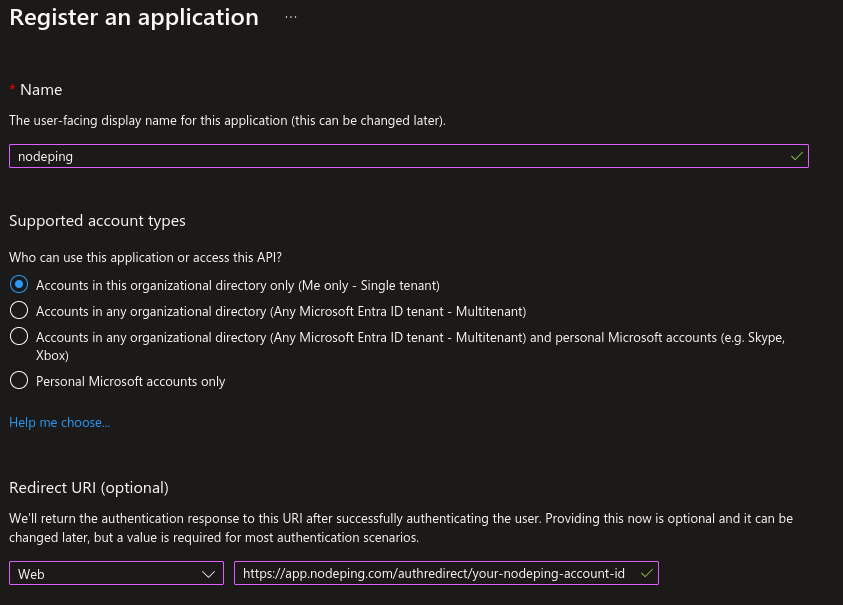
Next click “Register” at the bottom of the page.

Afterwards, go to “API permissions” and go down to the “Other permissions granted for” section. You should see a Microsoft Graph Permissions name labeled “email”. Click the 3 dot menu and choose “Add to configured permissions”.
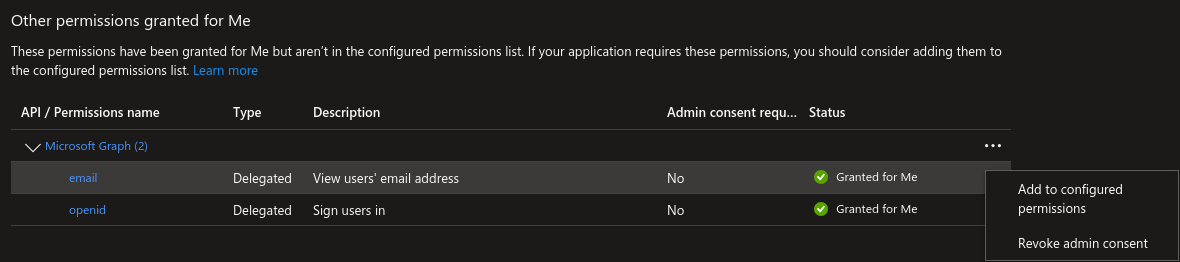
You will be prompted to select “Yes, add”.

If the email permission isn’t in the “Other permission” section, select “Add a permission”, and in the right side panel that pops up select Microsoft Graph, then Delegated Permissions, and check the email checkbox in the OpenId permissions section below, and select “Add permissions”.

Following that, you will need to generate a secret. Go to “Certificates & secrets” and select “New client secret”. Give it a description and expiration according to your organizational needs. You will need the Value for the next step.

NodePing Custom OIDC Configuration

On NodePing, sign in and go to Account Settings -> OpenID Connect.

Here you will need:

  1. The Discovery URL
  2. The Client ID
  3. The Client Secret

The Discovery URL can be found in the Overview section, and selecting Endpoints. You will need the URL labeled “OpenID Connect metadata document”. Paste that into the Discovery URL. For the clientID, you need the Application (client) ID displayed in the overview page of your App registration you made on Entra. Lastly, the clientSecret that was generated earlier in the “Certificates & secrets” page in Entra. Note here that the clientSecret is the “Value,” a long string with special characters. There is also a “Secret ID” listed with the secret, but that is not what you need here.

Once complete, click save.

NodePing User Auth Types

Now, configure your NodePing user to sign in with custom OIDC. In NodePing’s webapp, go to Contacts -> List Contacts. Edit the contact you want to permit OIDC authentication with by selecting “Custom OIDC Authentication” as an allowed auth type and save the contact. This option will only be present for those who have a Premiere account. This NodePing contact will need the same email address that corresponds with the email address of the Entra user.

Logging In

To login to NodePing using Entra, visit https://app.nodeping.com/login/[your NodePing account id] and signed in there. This should direct you to Entra where you can sign in. If everything worked, you should be back at NodePing and signed in. Alternatively, on the login page, change the login method to “Custom OIDC Authentication” in the Login Method dropdown menu and enter your NodePing account ID there.

This blog post isn’t intended to address other policies or settings you may have to set up with Entra, or how to make policies for your users. This basic example configuration is a starting point toward integrating Entra with NodePing. Ensure that your configuration of users and other policies are in alignment with your organization’s requirements and adjust as necessary. For additional information, Microsoft provides some resources here and here to guide you through configuring OpenID Connect authentication with Entra.

If you don’t have a NodePing account yet, give it a try! We offer a free, no-obligation 15-day trial. The best way to see if NodePing meets your needs is to try it out.

NodePing Authentication with Keycloak OpenID Connect

NodePing supports OpenID Connect (OIDC) authentication, allowing you to leverage SSO and multi-factor authentication by using an authentication provider that supports them. We support Google and Microsoft OpenID authentication as well as custom OIDC providers.

In a previous blog post we shared how you can get started with using OIDC with NodePing. In this blog post, I will share with you how you can get Keycloak set up to handle authentication for you with NodePing’s custom OIDC provider feature.

Server Setup

When setting up Keycloak, I chose to install Keycloak on the current Ubuntu LTS, Ubuntu 24.04. I first made sure everything was up to date on the server, then I installed openjdk and postgresql:

$ apt install openjdk-21-jdk postgresql postgresql-contrib

Next, I created the keycloak user:

$ groupadd keycloak
$ useradd -r -g keycloak -d /opt/keycloak -s /sbin/nologin keycloak

I fetched the latest keycloak tarball and extracted it:

$ wget https://github.com/keycloak/keycloak/releases/download/25.0.4/keycloak-25.0.4.tar.gz
$ mkdir /opt/keycloak
$ tar -zxf keycloak-25.0.4.tar.gz --strip-components=1 -C keycloak/
$ chown -R keycloak: /opt/keycloak

If you have existing SSL certificates, place them on the server. In this tutorial, I am going to assume you already have certificates that Keycloak will use.

PostgreSQL

Next, a database needs to be created for Keycloak. Sign into the postgres user and use psql to access the database. Run these commands in postgres to create the database:

CREATE DATABASE keycloak;
CREATE USER keycloak WITH PASSWORD 'replace-this-with-a-good-password';
GRANT ALL PRIVILEGES ON DATABASE keycloak TO keycloak;
\c keycloak
GRANT ALL ON SCHEMA public TO keycloak;

Keycloak Conf

Edit the /opt/keycloak/conf/keycloak.conf file:

db=postgres
db-username=keycloak
db-password=replace-this-with-a-good-password
db-url=jdbc:postgresql://localhost/keycloak
https-certificate-file=/path/to/cert/file.pem
https-certificate-key-file=/path/to/cert/file.key
hostname=example.com

Systemd Service Unit

Since this is on Ubuntu, I created a system unit file to make starting/stopping the server easy. I made this unit file at /etc/systemd/system/keycloak.service

[Unit]
Description=Keycloak Authorization Server
After=network.target

[Service]
User=keycloak
Group=keycloak
ExecStart=/opt/keycloak/bin/kc.sh --config-file=/opt/keycloak/conf/keycloak.conf start
ExecStop=/opt/keycloak/bin/kc.sh stop
Restart=always
RestartSec=3
Environment="KEYCLOAK_ADMIN=admin"
Environment="KEYCLOAK_ADMIN_PASSWORD=very-strong-admin-password"
[Install]
WantedBy=multi-user.target

Then start the server

$ systemctl daemon-reload
$ systemctl enable keycloak.service
$ systemctl start keycloak.service

Once the server is successfully started and you are able to login, go back and edit the keycloak.service file and remove the KEYCLOAK_ADMIN and KEYCLOAK_ADMIN_PASSWORD environment variables, then run the above systemctl commands again to make sure everything is working well.

Configuring Keycloak

By default, Keycloak listens on port 8443 for secure connections. Up to this point, the example server would be accessed at https://example%5Bdot%5Dcom:8443.

Keycloak has a master realm for management of other realms. It is best to create another realm for users to have access to. Create a new realm by clicking the “Keycloak” dropdown menu in the upper left corner and select “Create realm”. I entered the name of the realm as NodePing for this example, but it can be anything. Then I selected “Create” and went to the new realm.

Follow the documentation to create a new user.

Create a Client

To have Keycloak authenticate with NodePing, a new Client needs to be created that can handle all the proper communications. Go to the Clients page and click “Create client”.

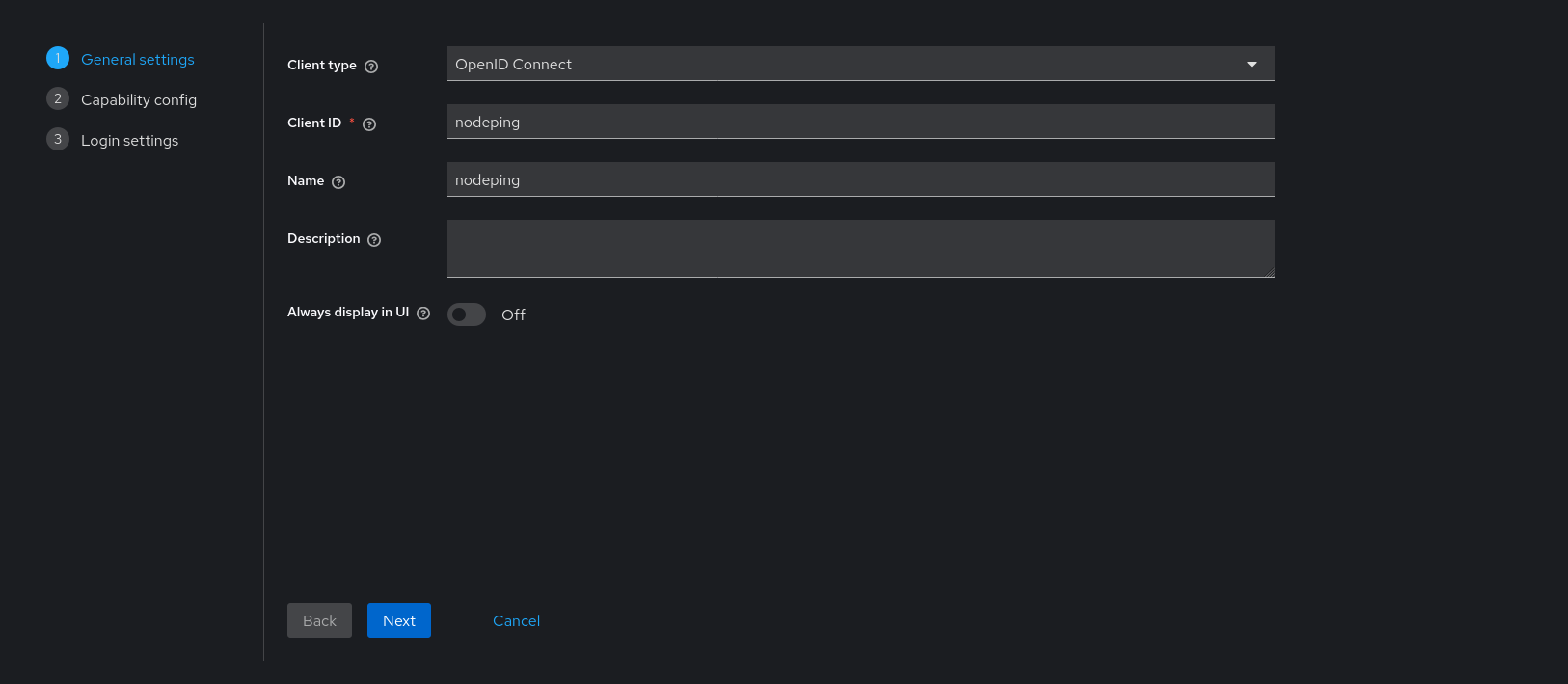
Fill out the first page of the new client. The client ID and name can be anything. The Client ID entered here will be part of configuring NodePing.

Click next. On page 2, set “Client authentication” to On.

Here, only “Valid redirect URIs” needs a value. It should look like this:

https://app.nodeping.com/authredirect/[your NodePing account id]

Select “Save”. Keycloak is ready to use with NodePing.

NodePing Custom OIDC Configuration

On NodePing, sign in and go to Account Settings -> OpenID Connect

Here, I need:

  1. The Discovery URL
  2. The Client ID
  3. The Client Secret

The Discovery URL can be found in the “Realm Settings” page. Go down to the Endpoints section. Copy the URL named “OpenID Endpoint Configuration”. It should look something like https://example[dot]com:8443/realms/NodePing/.well-known/openid-configuration.

The Client ID is what I entered on the first configuration page when creating the Client. I called it “nodeping”.

Lastly, I need the secret. This is found in the Client information. Go back to Clients -> nodeping -> Credentials. The Client Secret is there. Paste it into the clientSecret section in NodePing and select Save.

NodePing User Auth Types

Now, I can configure a user to sign in with custom OIDC. In NodePing’s webapp, go to Contacts -> List Contacts. I edited the contact I want to permit OIDC authentication with by selecting “Custom OIDC Authentication” as an allowed auth type and saved my contact. This NodePing contact will need the same email address that corresponds with the email address of the Keycloak user.

Next I have to go to a different URL to do my custom OIDC sign in. I visited https://app.nodeping.com/login/[your NodePing account id] and signed in there. This should direct me to Keycloak where I can sign in. If everything worked, I should be back at NodePing and signed in. Alternatively, on the login page I can change the login method to “Custom OIDC Authentication” in the Login Method dropdown menu and enter my NodePing account ID there.

If you run into any troubles, you can reference the previous blog post for information. Additional information is provided in the custom OpenID Connect page to know what information you need to provide and how to login. If any issues arise in configuring Keycloak, Keycloak has a comprehensive server administration guide available.

If you don’t have a NodePing account yet, give it a try! We offer a free, no-obligation 15-day trial. The best way to see if NodePing meets your needs is to try it out.
A NodePing UI Refresh, Finally

For the first time since our launch in 2011, NodePing is rolling out a major user interface update. We’ve continually added features over the years, but now, after 13 years, we’re introducing a completely revamped UI to enhance your experience. At the same time, the UI Refresh also brings a number of often-requested feature enhancements.

Why the Change?

Aside from the obvious fact that the old one looks like it was designed in 2011, our new UI is designed to streamline your workflow and improve usability, and scale better for handle large numbers of checks more easily. That will be particularly important for our customers with thousands of checks.

While the visual design has been updated this isn’t just a visual change. We have taken advantage of the opportunity to add or enhance several features, and implement some features previously only accessible through our API.

Some New Features at a Glance:

  • Dark Mode: For us sysadminy-types that dwell in low light!
  • API Key Management: Easily manage API keys (available on plans with API access).
  • Audit Logging: Keep track of all activities with audit logs (Premiere plan – 60 days retention).
  • Check Tags: Group your checks with customizable tags.
  • Contact Notification Suppression: Disable messages types on a contact method level.
  • Location Templates: Create your own “regions” with location templates.
  • Data Export: Export data easily from most list types.
  • Improved Authentication: Use Google and Microsoft OpenID Connect, plus support for custom OIDC setups (Premiere plan).

We Want Your Feedback

Your input is crucial to us. Let us know your thoughts on performance, user experience, and functionality. And if you happen across a bug, please let us know at support@nodeping.com.

Not a NodePing User Yet?

Sign up now for a 15-day free trial—no credit card required. Experience NodePing’s powerful monitoring with our enhanced user interface.

Monitoring Cron Jobs

NodePing makes monitoring your cron jobs easy with our PUSH checks. Each time your server runs a cron job, you can also have that cron job send results to NodePing to track successes and failures. Ensuring cron jobs are running properly is crucial to reliable operations. It is good to know if the cron jobs on your servers are running as you would expect, and receive alerts when they aren’t.

PUSH checks rely on basic HTTP POST requests to NodePing, which lets you submit data to give you insights into your systems. This method provides a lot of flexibility, since PUSH checks have the option to track numeric values.

Getting Started

To get started, I need to think about the cron jobs that are important to me so I can decide which cron jobs I want to monitor. Most commonly, I like to submit results with backups that I automate. I have a variety of options with how I can integrate my cron jobs for backups with NodePing PUSH monitors. For example:

  1. Insert the heartbeat into a script
  2. Use NodePing’s premade PUSH clients

First, I’m going to create the check for my cron job monitor. I set a label that is easy for me to recognize, set the check type to PUSH. I have a single field I will call “backups” with min/max values of 0 and I also set the check frequency to one day, since this is a daily backup. I set my min/max values to 0 since my backup program returns an exit code of 0 on successful backup, and anything else is some sort of failure. NodePing will see the 0 and mark the check as passing, or if my backup program returns something other than 0, NodePing will mark the check as failing and send me notifications.

After creating that check, I open the check drawer so I can see my ID for the check and Checktoken. I will be using this information in my cron job.

Insert the Heartbeat Into a Script

My first option is that I can add submitting results to an already existing script. I use a program such as curl, netcat, wget, or openssl to do my HTTP POST. I can either insert the one liner at the end of my script and have it POST the same data every time, or, if the job fails, I can write my script to submit a pass or fail value, which I am doing in my backup example using ‘curl’. Below is a snippet of my backup script called do_backup.sh:

#!/usr/bin/env sh

# do backup
...

# Use backup tool's exit codes to decide success/failure
complete=$(echo $?)

curl -X POST -H "Content-Type: application/json" --data "{\"data\":{\"backups\":$complete}}" 'https://push.nodeping.com/v1?id=202306261809OGK26-3IQZJE0H&checktoken=OZS4N4G2-7A6U-4N86-8PV0-067F25B7TFHO'

In my curl command, I submitted the $complete variable’s value to NodePing. When I submit the value 0, the check is marked as passing by NodePing. However, if my backup utility exited with a code of 1, curl would submit that 1 to the NodePing PUSH check, and it would be marked as failing since I configured the check to pass only when the value is 0. This way, I will get a notification right away when a cron monitor fails or starts passes again. My cron job for my backup script runs every day at 1am:

0 1 * * * /bin/sh /usr/local/bin/do_backup.sh

If you do not wish to use curl, you can use something like netcat, wget, or openssl:

With netcat-openbsd

BODY=”{\”data\”:{\”backups\”:$complete}}”
BODY_LEN=$(echo -n “$BODY” | wc -c)

echo -ne “POST /v1?id=202306261809OGK26-3IQZJE0H&checktoken=OZS4N4G2-7A6U-4N86-8PV0-067F25B7TFHO HTTP/1.1\r\nHost: push.nodeping.com\r\nContent-Type: application/json\r\nContent-Length: ${BODY_LEN}\r\n\r\n${BODY}” | nc -c push.nodeping.com 443

With openssl

BODY="{\"data\":{\"backups\":$complete}}"
BODY_LEN=$(echo -n "$BODY" | wc -c)

echo -ne "POST /v1?id=202306261809OGK26-3IQZJE0H&checktoken=OZS4N4G2-7A6U-4N86-8PV0-067F25B7TFHO HTTP/1.1\r\nHost: push.nodeping.com\r\nContent-Type: application/json\r\nContent-Length: ${BODY_LEN}\r\n\r\n${BODY}" | openssl s_client -connect push.nodeping.com:443

And with wget

wget -q -O- --post-data "{\"data\": {\"backups\":$complete}}" 'https://push.nodeping.com/v1?id=202306261809OGK26-3IQZJE0H&checktoken=OZS4N4G2-7A6U-4N86-8PV0-067F25B7TFHO'

NodePing’s Premade PUSH Clients

On GitHub, NodePing provides a repository with premade clients and modules to get started. NodePing currently provides POSIX shell, Python, and PowerShell client scripts. The premade client gives me the option to create my own module and export the data without having to worry about how to write the HTTP POST part. This means I can submit results, like above, by modifying an existing script to work as a PUSH module. I will create a module with the POSIX client, and modify my script to work with the client.

Configuring the Client

I visited the GitHub page to download a zip file or I can use git to fetch the code directly using the following command:

$ git clone https://github.com/NodePing/PUSH_Clients.git

I then made a copy of the POSIX client. A convention I tend to follow is to create a folder named something like “backup_cron_job_202306261809OGK26-3IQZJE0H” where the name is the label of the PUSH check in NodePing and the check ID that is generated when the check is created.

I created the folders and copied the contents of the POSIX client with these commands:

$ mkdir -p push_clients/backup_cron_job_202306261809OGK26-3IQZJE0H
$ cd push_clients/backup_cron_job_202306261809OGK26-3IQZJE0H
$ cp -r ~/PUSH_Clients/POSIX/NodePingPUSHClient/* ./

The contents are now in the backup_cron_job folder. In the modules folder I created a folder and file called “backups”

~/../backup_cron_job_202306261809OGK26-3IQZJE0H $ mkdir modules/backups
~/../backup_cron_job_202306261809OGK26-3IQZJE0H $ touch modules/backups/backups.sh

The script would contain this snippet:

#!/usr/bin/env sh

# do backup
...

# Use backup tool's exit codes to decide success/failure
complete=$(echo $?)

echo "{\"backups\":$complete}"

The client will handle submitting this result for you. In the moduleconfig file, I removed the default contents and added backups to the file

I added my checkid and checktoken to NodePingPUSH.sh file

Lastly, I made the NodePingPUSH.sh script and my backups/backups.sh script executable. When I run the NodePingPUSH.sh script, it will run my backup, then submit a success or failure to NodePing. After making sure it worked right, I added the client to my crontab to run my backup at 1am, just as before, but using the PUSH client

0 1 * * * /bin/sh /home/backupuser/push_clients/backup_cron_job_202306261809OGK26-3IQZJE0H/NodePingPUSH.sh -l

I added the -l to the end of my cron job to let the client log the successes and failures locally as well.

Conclusion

There is a lot of flexibility with NodePing’s PUSH checks that allows me to monitor my cron jobs. I showed you how I can insert an HTTP POST request into my existing scripts that I run via cron, or I can use the NodePing PUSH clients (or write my own in another language if I chose). Cron job monitoring is possible with any language too, and is not limited to shell scripts. PUSH checks are a very versatile tool NodePing offers, and it can go far beyond monitoring cron jobs.

If you don’t yet have a NodePing account, feel free to try out our 15-day, free trial and get started, having the assurance that your cron jobs are running, and get notified when they are not.

Integrate NodePing Alerts with Matrix

In this post, I will show you how you can get NodePing webhook alerts integrated with a Matrix server. In this demonstration, I will be focusing on the matrix-synapse server and Element client, namely, Element’s hosted web client for configuring Matrix to receive NodePing alerts. Matrix comes with some SDKs that can be used to more programmatically handle events and create bots, but I want to provide an option that doesn’t take much effort to set up.

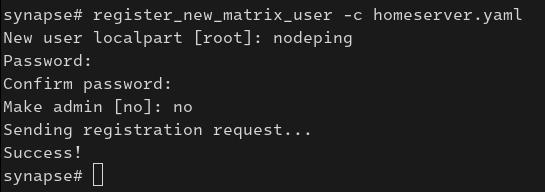
To get started, I created a new account on my home server. This account will be the one that is receiving the webhooks and sending messages to the room. Think of it as a bot, and not a user to use on the daily. I followed the instructions from the synapse documentation to create a new user. For security purposes, I run a home server with registration disabled. I chose the alternate method of running `register_new_matrix_user` to create the new user, that way I did not have to enable registration on my server.

Now that I have the new user created, I signed into Element with the account I created and proceeded to create a private room.

I made the room invite only, and left end-to-end encryption enabled, though end-to-end encryption is optional. After the room is created, I invited the users to the group that I wanted to receive the alerts.

Creating the Webhook Contact

Now that I have my notifications user in place and users invited to the room, it is time to integrate Matrix with NodePing. I need 2 pieces of information:

  1. The room ID
  2. The “bot” user’s access token

Getting the Room ID

The Room ID is created when the room was created. I need to go to the settings menu for that room to get the ID. First, I click on the room’s 3-dot button so I can go to settings

Then, I go to Advanced to get the Internal room ID

Next, I need to get the Access Token for my user. This is a secret token you do not want to share with anyone. However, it will be used as part of my webhook contact. I went to the quick settings menu for my user that will be sending the NodePing alerts and selected “More options”:

I went to the Help & About menu and scrolled down to the bottom to get to the Access Token section. I copied the access token out. I also made note of the Homeserver mentioned below in the Advanced section. The Homeserver, Access Token, and Room ID are going to be needed in the next step to create the webhook.

Creating the Contact

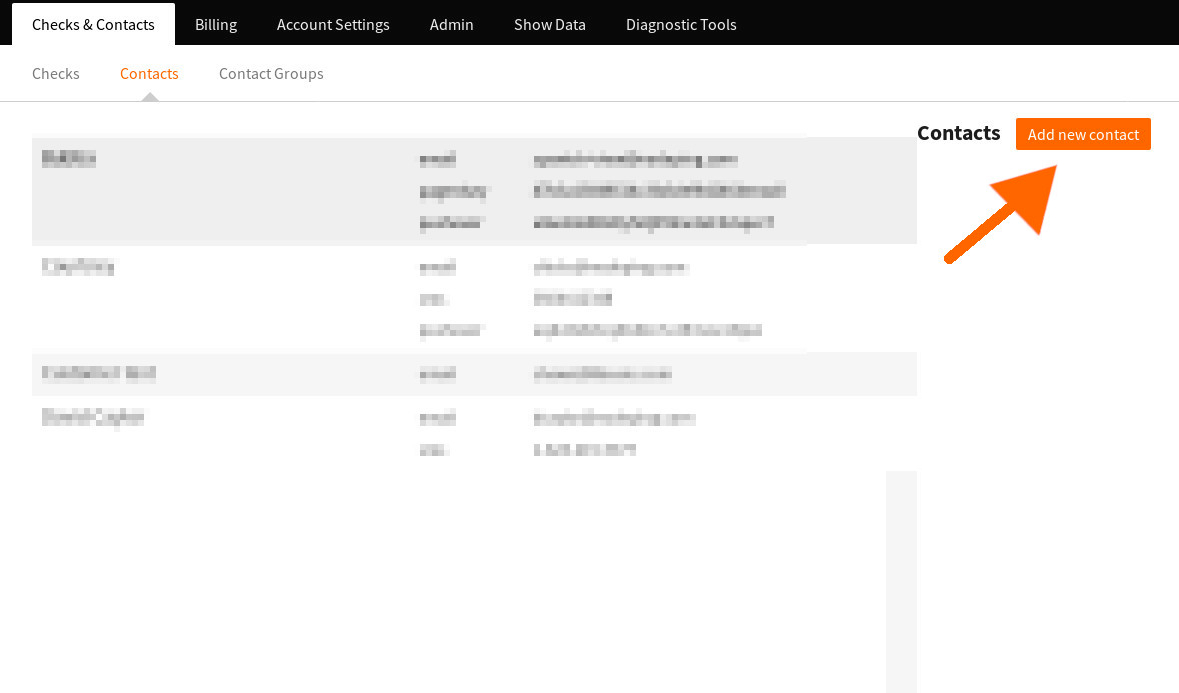
Next, I signed into my NodePing account and selected Contacts, and Add new contact:

I gave my contact a name. Then I clicked the dropdown menu and selected Webhook. That shows another dropdown for Preset Services. I chose Matrix and clicked Apply Template. The default URL should be something like:

https://matrix.org/_matrix/client/r0/rooms/%5Byour encoded internal room id]/send/m.room.message

I am not using the default https://matrix.org home server, so I changed that. However, if you are using the default home server, keep matrix.org. Next I need to replace [your encoded internal room id] with the Room ID. The Room ID needs to be URI encoded. The “!” needs to be changed to “%21” and the “:” to “%3A”, like below

!abcde123456789:matrix.org

%21abcde123456789%3Amatrix.org

The final URL will look something like this:

https://matrix.org/_matrix/client/r0/rooms/%21abcde123456789%3Amatrix.org/send/m.room.message

Next I went to the Headers tab. There is a value with [YOUR AUTH HERE] in the Authorization header that needs to be replaced with the access token. I pasted in my access token. I kept the Body as the default. With the homeserver correctly set, the room ID in the POST URL, and the Authorization header set, I saved the check.

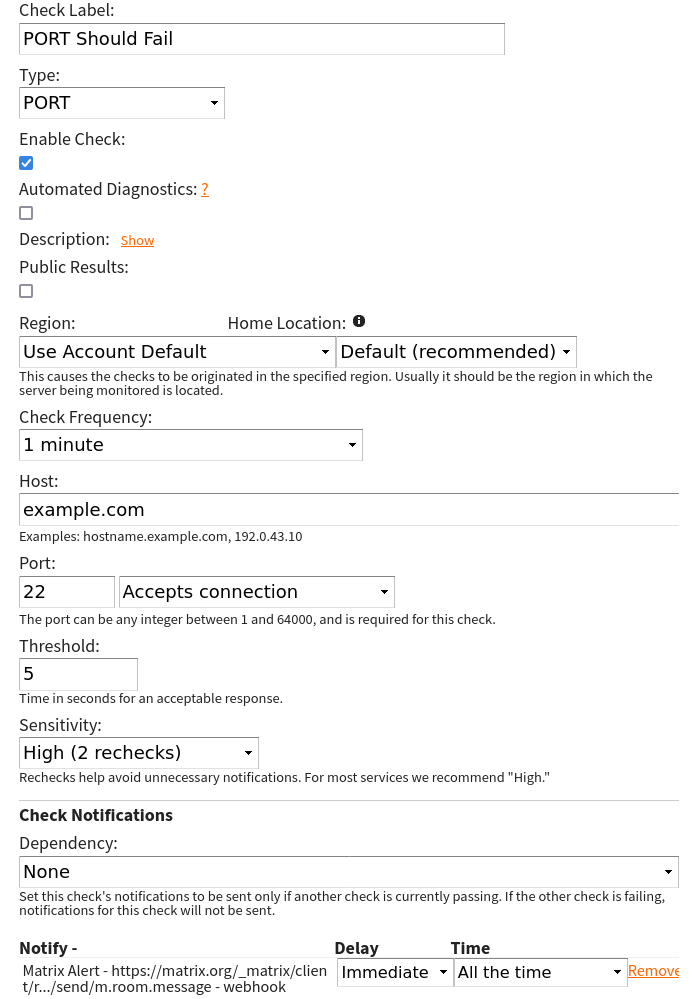
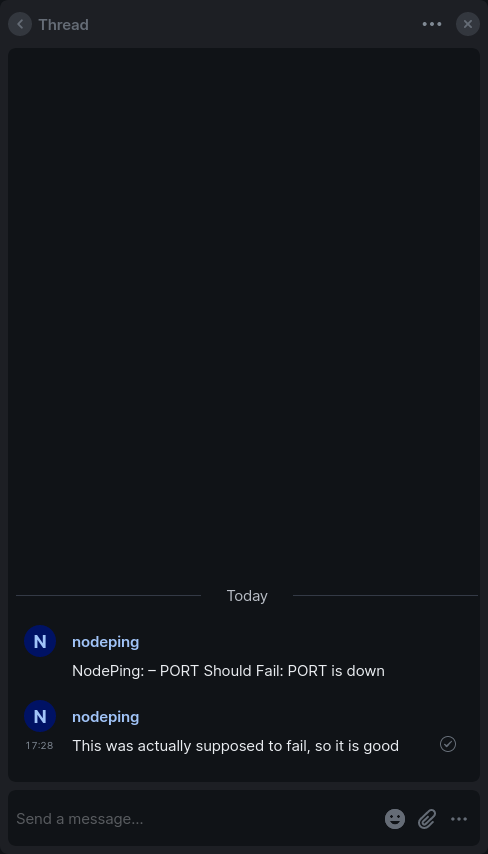
I created a check that I knew would fail intentionally and assigned the Matrix contact to the check and let it fail so I could get the alert and ensure it is working properly.

This confirms that the contact works, and now I can start assigning this contact method to my checks.

Some Useful Uses

Using with Notification Profiles

One thing I like to do is have two identical contact methods, but in one I add “IMPORTANT” to the body like below

{"body": "NodePing IMPORTANT: – {label}: {type} is {event}","msgtype": "m.text"}

This lets me do some tricks with notification schedules and notification sounds in Element. Maybe for some checks, I want to get notifications all the time, but I do not want the sound alert on my phone at certain times of the day. On my checks I have my Matrix contact that does not have “IMPORTANT” in the message send a notification all the time. However, the one that has “IMPORTANT” in the message will send on a certain schedule. In the Notifications settings on Element I created a keyword “IMPORTANT”, and then on the room I set notifications to only happen with Mentions & Keywords. That way, the messages sending all the time will not send an audible notification, but the messages with “IMPORTANT” will send me an audible notification.

Communicating About Incidents

With the Threads feature, when there is an incident, I can start a thread on that notification and communicate with the team about that incident, or I can make comments on the incident for future reference. This allows for convenient communication about an incident while not spamming the timeline where alerts are being displayed.

If you need help getting things working right, please let us know at support@nodeping.com.  If you don’t yet have a NodePing account, please sign up for our free 15-day trial.

Database Monitoring with NodePing

In our recent post ‘Beyond “Is It Up?” – Website Monitoring should be Comprehensive‘ we talked about how website monitoring should be wider than just measuring if a website responds to requests.  If you are responsible for website availability or performance you should of course be monitoring if the website responds in a timely manner, but you also should be monitoring status codes in the response, validating certificates and domain expiration, and DNS.  In today’s post I wanted to extend that discussion to another critical component of your infrastructure: monitoring database accessibility and performance.  Not only are databases a critical part of your web infrastructure, NodePing’s database monitoring can be a key element in your overall infrastructure monitoring that goes well beyond the web.

Monitoring Database Connectivity and Accessibility

As with any server monitoring, the first layer to consider is connectivity and accessibility.  Depending on your network infrastructure, this might mean some combination of PING, MTR, and PORT checks.  These check types can tell you if the database is accessible from places it should be, and make sure it remains inaccessible when it shouldn’t be.  In fact, it is a good idea to monitor your firewalls and routers with these check types.  At its most basic level, the PORT check tells us if your database servers are listening and responding on the expected ports.  The flip side of this is also important.  If your database should not be accessible from the Internet, running a check that monitors that can be just as important to make sure it stays that way. 

In testing connectivity, the PORT check can test just about any service.  For databases specifically, NodePing adds protocol aware monitoring for databases that respond to HTTP requests, as well as check types that understand the specifics of connecting to Redis, MySQL, PostgreSQL, and MongoDb databases.

Querying HTTP based databases with advanced HTTP check types

For databases with native HTTP support, using NodePing’s HTTP based check types can be really useful for monitoring the database performance, as well as monitoring specific responses.  For example, internally we have used our own monitoring to keep track of CouchDB databases for years.  This is useful for answering questions like 

  • Is the database responding in a reasonable time frame?
  • Is the database accessible using SSL/TLS, and is the certificate valid or about to expire?
  • Is the database listening and accessible to non-encrypted ports?  In our use case, this answer needs to be “No,” so NodePing’s capability to monitor that a port is not accessible is important here.
  • Are Couchdb views responding?  We keep some indexes that don’t get constant use warm with monitoring checks.
  • Are the actual values returned within expected ranges?  NodePing’s HTTP Parse check can make an HTTP request and then monitor specific fields within a JSON response to make sure it is within the expected range.  This is particularly useful in monitoring a Couch view that uses reduce.

Running Queries on MySQL, PostgreSQL, and MongoDb

NodePing has specialized check types that can monitor MySQL, PostgreSQL, and MongoDB specifically.  For these databases, NodePing’s monitoring can run a user-defined query and report on the response.  This allows you to run a custom query to track performance metrics, data counts, or set up alerts based on whether the responses are within a defined range.  If the expected response is a string, you can use regex to match the response to ensure it is what is expected.  These responses can be used to trigger notifications, graph values in your database, and store the data for future reference and analytics.

Security considerations for database monitoring

We already mentioned a few of the considerations around the security implications of database monitoring.  The database queries discussed above can use authentication where applicable.  For HTTP connections, as well as MySQL and PostgreSQL, the checks can be used to verify the encryption and certificates.  But a key element in monitoring databases is that in the vast majority of cases the databases should not be universally accessible.  NodePing’s AGENT based checks allow you to run these checks from your own networks, which means you get the full robust monitoring of NodePing’s checks, without opening your database ports to the outside world. In addition, our PUSH check type allows you to script database verification and push the results into NodePing for alerts and reporting.  This suite of check types and options together allow you to do robust monitoring for your databases without compromising your security.  In addition, we recommend that you use authentication to provide the monitoring with the least required access to do the necessary monitoring.

Monitoring Should be Comprehensive

From the outset NodePing has sought to provide website and server monitoring at a price point that allows you to run all the checks you need cost-effectively.  That’s because we believe that monitoring should be comprehensive.  You should be monitoring all of the components of your infrastructure in a way that when you are notified, you know immediately where a sysadmin response is needed.  Database monitoring is a critical component of this.  NodePing’s database monitoring can be a key part of your overall solution to ensure your services are all working as they should, and quickly tell you where the problem is in order to minimize disruptions.

Give it a try!  NodePing has a free, 15-day trial, so there is no risk to trying it out.  We think you’ll be impressed by how easy it is to get comprehensive monitoring in place, including for your databases, and how cost-effective and timesaving it can be as a part of your overall infrastructure management.

Beyond “Is It Up?” – Website Monitoring should be Comprehensive

When it comes to monitoring websites, the question most often asked is, “Is the site up?” While this is certainly an essential aspect, the answer hardly paints the whole picture. True website monitoring involves a plethora of factors that can affect the user experience and performance. These factors can often be hidden, and your user’s experience of you site might not be the same as what you are seeing from your network. With NodePing’s suite of tools, you have the ability to dig deep and understand the vital aspects of your website’s functionality. Let’s explore these considerations.

DNS Monitoring

Domain Name System (DNS) is the backbone of internet navigation, converting human-friendly URLs into IP addresses. Monitoring DNS health is crucial as an unresponsive DNS can render your site unreachable. Problems with DNS can be hidden by caching, and we are often asked why we are notifying about a site that seems to be working from the owner’s perspective. The answer is often that the site owner’s browser or DNS caching is making the site appear to be working when in fact for people who haven’t been on the site recently it appears to be offline because of DNS problems. NodePing offers robust DNS checks to ensure that your DNS servers are resolving correctly.

Monitoring Status Codes

Like with DNS, just checking with a browser can also miss situations in which the web server is actually responding with an error because the modern browsers try to show the page if they can. We often get messages from customers who’s website appears to be working but is actually returning status codes that indicate errors on the site. Even if the site looks right in your browser at the moment, you need to know if it is returning a status code in the 500 range indicating the server is throwing an error. Many content management systems or frameworks also return a visible page with a 404 Not Found status. NodePing’s HTTP checks watch for status code problems with your site.

Similarly, it is important to know if your site is properly following redirects. On some checks, you want the monitoring to follow the redirect to ensure that is getting the final page, and that page is responding with a 200 status code. You may also want to test specific URL’s for the 302 response as well. NodePing’s HTTP Advanced check allows you to ensure that a URL is returning a specific redirect response code.

SSL Certificate Validation

SSL certificates encrypt data transferred between users and your servers. Monitoring and receiving warnings about certificate expirations help you maintain trust and protect sensitive user information. Many of our check types include SSL validation, and and there is also a specialized SSL check that warns you if a certificate has a problem, as well as notifying you that your certificate will expire in a certain number of days. With NodePing, stay ahead with timely reminders and validations.

Domain Registration Expiration and the WHOIS Check

Keep track of your domain registration status with NodePing’s WHOIS checks. Understanding the ownership and registration details ensures that you stay in control of your domain and can prevent unexpected downtime.

Monitoring Other Services on the Host

If your website relies on additional services like databases or caching servers, monitoring them alongside the main site is essential. Integrating these checks into your monitoring strategy ensures that all parts of your site are functioning seamlessly.

CDN & Proxy Consideration

Content Delivery Networks (CDNs) and proxies enhance site performance but can complicate monitoring. By monitoring the back-end site directly, NodePing allows you to quickly pinpoint whether the issue lies with the CDN, helping you react quickly to any problems.

Tying It Together

Every notification your receive from your monitoring system should be actionable. Otherwise it becomes noise, and you either waste time or start ignoring alerts and miss important events. It is important to monitor every aspect of your site, but you don’t necessarily want ten notifications when the site is down. NodePing allows you to set a check as being dependent on another check, so you won’t get a stack of notifications if the dependent checks fail together.

Automated Diagnostics

NodePing’s has both on demand and automated diagnostics tools that provide extra insights when your site is down, supplying valuable information to help troubleshoot and resolve issues more efficiently.

Conclusion

Monitoring a website involves much more than merely checking if it’s up. With tools like NodePing, you can dive into a multitude of factors that contribute to your site’s performance and reliability. By understanding and keeping tabs on DNS, redirects, SSL certificates, domain registration, host services, CDN considerations, and more, you ensure a smooth user experience and robust site functionality.

At NodePing, we’re committed to helping you monitor your website from all angles. Get in touch with us to learn how you can take your website monitoring to the next level. If you don’t have an account yet, give it a try with our 15-day, free trial.

Custom Email Branding in NodePing

NodePing is pretty popular with hosting service providers and marketing companies that want to keep an eye on their customer’s websites and other Internet-facing services. One of the features they often use is to send NodePing email alerts from one of their own branded email addresses. Uptime alerts with your own ‘from’ email, like ‘support@examplecompany.com’, is a great way to keep brand recognition and increase cohesion with your customers and allows those customers to respond to alerts directly to your support system, not NodePing.

Setting a custom ‘from’ email address for NodePing email notifications is easy. You only need to:

  • Change the ‘from’ email in your branding settings
  • Update your SPF record to include NodePing’s SMTP servers

Email Templates

To change the ‘from’ email address for notifications, login to your NodePing account and navigate to Account Settings -> Branding. In the Notifications section, you’ll see there are 4 different email templates:

  • First
  • Up
  • Down
  • Diagnostic

You’ll need to modify the ‘From’ email address in each of those and click on the corresponding “Save…” button for each of the 4 email templates. It may take up to 10 minutes for those settings to take effect.

SPF Record

Your SPF record is a DNS record that tells email services where email from your domain is allowed to be sent from. If you try to send email from a server that isn’t in your SPF, there’s a good chance that email is going to get rejected or marked as spam. It’s basically a whitelist of IP addresses that are allowed to send email with your domain in the ‘from’ field.

If you don’t modify your SPF record, there’s an increased chance notification emails will bounce or be marked as spam. Let’s add the NodePing SMTP servers to your domain’s SPF record to increase deliverability. Modifying that special TXT DNS record usually happens at your domain registrar or DNS provider. You’ll need to login there and edit the existing SPF record. If one doesn’t exist, you’ll want to create one.

If you have an existing SPF record, you can add the following to it:

include:spf.nodeping.com

Sometimes an example is the best way to see how this modification is done. Below is an SPF record before adding the NodePing entry.

"v=spf1 include:_spf.google.com include:sendgrid.net ~all"

And now that same SPF record with the NodePing entry added to it.

"v=spf1 include:_spf.google.com include:sendgrid.net include:spf.nodeping.com ~all"

It doesn’t matter which order you put the NodePing entry in, so long as it’s after the ‘v=spf1’ part and before the ‘all’ part. Those need to bookend a valid SPF record.

Once that record is saved and propagated through DNS, your contacts should be able to receive NodePing alerts with your very own ‘from’ email address on them.

Customizing your NodePing email notifications is a great way to increase brand recognition and cohesion with your customers. With NodePing, you’ll be the first to know when services are offline. Quick detection means quick resolution and more uptime.

If you don’t yet have a NodePing account, please consider signing up for our free, 15-day trial. See for yourself why those who know, use fast, reliable, and affordable NodePing.

Monitoring VPN Connections with NodePing AGENTs

In today’s world, VPNs have become more popular and widely used. Some common use cases have been road warrior VPNs when you are on the go, site-to-site VPNs for satellite offices, and remote connections back to the office for those who work from home (WFH). Since VPNs have become so central to many of our activities, it is important to ensure that the VPN setup you are using is both available and working as intended. This sort of monitoring is readily available with our AGENT feature.

The NodePing AGENT is designed to run NodePing monitors on your own private infrastructure. The AGENT allows you to run checks you want from any network, as long as you can stand up a Linux computer to run the AGENT. This includes locations we do not have a public probe, like your local networks, and even over VPN connections. Once you have an AGENT created and running, you can assign checks to the AGENT as the location, and the checks will run on the AGENT automatically. Most of our check types are available to use to monitor services and connectivity, which allows you to monitor your VPN resources without having to allow our public probes into your network. No firewall changes needed!

The AGENT can work with many different VPN setups. For example, configuring your AGENT computer or VM to be a WireGuard peer to monitor a WireGuard VPN. This works with other VPNs as well, such as monitoring OpenVPN connections or you can monitor IPSec or IKEv2 VPNs. With connectivity to your remote network, you can run your checks to ping internal servers, do local DNS queries, which can be useful if you have a split-DNS configuration, or HTTP connections to your local servers, and it can test outbound connectivity to the Internet.

To get started running the AGENT, you need to first create an AGENT check on NodePing. This can be done either by signing into your account on our website, or via the API. You can find this information in our documentation. The AGENT check creates the AGENT instance so you can assign checks to it. The AGENT software also sends a heartbeat so you can ensure the AGENT is running and doing its jobs. To create the AGENT check, follow these steps:

  1. Click “Add new check”
  2. Select AGENT from the Check type drop down
  3. Label the AGENT to identify it, adding a meaningful location to the label. This label is what will appear in the locations list when you assign checks to run on the AGENT
  4. Set the Check Frequency. 1 minute is recommended
  5. Optionally set “Fail when heartbeat is old” so you can know if the Agent is not submitting results
  6. Set notifications for the check
  7. Then save the check

Next, to run the AGENT software on your computer, install NodeJS on your Linux distribution of choice, then you can proceed with installing the AGENT. The instructions can always be found on our GitHub repository, but for now, here’s the short version as an example:

$ git clone https://github.com/NodePing/NodePing_Agent.git
$ cd NodePing_Agent
$ npm install
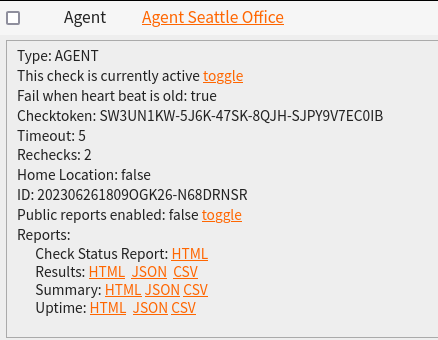
$ node NodePingAgent.js install 202306261809OGK26-N68DRNSR SW3UN1KW-5J6K-47SK-8QJH-SJPY9V7EC0IB

The Check ID and Checktoken in the example above are used to tie this instance of the AGENT running on your computer to the check running on NodePing. They can be found with the check information on the NodePing site:

The install command will set up the AGENT to run, and at this point you can now create checks to be assigned to this AGENT. To do that, create a check, and in the “Region” dropdown, select the name of the AGENT you just created. After creation, you should begin to see the checks running on your AGENT.

Additionally, if you want to take advantage of our Automated Diagnostics or our other Diagnostic Tools, you can start the Diagnostic Client on your computer as well:

node DiagnosticsClient.js >>log/DiagnosticsClient.log 2>&1 &

Now that you have the AGENT software running on your computer, and the AGENT check set up and connected, we can start assigning checks to run on this AGENT. In this scenario, let us assume we have an internal web server at 192.168.20.150, an internal DNS server we want to query at 192.168.20.100 and make sure it is returning 192.168.20.150 for our internal webserver FQDN internal.example.com, and lastly test to see that we can ping something on the Internet too so we know our clients can connect to the Internet through the VPN.

For the Web server, let’s set up an HTTP check to run on the AGENT

Note the “Region” dropdown and that I selected the AGENT I created earlier.

Next we want to make sure that we are getting the proper internal IP address for that web server:

Here, we configure the check to make a query to the internal DNS server 192.168.20.100 and expecting the answer 192.168.20.150 for internal.example.com.

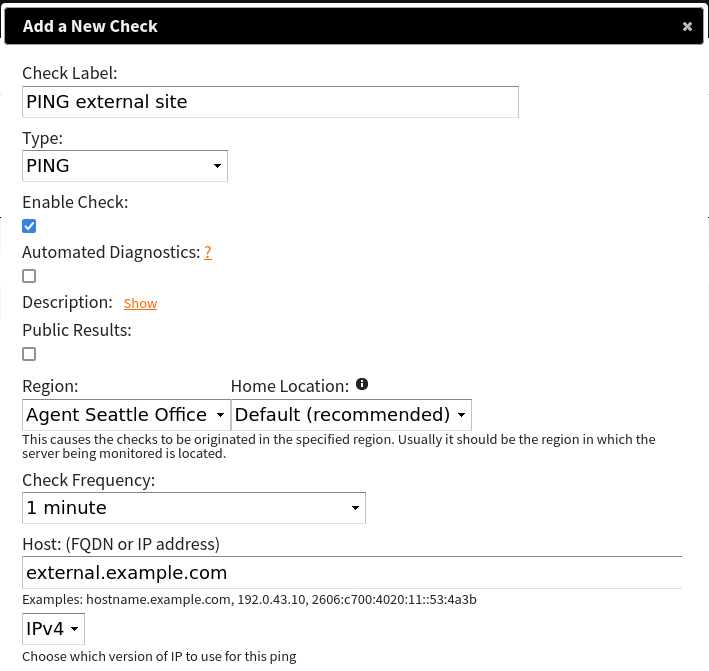
Lastly, we want to ping an external server to see that clients can reach the Internet. This is useful if you do want your VPN clients going out to the Internet too. For this example, we would ping external.example.com (note these aren’t real websites):

This is all only one example of many ways you could configure your VPN monitoring. Our AGENT is capable of handling all sorts of different monitoring tasks you may want to throw at it.

The NodePing AGENT is a robust feature we provide as a part of our Premiere plan. If you don’t yet have a NodePing account, please sign up for our free, 15-day trial and try out our on-premises monitoring and see how our AGENT can help you with monitoring your VPN connections.

Automated Diagnostics and Sub-minute Intervals

We’ve added a couple of new features to help you reduce downtime by keeping a closer eye on your services and getting you the information you need to troubleshoot when they fail.

Sub-minute Intervals

You can now set your check interval to 15 or 30 seconds. Shorter check intervals can detect and alert you to problems more quickly. The faster we detect it, the faster you can respond, the faster your service recovers.

Additional fees apply.

  • 30 second intervals – $0.20/check/month – only applies to enabled checks set to 30-second interval.
  • 15 second intervals – $0.40/check/month – only applies to enabled checks set to 15-second interval.

Sub-minute interval costs are calculated on active peak-usage, are post-paid, and will be charged on your next month’s invoice.

When seconds count, use sub-minute check intervals.

Automated Diagnostics

When a service fails, the first thing you want know is why.

When you enable Automated Diagnostics for a check, as soon as we detect it down, we’ll give you as much information about the failure as we have in the email notification.

For all check types, we provide any DNS resolution and full error message.

Each check type will have the most relevant data for that type. For example: HTTP-type checks, we give you the full request and response headers along with the first 250kb of data returned, SMTP checks, we provide the full SMTP conversation (commands and responses).

That info is sent in the ‘down’ email notification and saved to the event data so you can see it in the check status report.

We also trigger appropriate diagnostics based on the failure.

For timeouts and connection issues, we run an MTR from each probe that verified the failure so you can quickly see if it’s packet-loss, routing issues, or a firewall causing your service to fail.

For DNS issues, we run dig queries against all the listed nameservers for the FQDN so you can see if any are responding with expired or wrong data.

These automated diagnostic results are recorded in the event data for the check and optionally emailed to the contacts listed on the check as soon as we get the results.

This means you get fast and accurate info to help you troubleshoot, which means quicker interventions and less downtime.

Pricing and Plan Changes

Introduced with these new features is our new NodePing pricing changes and plans.

  • Personal – $10/month
  • Professional – $25/month
  • Premiere – $80/month

Additional pricing info can be found on our pricing page.

This is the second plan/pricing change in NodePing’s 10-year history. The last change was 9 years ago (2012). Our costs have risen over the years and the new features are pricey for us to offer.

Existing customers are grandfathered into their current plans/pricing but can upgrade at any time to get access to these new features.

If you do not yet have a NodePing account, please sign up for our free 15-day trial and see for yourself how these great new features reduce your downtime.