Monitoring Cron Jobs

NodePing makes monitoring your cron jobs easy with our PUSH checks. Each time your server runs a cron job, you can also have that cron job send results to NodePing to track successes and failures. Ensuring cron jobs are running properly is crucial to reliable operations. It is good to know if the cron jobs on your servers are running as you would expect, and receive alerts when they aren’t.

PUSH checks rely on basic HTTP POST requests to NodePing, which lets you submit data to give you insights into your systems. This method provides a lot of flexibility, since PUSH checks have the option to track numeric values.

Getting Started

To get started, I need to think about the cron jobs that are important to me so I can decide which cron jobs I want to monitor. Most commonly, I like to submit results with backups that I automate. I have a variety of options with how I can integrate my cron jobs for backups with NodePing PUSH monitors. For example:

  1. Insert the heartbeat into a script
  2. Use NodePing’s premade PUSH clients

First, I’m going to create the check for my cron job monitor. I set a label that is easy for me to recognize, set the check type to PUSH. I have a single field I will call “backups” with min/max values of 0 and I also set the check frequency to one day, since this is a daily backup. I set my min/max values to 0 since my backup program returns an exit code of 0 on successful backup, and anything else is some sort of failure. NodePing will see the 0 and mark the check as passing, or if my backup program returns something other than 0, NodePing will mark the check as failing and send me notifications.

After creating that check, I open the check drawer so I can see my ID for the check and Checktoken. I will be using this information in my cron job.

Insert the Heartbeat Into a Script

My first option is that I can add submitting results to an already existing script. I use a program such as curl, netcat, wget, or openssl to do my HTTP POST. I can either insert the one liner at the end of my script and have it POST the same data every time, or, if the job fails, I can write my script to submit a pass or fail value, which I am doing in my backup example using ‘curl’. Below is a snippet of my backup script called do_backup.sh:

#!/usr/bin/env sh

# do backup
...

# Use backup tool's exit codes to decide success/failure
complete=$(echo $?)

curl -X POST -H "Content-Type: application/json" --data "{\"data\":{\"backups\":$complete}}" 'https://push.nodeping.com/v1?id=202306261809OGK26-3IQZJE0H&checktoken=OZS4N4G2-7A6U-4N86-8PV0-067F25B7TFHO'

In my curl command, I submitted the $complete variable’s value to NodePing. When I submit the value 0, the check is marked as passing by NodePing. However, if my backup utility exited with a code of 1, curl would submit that 1 to the NodePing PUSH check, and it would be marked as failing since I configured the check to pass only when the value is 0. This way, I will get a notification right away when a cron monitor fails or starts passes again. My cron job for my backup script runs every day at 1am:

0 1 * * * /bin/sh /usr/local/bin/do_backup.sh

If you do not wish to use curl, you can use something like netcat, wget, or openssl:

With netcat-openbsd

BODY=”{\”data\”:{\”backups\”:$complete}}”
BODY_LEN=$(echo -n “$BODY” | wc -c)

echo -ne “POST /v1?id=202306261809OGK26-3IQZJE0H&checktoken=OZS4N4G2-7A6U-4N86-8PV0-067F25B7TFHO HTTP/1.1\r\nHost: push.nodeping.com\r\nContent-Type: application/json\r\nContent-Length: ${BODY_LEN}\r\n\r\n${BODY}” | nc -c push.nodeping.com 443

With openssl

BODY="{\"data\":{\"backups\":$complete}}"
BODY_LEN=$(echo -n "$BODY" | wc -c)

echo -ne "POST /v1?id=202306261809OGK26-3IQZJE0H&checktoken=OZS4N4G2-7A6U-4N86-8PV0-067F25B7TFHO HTTP/1.1\r\nHost: push.nodeping.com\r\nContent-Type: application/json\r\nContent-Length: ${BODY_LEN}\r\n\r\n${BODY}" | openssl s_client -connect push.nodeping.com:443

And with wget

wget -q -O- --post-data "{\"data\": {\"backups\":$complete}}" 'https://push.nodeping.com/v1?id=202306261809OGK26-3IQZJE0H&checktoken=OZS4N4G2-7A6U-4N86-8PV0-067F25B7TFHO'

NodePing’s Premade PUSH Clients

On GitHub, NodePing provides a repository with premade clients and modules to get started. NodePing currently provides POSIX shell, Python, and PowerShell client scripts. The premade client gives me the option to create my own module and export the data without having to worry about how to write the HTTP POST part. This means I can submit results, like above, by modifying an existing script to work as a PUSH module. I will create a module with the POSIX client, and modify my script to work with the client.

Configuring the Client

I visited the GitHub page to download a zip file or I can use git to fetch the code directly using the following command:

$ git clone https://github.com/NodePing/PUSH_Clients.git

I then made a copy of the POSIX client. A convention I tend to follow is to create a folder named something like “backup_cron_job_202306261809OGK26-3IQZJE0H” where the name is the label of the PUSH check in NodePing and the check ID that is generated when the check is created.

I created the folders and copied the contents of the POSIX client with these commands:

$ mkdir -p push_clients/backup_cron_job_202306261809OGK26-3IQZJE0H
$ cd push_clients/backup_cron_job_202306261809OGK26-3IQZJE0H
$ cp -r ~/PUSH_Clients/POSIX/NodePingPUSHClient/* ./

The contents are now in the backup_cron_job folder. In the modules folder I created a folder and file called “backups”

~/../backup_cron_job_202306261809OGK26-3IQZJE0H $ mkdir modules/backups
~/../backup_cron_job_202306261809OGK26-3IQZJE0H $ touch modules/backups/backups.sh

The script would contain this snippet:

#!/usr/bin/env sh

# do backup
...

# Use backup tool's exit codes to decide success/failure
complete=$(echo $?)

echo "{\"backups\":$complete}"

The client will handle submitting this result for you. In the moduleconfig file, I removed the default contents and added backups to the file

I added my checkid and checktoken to NodePingPUSH.sh file

Lastly, I made the NodePingPUSH.sh script and my backups/backups.sh script executable. When I run the NodePingPUSH.sh script, it will run my backup, then submit a success or failure to NodePing. After making sure it worked right, I added the client to my crontab to run my backup at 1am, just as before, but using the PUSH client

0 1 * * * /bin/sh /home/backupuser/push_clients/backup_cron_job_202306261809OGK26-3IQZJE0H/NodePingPUSH.sh -l

I added the -l to the end of my cron job to let the client log the successes and failures locally as well.

Conclusion

There is a lot of flexibility with NodePing’s PUSH checks that allows me to monitor my cron jobs. I showed you how I can insert an HTTP POST request into my existing scripts that I run via cron, or I can use the NodePing PUSH clients (or write my own in another language if I chose). Cron job monitoring is possible with any language too, and is not limited to shell scripts. PUSH checks are a very versatile tool NodePing offers, and it can go far beyond monitoring cron jobs.

If you don’t yet have a NodePing account, feel free to try out our 15-day, free trial and get started, having the assurance that your cron jobs are running, and get notified when they are not.

Monitoring the Server Room with NodePing – Part 3: Temperatures

In Part 2, I configured my Raspberry Pi to monitor temperature, humidity, and pressure with the Sense Hat. When I encountered issues with the Sense Hat needing weird tricks to properly measure temperature, I looked for alternative sensors. I found the DHT22/AM2302 sensors on Amazon to try out. I’ve noticed with some of these DHT22 sensors that you need to add an extra resistor along the way to the Pi’s GPIO pins. I like this one in particular because the resistor is integrated already. I grabbed my Pi from my server room and took it back home to configure it.

The DHT22 Sensor

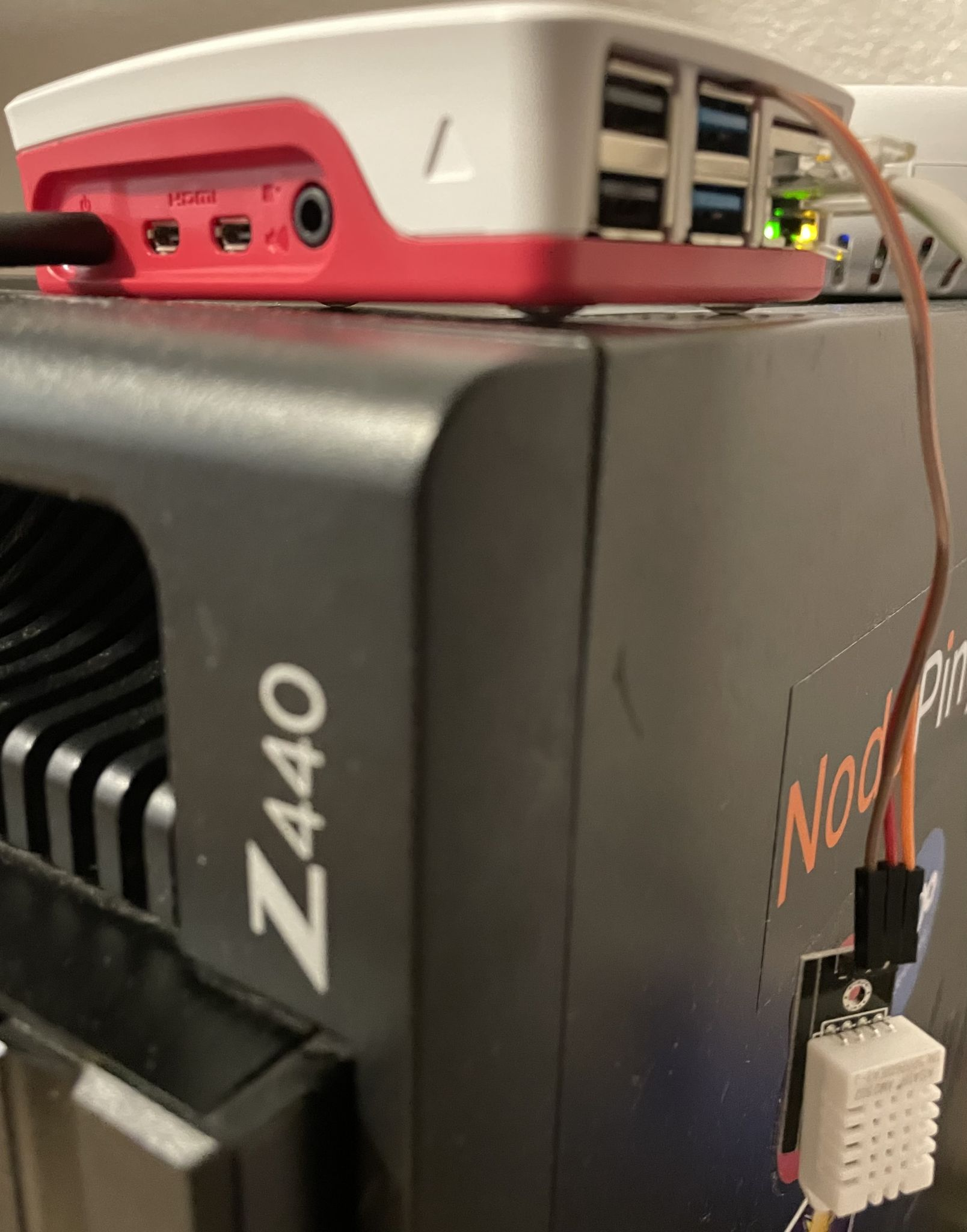
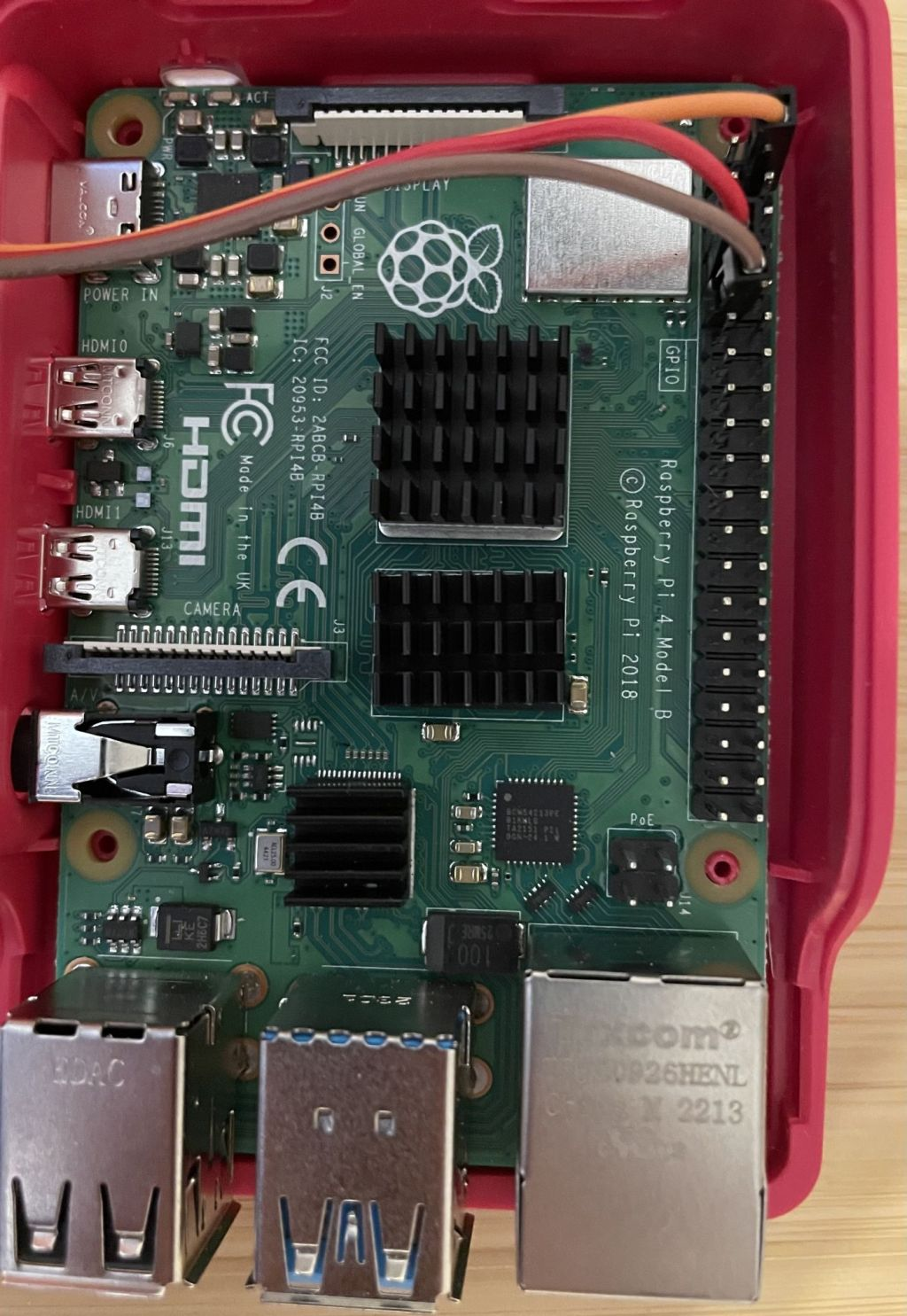
I won’t go much into detail on this sensor, but I found that compared to the other common DHT11 sensor, this one is most ideal because it has better accuracy and can be had for a similar price. So, I went with the DHT22 sensor. My package contained 2 DHT22 sensors, and six different colored cables. I wound up with orange, red, and brown cables. I connected the orange cable to power, red to data, and brown to ground. Below you can see how I connected the sensor to my Pi’s pinout. When looking at Raspberry Pi’s documentation, I connected orange to pin 2 (5V), red to pin 7 (GPIO 4), and brown to 9 (ground). If you intend on connecting the sensor to different GPIO pins, there will be some tweaking of the module needed on your part later.

The Software

I needed to install only a single piece of software to get this to work, in addition to a Python library. The software and Adafruit’s DHT Python library which I installed this way:

python3 -m pip install adafruit-circuitpython-dht
sudo apt-get install libgpiod2

User Setup

As in Part 2, I had to add my user to some groups to get my module working so I could collect temperatures and humidity:

$ usermod -aG video input gpio i2c pi

Creating the PUSH Check

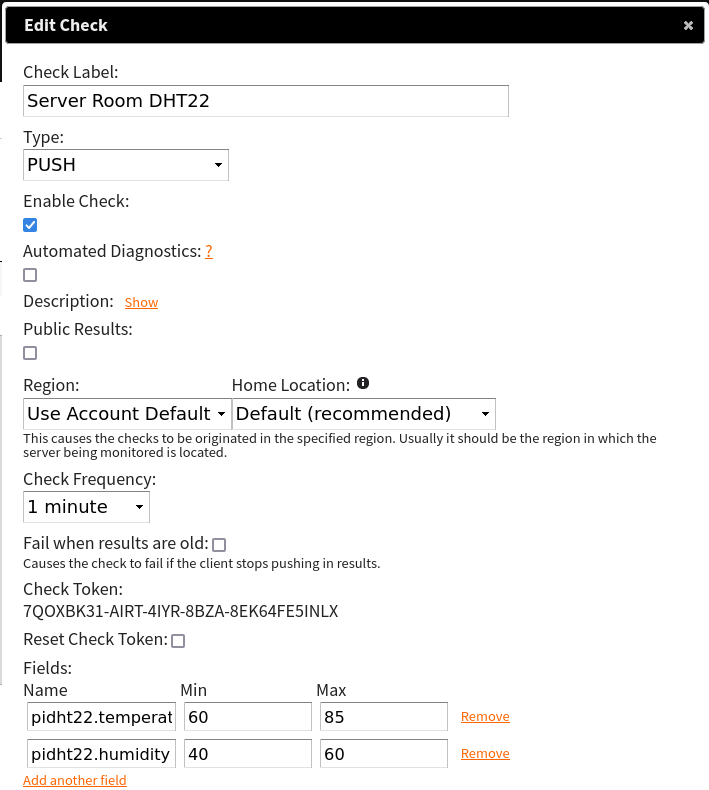
Before I can start submitting metrics to NodePing, I first need to create the check for me to submit results to. The check looks like this:

Below in the Fields section, the names should be:

  1. pidht22.temperature
  2. pidht22.humidity

Adjust the min/max values accordingly to what you consider a safe temperature and humidity. NodePing provides a DHT22 module for PUSH checks to work with the Raspberry Pi called “pidht22”. Since the DHT22 sensor does not have a neat LED array like the Sense Hat I used, it will only submit values to NodePing, and not do any of the cool LED displaying of information. If that is something you want, I suggest following our Part 2 guide with the Sense Hat.

Configuring the Client

Now that the check is created, I moved on to installing the PUSH client software on the Pi. To get the PUSH clients code, I can visit the GitHub page to download a zip file or I can use git to fetch the code directly using the following command:

$ git clone https://github.com/NodePing/PUSH_Clients.git

From here, I made a copy of the Python3 client. A convention I tend to follow is to create a folder named something like “server_room_dht22-202306261809OGK26-QLJGGVM1” where name is the label of the PUSH check in NodePing, and the check ID that is generated when you create that check in the NodePing web interface.

I created those folders using the command:

$ mkdir -p push-clients/dht22PUSH-202306261809OGK26-QLJGGVM1

You can call your folder whatever you want. I use this so I can easily find the right PUSH check in NodePing that corresponds to this PUSH client.

I will be using the pidht22 module to monitor my server room environment.

I copied the Python3 client code into the directory I made and cd’3d into that directory for easier editing:

$ cp -r PUSH_Clients/Python3/NodePingPython3PUSH/* push-clients/server_room_dht22-202306261809OGK26-QLJGGVM1/
$ cd push-clients/server_room_dht22-202306261809OGK26-QLJGGVM1/

To make the PUSH check work, I have to edit 2 files:

  1. config.ini
  2. metrics/pidht22/config.py

At the end of config.ini, there is a modules section. It should contain this information:

[modules]
pidht22 = yes

You also want to include your check ID and checktoken in the server section:

Next is the config.py file for the module. This file has two variables:

  1. UNIT – set to “F” for Fahrenheit or “C” for Celsius
  2. PIN – The GPIO pin to use for data (if you follow this guide and connect to the same pins I did, you don’t have to change this variable)

The client should be configured now. I will now test it by running:

python3 NodePingPythonPUSH.py --showdata

This will let me see the data that would be sent to NodePing without actually sending it. This is just for testing and is a good way to make sure I edited those files correctly without impacting any uptime stats for the check in NodePing.

Lastly, I need to set up cron to run my PUSH client on a regular interval. I want this one to run every minute, so the cron line will look like the one below. To edit my cron tab, I run crontab -e and add the following entry:

* * * * * python3 /home/pi/push-clients/server_room_dht22-202306261809OGK26-QLJGGVM1/NodePingPythonPUSH.py

Now my check is running every minute and submitting my server room climate info to NodePing. This will allow me to track temperatures and humidity in the server room and notify me if the room is too hot/cold, humid/dry.

Ready to Roll

With the new sensor tested and running properly with NodePing’s PUSH checks, I gave it some days to trial run at home before I brought it back to my networking room to monitor temperatures and humidity.

Testing atop the home server

One thing I have noticed with this DHT22 sensor is how steady temperature reporting is. Since I had to calibrate my check for the Sense Hat to account for CPU temperatures, the temperatures were always within +/- 3 degrees of the actual temperature. With this DHT22 sensor, since I have the sensor away from the Pi, the temperature reporting is more steady and makes for cleaner looking results. You can even see from the graph where the humidity dropped when I opened my window, as well as when I had stopped submitting results during testing.

Conclusion

In the end, I found the DHT22 sensor to be a better choice for temperature monitoring . The price is lower and the results are more reliable, and I don’t have to worry about the processor on the Pi messing with the sensor. Additionally, I can use any case I choose and have access to the rest of the GPIO pins if I choose to add more to the Pi.

If you find this to be useful to you and want to try this configuration for yourself you can find all the code needed on the NodePing github. If you don’t yet have a NodePing account, please sign up for our free, 15-day trial.

Monitoring the Server Room with NodePing – Part 2: Sense HAT

In Part 1, I talked about getting started with monitoring my server room with NodePing’s PUSH and AGENT checks and the Raspberry Pi. On my continued path of server room monitoring I wanted to look into environment monitoring with the Raspberry Pi and NodePing’s PUSH checks. To follow up, I sourced a Sense Hat so I could bring a simple way to monitor my climate and get alerts on the metrics with NodePing. The Sense Hat has the capability of monitoring temperature, humidity, and atmospheric pressure. In this post, I will look at how you can integrate the Sense Hat into server room monitoring, configure notifications, and the pros and cons I found when testing the Sense Hat.

The Hardware

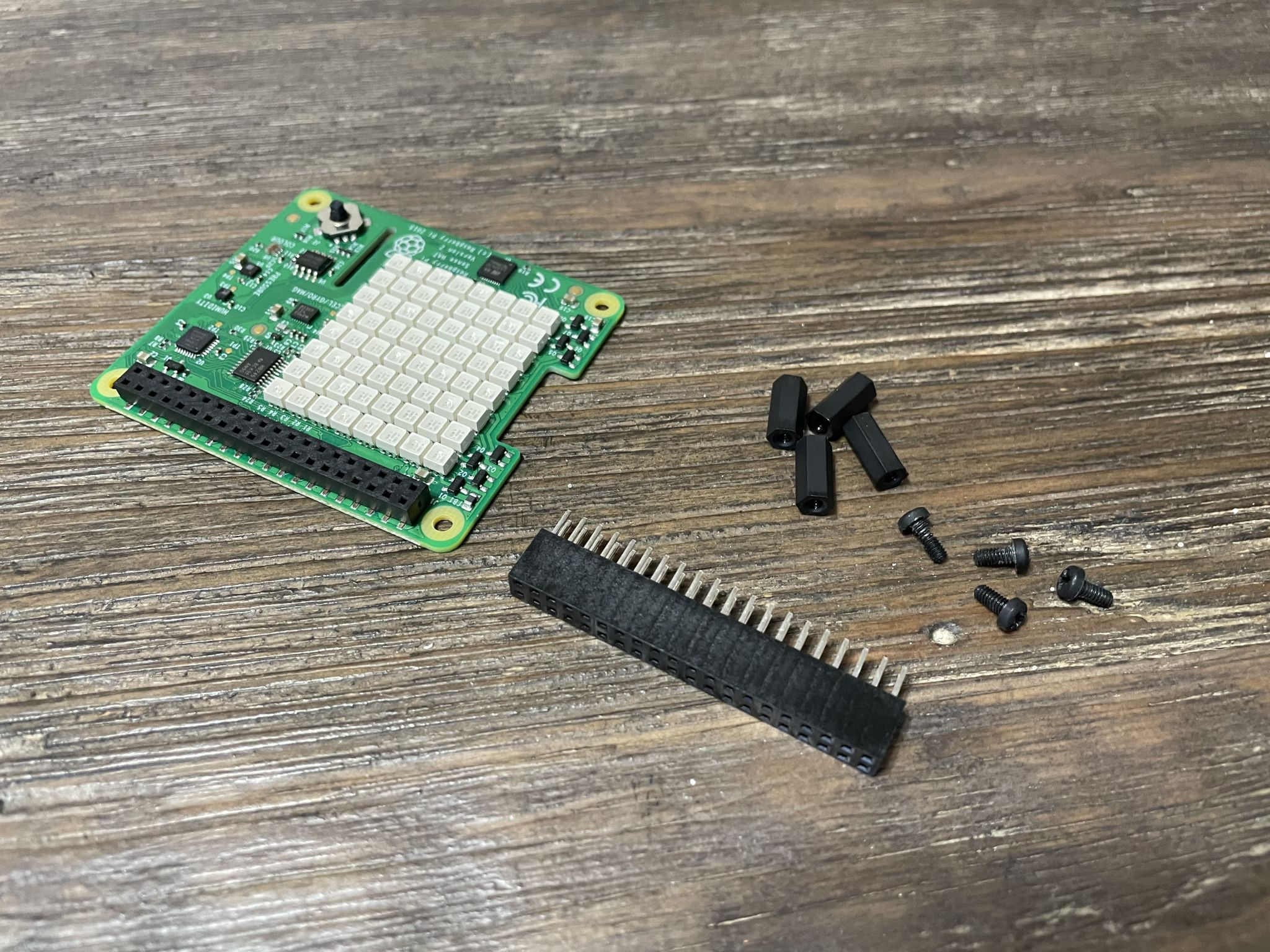
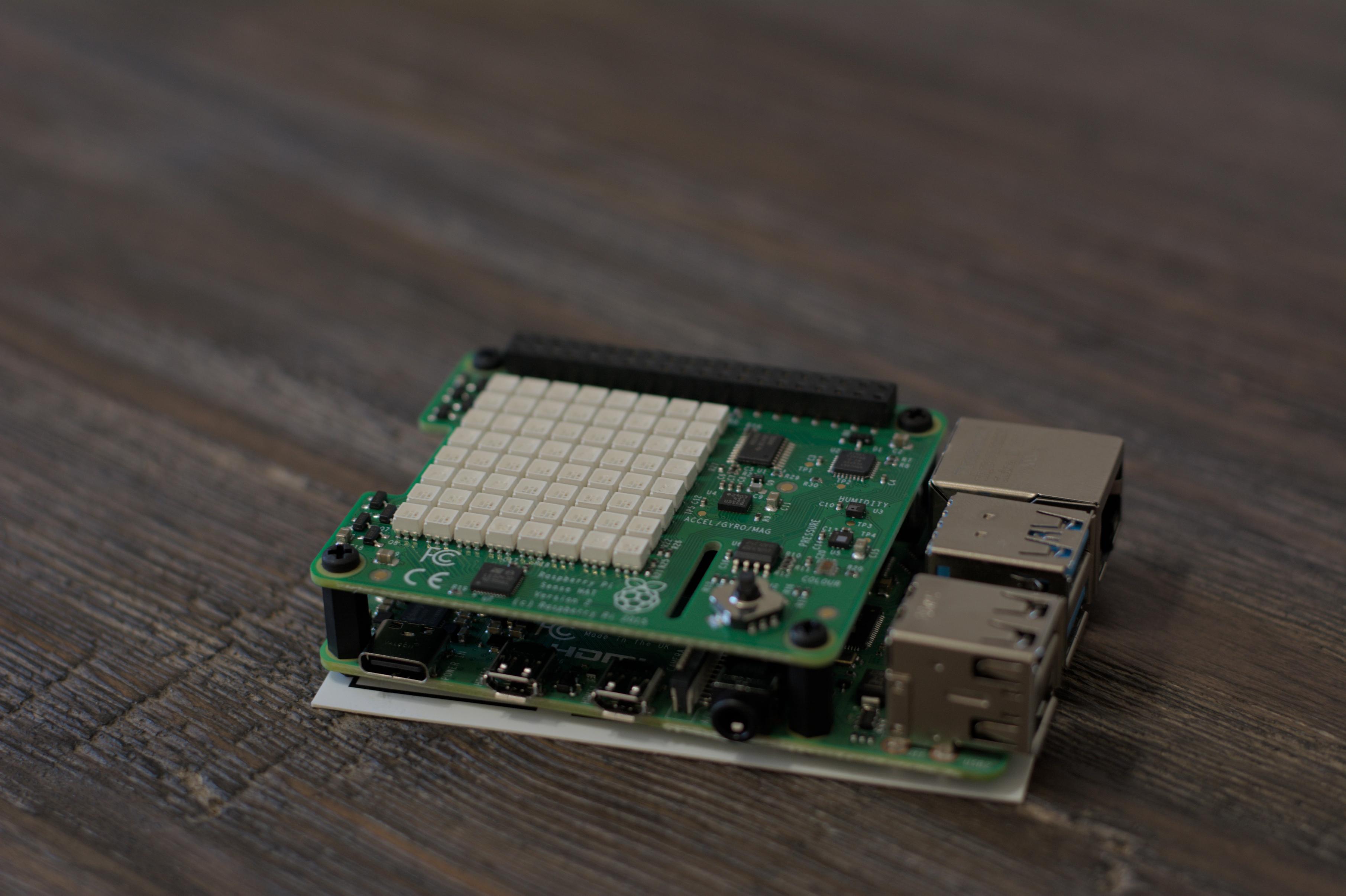
To start, the Sense Hat has to be installed. My Sense Hat came with some extra screws and standoffs, as well as a GPIO riser. I’ll use them and a compatible case to secure my Raspberry Pi and Sense Hat. Once the pieces were assembled together, I installed Raspberry Pi OS to a microSD card. The easiest way is to use the Raspberry Pi Imager like in the previous blog post. I put the formatted microSD card in the Pi and connect Ethernet and power.

The Software

There is only one extra dependency that I needed, and it may even be installed on your Raspberry Pi already. To be sure, I installed it with this command:

$ sudo apt install sense-hat

That is all that is needed in addition to what is in the base installation of Raspberry Pi OS.

Creating the PUSH Check

To start using the Sense HAT metrics with NodePing, I signed into NodePing and created a PUSH check. The check looks like this:

Below in the Fields section, the names should be:

  1. pisensehat.temp
  2. pisensehat.humidity
  3. pisensehat.pressure

Adjust the min/max values accordingly to what you consider a safe temperature. NodePing provides a Sense Hat Python 3 module for PUSH checks to monitor temperature, humidity, and atmospheric pressure called “pisensehat”. Not only will it submit the values to NodePing, but it also takes advantage of the Sense HAT’s LED array and will display basic environmental information so you can visually see the temp/humidity/pressure on the display.

User Setup

Out of the box, the first user I made belonged to the right groups to use the Sense Hat. However, I wanted to use a different user to run my PUSH client, so I ran this usermod command to add the pi user to the necessary groups to work with the Sense Hat:

$ usermod -aG video input gpio i2c pi

Configuring the Client

Now that the check is created, I moved on to installing the PUSH client software on the Pi. To get the PUSH clients code, I can visit the GitHub page to download a zip file or I can use git to fetch the code directly using the following command:

$ git clone https://github.com/NodePing/PUSH_Clients.git

From here, I made a copy of the Python3 client. A convention I tend to follow is to create a folder named something like “server_room_climate_202306261808OGK26-JEZ6ENNW” where name is the label of the PUSH check in NodePing, and the check ID that is generated when you create that check in the NodePing web interface.

I created those folders using the command:

$ mkdir -p push-clients/server_room_climate_202306261809OGK26-09S996LV

You can call your folder whatever you want. I use this so I can easily find the right PUSH check in NodePing that corresponds to this PUSH client.

I will be using the pisensehat module to monitor my server room environment. The pisensehat module does a bunch of different things. It:

  1. Collects temperature, humidity, and pressure values
  2. Formats the data to send to NodePing
  3. Lets you control the LED array
    • Turn it on/off
    • Rotate the LED array
    • Shows the status of your configured ranges for temperature(T), humidity(H), and air pressure(P):
      • Red = higher than the safe configured range
      • Green = within the safe configured range
      • Blue = lower than the safe configured range

I copied the Python3 client code into the directory I made and cd’d into that directory for easier editing:

$ cp -r PUSH_Clients/Python3/NodePingPython3PUSH/* push-clients/server_room_climate_202306261809OGK26-09S996LV/
$ cd push-clients/server_room_climate_202306261809OGK26-09S996LV/

To make the PUSH check work, I have to edit 2 files:

  1. config.ini
  2. metrics/pisensehat/config.py

At the end of config.ini, there is a modules section. It should contain this information:

[modules]
pisensehat = yes

You also want to include your check ID and checktoken in the server section

Next is the config.py file for the module. Configure this to your own needs. Mine contains this information:

# True if you want to output colors to LED array
LED_ON=True

### ROTATION
# Rotate 0,90,180,270 degrees to change orientation of LED array
LED_ROTATION=90

### TEMPERATURES
# C for Celsius or F for Fahrenheit
UNIT="F"
# Colors status
MIN_OK_TEMP=60
MAX_OK_TEMP=90
# The SenseHat temp is off by a little but can be corrected
# to compensate for the CPU temp contributing some heat
TEMP_CALIBRATION = 1.0

### HUMIDITY
MIN_OK_HUM=30
MAX_OK_HUM=70

### PRESSURE
MIN_OK_PRESSURE=29
MAX_OK_PRESSURE=31

Important information of note:

  • If you want the LED array to show you info, set this to True
  • If the LED output is upside down you can change its rotation by modifying LED_ROTATION
  • If you are submitting temps in Celsius, set UNIT="C"
  • The min/max for TEMP, HUM, and PRESSURE should match what was entered when you created the PUSH check on NodePing. These values will determine the color output on the LED display
  • I will talk more about TEMP_CALIBRATION later

The client should be configured now. I will now test it by running:

python3 NodePingPythonPUSH.py --showdata

This will let me see the data that would be sent to NodePing without actually sending it. This is just for testing and is a good way to make sure I edited those files correctly without impacting any uptime stats for the check in NodePing.

Lastly, I need to set up cron to run my PUSH client on a regular interval. I want this one to run every minute, so the cron line will look like the one below. To edit my cron tab, I run crontab -e and add the following entry:

* * * * * python3 /home/pi/push-clients/server_room_climate_202306261809OGK26-09S996LV/NodePingPythonPUSH.py

Now my check is running every minute and submitting my server room climate info to NodePing. This will allow me to track temperatures and humidity in the server room and notify me if the room is too hot/cold, humid/dry, and if the air pressure is too high/low.

Note on TEMP_CALIBRATION

While creating the pisensehat module for Python3, I noticed an odd problem with the Sense Hat that turns out to be a well known issue. The temperature sensor on the Sense Hat will change with the temperature of the processor. So if for example, you have a load average of 0.0 on the Raspberry Pi, the temperatures may be just 5 to 10F hotter than the actual ambient air. However, if the load goes up, the processor heats up and the temperature sensor will read much hotter. This will result in inaccurate readings for the room.

To best offset the temperature problem, I included a TEMP_CALIBRATION number in the config.py file. This is a best-effort method of calibrating the sensor to work with the current room temperature and account for the heat produced by the Pi’s processor. In my testing while running the NodePing AGENT and the pisensehat PUSH check, setting the value to 1.0 was relatively consistent with my other thermometers. The number could be different for you, and it is important to know that if your Pi’s load increases, so will your reported temperatures.

I have tried another sensor to work around the temperature issue with the Sense Hat, but I will save that for Part 3.

Another Issue

Another issue I came across in my Sense Hat testing was with the pressure sensor. The very first reading after boot seemed to report back a 0 no matter what. To fix this issue, the module reads from the pressure sensor two times to ensure it does not get and submit a 0.

Pi in the Wild

I have the Pi ready to go now. I took it to one of my networking rooms so I could monitor the environment in there. This room isn’t in any sort of datacenter so the conditions are more harsh with limited temperature and humidity regulation. The Raspberry Pi is perfect for this location so I can know if the air conditioning goes off, or if the humidity gets too low in the drier winter climate.

I connected the Pi to the switch and power and not long after starting up, the cron job started checking the environment and showed all green on the LED array. Success!

With the Raspberry Pi in place and monitoring my server room, I not only get the power of NodePing PUSH checks running on the Pi, but I also have an AGENT running to do some additional internal monitoring, as well as monitoring outbound connectivity.

If the temperature, humidity, or pressure fall outside of my configured ranges, I will be promptly alerted of the issue with the notifications I configured for the PUSH check. Additionally, if I am on premise, I can view the LED display to see if any of those environmental metrics is too high or low.

Check Status Reports

I like to have a visual graph of my environmental status so I created a status report page to get a visual representation in my browser of the environmental info from my check.

Now I have a live graph I can use to watch what is happening in my server room at this moment and over the last few hours. This is helpful for me to watch trends in my temperature, for example.

More to Come

Thanks to its versatility and availability of software packages, there is a lot that I can do with the Raspberry Pi to monitor my services and my surroundings. In Part 3, I will swap out the Sense Hat for a DHT22 sensor for monitoring instead of the Sense Hat to see if I can get better temperature readings without relying on mathematically offset values.

If you don’t yet have a NodePing account, please sign up for our free, 15-day trial.

Monitoring the Server Room with NodePing – Part 1

Monitoring services inside the server room is pretty easy with NodePing. I’m going to show you how I can keep an eye on my server room and its services using NodePing PUSH and AGENT checks. In this scenario, the room only contains network devices, so I chose to stand up a Raspberry Pi. It will also let me add temperature and humidity sensors in addition to monitoring stuff inside the firewall.

NodePing offers two different check types to allow me to do on-premise system, sensor, and network monitoring: PUSH and AGENT checks.

PUSH checks allow me to send heartbeats from any server to NodePing. I can also use the metric tracking to do things like monitor load, disk space, memory usage, and more. Basically any numeric value I can read or generate on a box can be submitted, tracked, and trigger notifications.

NodePing AGENT checks allow me to configure NodePing probe functionality, installed and maintained by me and available only to my NodePing account. I can use my AGENTs to run other NodePing checks from anywhere, even inside my private network, without needing to open up any firewall ports.

The PUSH and AGENT checks can run on a wide variety of hardware. In this blog post, I would like to show you how I configure NodePing on-premise monitoring tools to work on a Raspberry Pi.

Setting Up

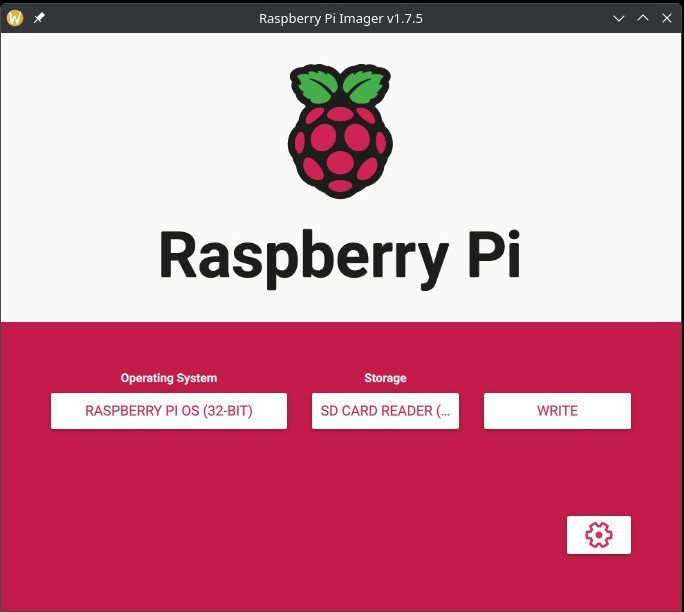
To get started with setting up the Raspberry Pi, I use the Raspberry Pi Imager to configure an appropriate version of RaspberryOS. I can use either the 32-bit or 64-bit options. Watch this quick video from Raspberry Pi on how to use their installer. The Imager can be obtained from their website. Below, I chose to use the default, and very popular, Raspberry Pi OS 32-bit. You can also select the 64-bit option as well as the Lite versions which are designed for headless installations if you don’t need a desktop environment. NodePing PUSH and AGENT checks work with all the different flavors of Raspberry Pi OS.

I intend on using this Pi in a headless configuration, without a keyboard or monitor always connected, so I go into the “Advanced Options” page in the imager and enable SSH. I’ll also need to configure a user, password, and necessary networking. It will need internet access either via wifi or ethernet to send check results to NodePing. I’m going to use one of the Lite versions in this case to reduce the amount of extra software that gets installed.

Enabling SSH, authentication settings, and setting a username and password.

Once the microSD card is imaged, I insert it into my Pi and fire it up… waiting for it to boot. I’m able to SSH in! Good start.

From here, I do some further SSH hardening and require the user I configured to have the password entered when I do any sudo commands.

Additionally, I update the packages on my Pi.

$ sudo apt update
$ sudo apt upgrade

Installing the PUSH Clients

PUSH checks can submit any numeric metrics to NodePing using an HTTP POST, and be used to trigger notifications of the PUSH check. The PUSH payload schema is discussed in the PUSH check documentation. I can also use one of the pre-defined clients available on GitHub. Currently, NodePing provides PUSH clients written in POSIX shell, Python, and Powershell. The POSIX shell scripts and Python scripts will work on the Raspberry Pi. If I want to use a different programming language to create my own client I might want to use the existing code as a reference.

I’m going to go with the POSIX client. To get the PUSH clients code, I can visit the GitHub page to download a zip file or I can use git to fetch the code directly using the following command:

$ git clone https://github.com/NodePing/PUSH_Clients.git

From here, I can either use the clients from the directory that was cloned, or make a copy of the individual client elsewhere. A convention I tend to follow is to create a folder named something like “pi_push_metrics_202306261808OGK26-JEZ6ENNW” where name is the label of the PUSH check in NodePing, and the check ID that is generated when you create that check in the NodePing web interface.

I created those folders using the command:

$ mkdir -p push-clients/pi_push_metrics_2023-06261809OGK26-JEZ6ENNW

You can call your folder whatever you want. I use this so I can easily find the right PUSH check in NodePing that corresponds to this PUSH client.

Configuring a PUSH Check

Now I’m going to copy the POSIX client from the git clone I made into the new folder I created above.

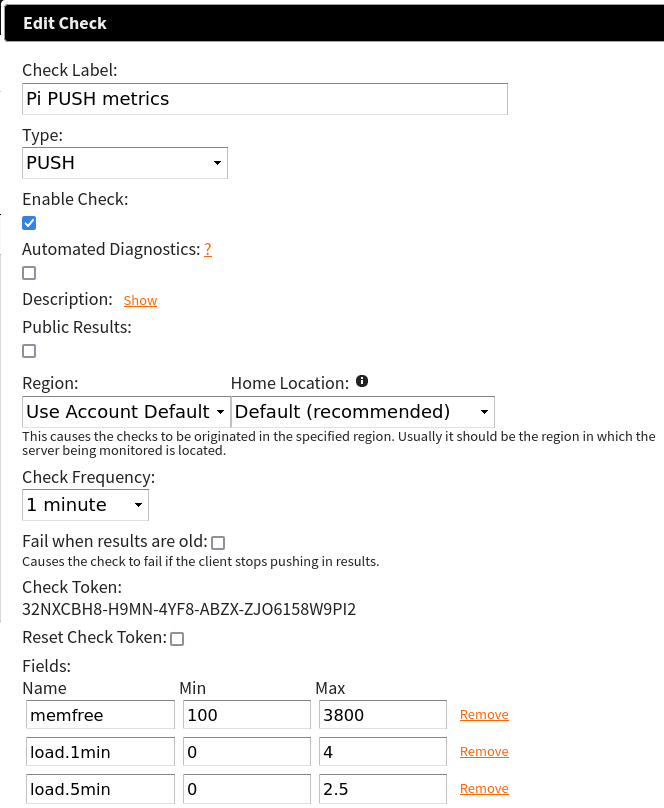
Installation instructions are available for each of the client types. For now, I will show you a quick demo of how to configure a PUSH client that will monitor free memory, and 1 and 5 minute load averages. I configured my check like so in the NodePing web interface:

This check will pass so long as the free memory is greater than 100MB and less than 3800MB, 1 min load is between 0 and 4, and 5 min load is between 0 and 2.5. This will help me keep tabs on when my system load is too high, and if my Pi is using more or less memory than expected. For the client on the Pi, I am interested in a few files:

  1. NodePingPUSH.sh
  2. moduleconfig
  3. The modules directory

I have to ensure NodePingPUSH.sh and the other .sh files are executable by this system user. For the moduleconfig file I only want to run the memfree and load module so I simply add those in the moduleconfig file.

The contents of the file are only the 2 lines “load” and “memfree”.

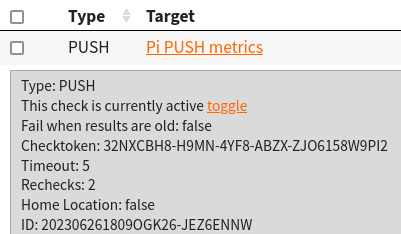
For the NodePingPUSH.sh file, I need to add my check ID and its checktoken. These are found in the check drawer.

The only variables needing editing are CHECK_ID, and CHECK_TOKEN.

After configuring those files I will run:

$ sh NodePingPUSH.sh -debug

This will let me see the data that would be sent to NodePing without actually sending it. This is just for testing and is a good way to make sure I edited those files correctly without impacting any uptime stats for the check in NodePing.

Lastly, I need to set up cron to run my PUSH client on a regular interval. I want this one to run every minute, so the cron line will look like the one below. To edit my cron tab, I run crontab -e and add the following entry:

* * * * * /bin/sh /home/pi/push-clients/pi_push_metrics_202306261809OGK26-JEZ6ENNW/NodePingPUSH.sh -l

The -l at the end of that line will make the script log to a NodePingPUSH.log file in that same directory. You can modify the logfilepath variable in NodePingPUSH.sh if you want to have your logs go to a different folder.

NodePing AGENT

PUSH checks are great for pushing arbitrary metrics into NodePing. However, if I want to run one of our standard check types in my network, without creating ingress holes in my firewall, NodePing AGENT checks are the way to go. Once the AGENT software is installed, I’ll be able to run checks directly on this Pi.

Installing NodeJS

To setup the AGENT, I need NodeJS and npm installed. Raspberry Pi OS makes this simple with a single command on the Pi:

$ sudo apt install nodejs npm

With those pieces of software installed, I can clone the AGENT software git repo to get that code. The instructions can always be found in the GitHub repository, but for now, here’s the short version of the commands I ran as an example:

$ git clone https://github.com/NodePing/NodePing_Agent.git
$ cd NodePing_Agent
$ npm install
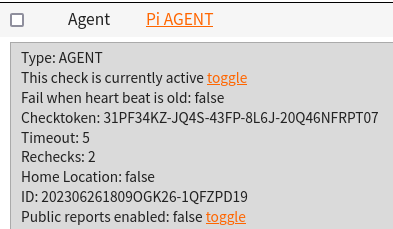
$ node NodePingAgent.js install 202306261809OGK26-1QFZPD19 31PF34KZ-JQ4S-43FP-8L6J-20Q46NFRPT07

The Check ID and Checktoken in the forth command example above are used to tie this instance of the AGENT running on my Pi to the AGENT check I created in NodePing. They can be found with the check information on the NodePing site:

The node NodePingAgent.js install command will set up the AGENT to run, and at this point I can now create checks on NodePing and assigned them to run on this AGENT. To do that, when I create a check in NodePing, in the “Region” dropdown, I select the name of the AGENT I made. When that check starts to run, I should begin to see it is being run from my AGENT, not the normal NodePing probes.

Here’s an example where I’m pinging an interval server, using the private IP address, from the AGENT on my Pi.

Note that the Region is set to the label we gave to the AGENT check. Now with the AGENT running, I can monitor anything I choose from this Pi, whether the servers are internal or external.

Diagnostics

I want to take advantage of NodePing’s Automated and On-demand Diagnostics so I want to start the Diagnostics Client on my Pi as well using the following command:

node DiagnosticsClient.js >>log/DiagnosticsClient.log 2>&1 &

The Diagnostics Client will allow NodePing to get MTRs, DNS, and other diagnostics to send me when my checks assigned there fail. It makes troubleshooting so much faster and easier.

This is Only the Beginning

Now I have a Raspberry Pi all ready to have NodePing collect a wide variety of metrics with my PUSH check and run as a custom NodePing probe with my AGENT check. I can use them to do all sorts of cool things.

In Part 2, I’ll add some hardware sensors to this Pi to measure temperature and humidity of my rack so alerts can be sent if either goes outside of a safe range. Fun stuff coming.

If you don’t yet have a NodePing account, please sign up for our free, 15-day trial.

PUSH Client Wizard

Last year, we introduced a new feature called PUSH Checks. This check type allows your server to push numeric metrics into our system, track the metrics, send a heartbeat, and receive alerts based on the results. This is a powerful tool, and we use it internally at NodePing to monitor system load, backup processes, gather metrics from logs, and a variety of other things. We’re also glad to hear about customers using this feature in interesting ways as well.

However, until now setting up a PUSH check could be challenging. You would have to create the check, download a copy of the client and configure it with the Check ID and Checktoken as well as configure the metrics. So today we’re releasing a PUSH Client Wizard (available on GitHub) that makes PUSH Checks really easy to configure and deploy across your systems using an interactive command line wizard. This Python 3 client is able to run on any system with Python 3.5 or newer, and has been tested on Linux, Windows 10, and FreeBSD.

Features

So what can it do? The wizard lets you list your existing PUSH checks, create new PUSH checks, and delete PUSH checks you no longer want.

When listing checks, it will show information such as:

  • Your check’s label
  • ID
  • Checktoken
  • If the check will fail when its results are old
  • PASS/FAIL status
  • If it’s enabled/disabled
  • Run Interval

When creating a check you can configure all sorts of information for the check such as:

  • The client you will use (POSIX, Python, Python3, PowerShell)
  • Information about the check (Label, interval, enabled, public reports, fail when old)
  • Metrics to gather for the check (or none for basic heartbeat functionality) and values for pass/fail
  • Contacts and their notification schedules
  • Client configuration
  • Remote/local deployment

Configuring the client is an optional step if you want to do it yourself. When configuring the client, you have the ability to deploy the new PUSH check client locally or remotely over SSH! Once the client has been configured, a cron job or Windows Task Scheduler event information will be provided so you can simply copy/paste the provided information at the end.

This tool will allow you to quickly and easily manage your PUSH checks so you can monitor your systems with PUSH checks in less time.

Give the wizard a try today!

We encourage pull requests for new features so if you make changes you think others would find useful, please do share.

If you aren’t using NodePing yet, you can sign up for a free, 15-day trial and test out our new PUSH checks yourself and give the new wizard a try.

PUSH Checks – Heartbeats and Metrics Monitoring

One of the most requested features we get is the ability to push monitoring results into NodePing. Today, we make good on all those requests and are happy to announce our latest check type, PUSH.

Unlike our other checks, PUSH checks allow your server to push metrics into our system, track the metrics, and receive alerts based on the results. This significantly adds to your ability to monitor services that are not Internet accessible, and monitor additional custom metrics. Our customers running LANs can now get heartbeats and metrics on internal servers like Windows AD controllers. Or, you can monitor metrics that are only relevant to your systems in ways that are specific to your environment. We’ll track and alert on any metric you want to push at us!

Heartbeats and Metrics

PUSH checks are configured to send results on a specific interval and you can configure the check to fail if we haven’t received a pushed result from you. This is the heartbeat functionality.

You can also push us a data payload of metrics with the PUSH check result and configure your check to track those metrics. The check will fail if any configured metric is missing or if the values in the result are outside your configured min/max range.

Metrics are great for keeping an eye on system load, disk free space, or any other service or system metric you can gather on a server and send to us.

PUSH checks are flexible and can be configured to be heartbeat-only, metrics-only, or both.

PUSH Clients

To send us your result (heartbeat or metrics), you’ll need to submit an HTTP POST to NodePing with information about the check and optionally the metrics. Details can be found in our in our PUSH check documentation.

We’ve got fully-functional, open-source clients in Python2, PowerShell, and POSIX script available on our GitHub public repo that have been tested with the following OSes:

  • CentOS 5 (Python2 and POSIX)
  • CentOS 6 (Python2 and POSIX)
  • CentOS 7 (Python2 and POSIX)
  • Debian 9 (Python2 and POSIX)
  • Devuan 2 (Python2 and POSIX)
  • Fedora 28 (Python2 and POSIX)
  • FreeBSD (Python2 and POSIX)
  • OpenBSD 6.3 (Python2 and POSIX)
  • OpenSUSE LEAP 15 (Python2 and POSIX)
  • Raspbian STRETCH (Python2 and POSIX)
  • Ubuntu 14.04 (Python2 and POSIX)
  • Ubuntu 16.04 (Python2 and POSIX)
  • Ubuntu 18.04 (Python2 and POSIX)
  • Windows server 2012 (Python2 and powershell)
  • Windows server 2016 (Python2 and powershell)

Download a client and follow the instructions in the client README.md file to set up your PUSH client.

An example of the default metrics sent from our POSIX client:

OS load: 1 minute, 5 minute, and 15 minute load stats
Memory free in MB
Disk space free in percentage by mount point.

There are also optional modules for Redis, Cassandra, ZFS, iptables, and more.

All our clients are built so you can add your own modules to push additional metrics – the ones you care about. The requirements for pushing metrics into our system are fairly simple, so you can write your own scripts in your preferred language. It just needs to output JSON data with numeric values. You can find the information you need to create your own client modules in our PUSH check documentation and take a look at existing modules for examples.

We encourage pull requests for new modules so if you build something you think others would find useful, please do share.

We’re working on new reports and dashboards to visualize metrics, making the new PUSH check even more useful, so keep an eye out here on the blog for those announcements.

If you aren’t using NodePing yet, you can sign up for a free, 15-day trial and test out our new PUSH checks yourself. We think you’ll love the new functionality along with our rock-solid monitoring and fast/accurate notifications.