Finding the Best Server Providers

Great services need great boxes to run on. How do we know if a server or VPS host is performant and reliable?

We use dozens of different hosts for NodePing and our standards for performance and reliability are really high. There are many SaaS out there that host only on AWS. Putting all your eggs in one basket is nice for billing but would make our service fragile and vendor-dependent. We spread our boxes around to make it resilient and better represent the Internet’s disperate architecture for monitoring.

We have to take new boxes out and put them through their paces; kick the tires and make sure they’re solid. This is how we test out a new provider before we use a dedicated server or VPS.

Blacklisted

As soon as we have our IP assignments from the provider, we check to make sure the IPs aren’t listed in any spam blacklists using NodePing RBL checks. Most of our hosts don’t send any actual email but our public probes do a lot of SMTP connections to ensure our customers’ mail servers are functioning properly. If the IPs are blacklisted, we’ll need a clean IP from the provider or cancel and look elsewhere.

We’ll leave this RBL check running once an hour to make sure it doesn’t get listed half way through our testing period.

Blacklisted IPs can be a good indicator of provider quality even if the server won’t be sending any email. A provider that can’t keep spammers out of their service is unlikely to be able to keep a reliable network.

Incoming Traffic

Solid networks can be hard to find. We test for inbound packet-loss and routing issues using NodePing PING checks. We’ll sometimes test from a few different geographical regions to ensure global routing is stable. Anything less than 100% uptime for 30 days is unacceptable for us. If the provider had announced planned maintenance well in advance, we’d use NodePing’s maintenance feature to ensure the uptime stats remained accurate despite planned outages. In our decade-plus experience, a network that sees even one episode of packet-loss or route failure is going to continue to see them and isn’t stable enough for our use.

We’ll do the same for IPv6 addresses as routing and packet-loss can be independent of the IPv4 stack. Some providers have a hard time keeping their IPv6 blocks broadcasted and we’ve seen IPv6 completely fail while IPv4 continued to function normally.

We enable automated diagnostics for all our PING checks so we can see where on the route the packet-loss or routing failure is happening. Getting immediate MTRs can show us the weak links in a network and if we see issues with some of the usual suspects, we will for sure dump it. Yes, I’m looking at you, Cogent!

Outbound Traffic

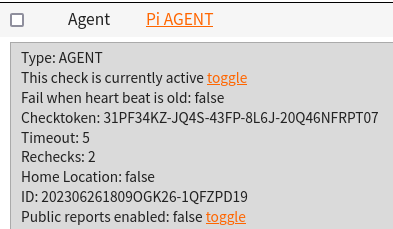
Sometimes a network issue seems to only impact outbound routing. We use the AGENT functionality to assign additional PING checks to originate from the server being tested towards some of the other servers it would be connecting to if it’s moved into production. The AGENT software will run NodePing checks just like the public probes but originating from our test host. It’s a great way to detect outbound packet-loss and routing issues from the server. Again, anything less than 100% uptime on this test and the service isn’t going to make muster.

System Load

The performance of a VPS can be greatly impacted by issues outside our control. Two of the most frequent system load issues we’ve seen on VPS are noisy neighbors and host server backups.

A good provider won’t oversell their VPS host servers and will suspend anyone who is abusing more than their fair share of resources. If we end up on a box with noisy neighbors, the system load on our VPS will likely spike, starving our processes from getting the CPU, memory, networking, or storage I/O they need to function properly.

We’ve also come across providers where we saw system load rise every Saturday around midnight (GMT) for 30 mins or so. Turned out their backup process was overwhelming the disks and causing load issues on all the VPS on the host.

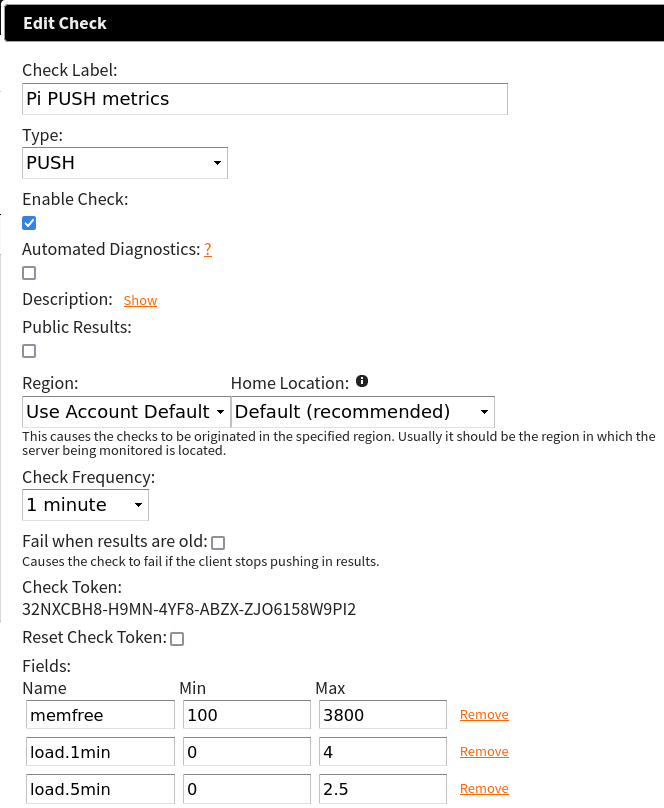
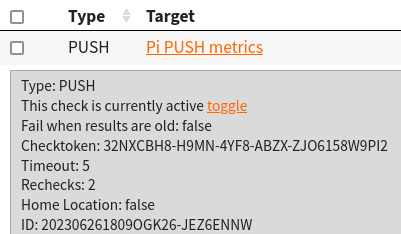
These types of issues are simple to find using PUSH checks that monitor the system load. Since we aren’t using these boxes for anything yet, we have to set the thresholds pretty low to detect load issues caused by resource starvation. This is one test that we’ll give a bit of slack to a provider if it fails though. Noisy neighbors or hungry backups can happen to any provider and we’ll give them a chance to find and address the cause. If it keeps happening though, pull the plug on that provider. It’ll just be worse once you start using the machine and an ongoing headache trying to get their support to do anything about it.

If a server can keep humming along for 30 days without any of the checks above failing, there’s a pretty good chance that provider and network are going to be solid and reliable. I hope this look into our vetting process will help you with your provider search for those elusive reliable networks and servers.

If you don’t yet use NodePing, please sign up for our free, 15-day trial and see for yourself how our monitoring can increase your uptime.

Custom Email Branding in NodePing

NodePing is pretty popular with hosting service providers and marketing companies that want to keep an eye on their customer’s websites and other Internet-facing services. One of the features they often use is to send NodePing email alerts from one of their own branded email addresses. Uptime alerts with your own ‘from’ email, like ‘support@examplecompany.com’, is a great way to keep brand recognition and increase cohesion with your customers and allows those customers to respond to alerts directly to your support system, not NodePing.

Setting a custom ‘from’ email address for NodePing email notifications is easy. You only need to:

  • Change the ‘from’ email in your branding settings
  • Update your SPF record to include NodePing’s SMTP servers

Email Templates

To change the ‘from’ email address for notifications, login to your NodePing account and navigate to Account Settings -> Branding. In the Notifications section, you’ll see there are 4 different email templates:

  • First
  • Up
  • Down
  • Diagnostic

You’ll need to modify the ‘From’ email address in each of those and click on the corresponding “Save…” button for each of the 4 email templates. It may take up to 10 minutes for those settings to take effect.

SPF Record

Your SPF record is a DNS record that tells email services where email from your domain is allowed to be sent from. If you try to send email from a server that isn’t in your SPF, there’s a good chance that email is going to get rejected or marked as spam. It’s basically a whitelist of IP addresses that are allowed to send email with your domain in the ‘from’ field.

If you don’t modify your SPF record, there’s an increased chance notification emails will bounce or be marked as spam. Let’s add the NodePing SMTP servers to your domain’s SPF record to increase deliverability. Modifying that special TXT DNS record usually happens at your domain registrar or DNS provider. You’ll need to login there and edit the existing SPF record. If one doesn’t exist, you’ll want to create one.

If you have an existing SPF record, you can add the following to it:

include:spf.nodeping.com

Sometimes an example is the best way to see how this modification is done. Below is an SPF record before adding the NodePing entry.

"v=spf1 include:_spf.google.com include:sendgrid.net ~all"

And now that same SPF record with the NodePing entry added to it.

"v=spf1 include:_spf.google.com include:sendgrid.net include:spf.nodeping.com ~all"

It doesn’t matter which order you put the NodePing entry in, so long as it’s after the ‘v=spf1’ part and before the ‘all’ part. Those need to bookend a valid SPF record.

Once that record is saved and propagated through DNS, your contacts should be able to receive NodePing alerts with your very own ‘from’ email address on them.

Customizing your NodePing email notifications is a great way to increase brand recognition and cohesion with your customers. With NodePing, you’ll be the first to know when services are offline. Quick detection means quick resolution and more uptime.

If you don’t yet have a NodePing account, please consider signing up for our free, 15-day trial. See for yourself why those who know, use fast, reliable, and affordable NodePing.

Monitoring VPN Connections with NodePing AGENTs

In today’s world, VPNs have become more popular and widely used. Some common use cases have been road warrior VPNs when you are on the go, site-to-site VPNs for satellite offices, and remote connections back to the office for those who work from home (WFH). Since VPNs have become so central to many of our activities, it is important to ensure that the VPN setup you are using is both available and working as intended. This sort of monitoring is readily available with our AGENT feature.

The NodePing AGENT is designed to run NodePing monitors on your own private infrastructure. The AGENT allows you to run checks you want from any network, as long as you can stand up a Linux computer to run the AGENT. This includes locations we do not have a public probe, like your local networks, and even over VPN connections. Once you have an AGENT created and running, you can assign checks to the AGENT as the location, and the checks will run on the AGENT automatically. Most of our check types are available to use to monitor services and connectivity, which allows you to monitor your VPN resources without having to allow our public probes into your network. No firewall changes needed!

The AGENT can work with many different VPN setups. For example, configuring your AGENT computer or VM to be a WireGuard peer to monitor a WireGuard VPN. This works with other VPNs as well, such as monitoring OpenVPN connections or you can monitor IPSec or IKEv2 VPNs. With connectivity to your remote network, you can run your checks to ping internal servers, do local DNS queries, which can be useful if you have a split-DNS configuration, or HTTP connections to your local servers, and it can test outbound connectivity to the Internet.

To get started running the AGENT, you need to first create an AGENT check on NodePing. This can be done either by signing into your account on our website, or via the API. You can find this information in our documentation. The AGENT check creates the AGENT instance so you can assign checks to it. The AGENT software also sends a heartbeat so you can ensure the AGENT is running and doing its jobs. To create the AGENT check, follow these steps:

  1. Click “Add new check”
  2. Select AGENT from the Check type drop down
  3. Label the AGENT to identify it, adding a meaningful location to the label. This label is what will appear in the locations list when you assign checks to run on the AGENT
  4. Set the Check Frequency. 1 minute is recommended
  5. Optionally set “Fail when heartbeat is old” so you can know if the Agent is not submitting results
  6. Set notifications for the check
  7. Then save the check

Next, to run the AGENT software on your computer, install NodeJS on your Linux distribution of choice, then you can proceed with installing the AGENT. The instructions can always be found on our GitHub repository, but for now, here’s the short version as an example:

$ git clone https://github.com/NodePing/NodePing_Agent.git
$ cd NodePing_Agent
$ npm install
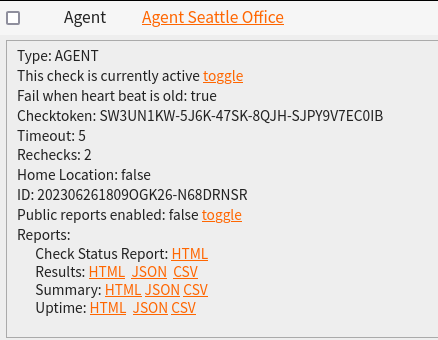
$ node NodePingAgent.js install 202306261809OGK26-N68DRNSR SW3UN1KW-5J6K-47SK-8QJH-SJPY9V7EC0IB

The Check ID and Checktoken in the example above are used to tie this instance of the AGENT running on your computer to the check running on NodePing. They can be found with the check information on the NodePing site:

The install command will set up the AGENT to run, and at this point you can now create checks to be assigned to this AGENT. To do that, create a check, and in the “Region” dropdown, select the name of the AGENT you just created. After creation, you should begin to see the checks running on your AGENT.

Additionally, if you want to take advantage of our Automated Diagnostics or our other Diagnostic Tools, you can start the Diagnostic Client on your computer as well:

node DiagnosticsClient.js >>log/DiagnosticsClient.log 2>&1 &

Now that you have the AGENT software running on your computer, and the AGENT check set up and connected, we can start assigning checks to run on this AGENT. In this scenario, let us assume we have an internal web server at 192.168.20.150, an internal DNS server we want to query at 192.168.20.100 and make sure it is returning 192.168.20.150 for our internal webserver FQDN internal.example.com, and lastly test to see that we can ping something on the Internet too so we know our clients can connect to the Internet through the VPN.

For the Web server, let’s set up an HTTP check to run on the AGENT

Note the “Region” dropdown and that I selected the AGENT I created earlier.

Next we want to make sure that we are getting the proper internal IP address for that web server:

Here, we configure the check to make a query to the internal DNS server 192.168.20.100 and expecting the answer 192.168.20.150 for internal.example.com.

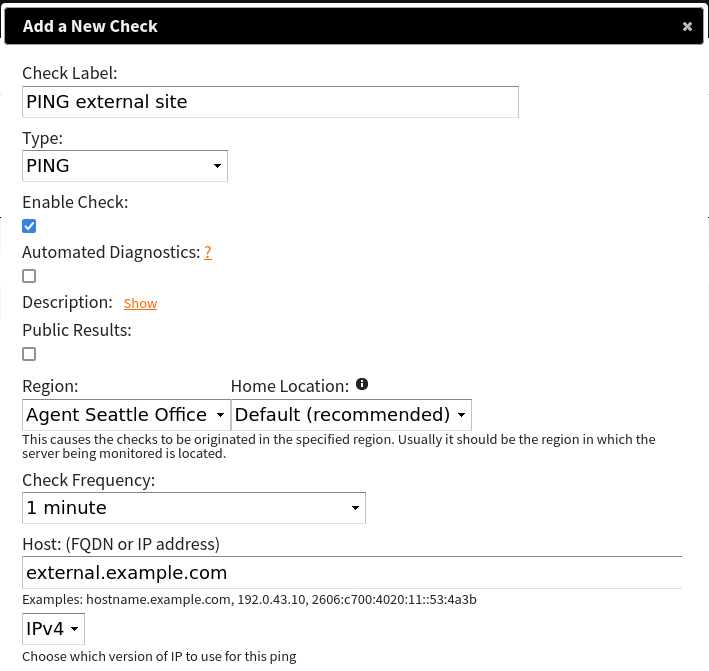
Lastly, we want to ping an external server to see that clients can reach the Internet. This is useful if you do want your VPN clients going out to the Internet too. For this example, we would ping external.example.com (note these aren’t real websites):

This is all only one example of many ways you could configure your VPN monitoring. Our AGENT is capable of handling all sorts of different monitoring tasks you may want to throw at it.

The NodePing AGENT is a robust feature we provide as a part of our Premiere plan. If you don’t yet have a NodePing account, please sign up for our free, 15-day trial and try out our on-premises monitoring and see how our AGENT can help you with monitoring your VPN connections.

Monitor HTTP Services that require X.509 Certificates

NodePing supports TLS X.509 client certs for authentication to monitor supported HTTP services.

X.509 client certificates utilize public-key infrastructure (PKI) to authenticate to TLS services. Web APIs and other REST-based services can issue their users TLS client certs to authenticate their client requests. X.509 certs can be used alone or along with other supported authentication methods including BASIC AUTH and form-based submission.

To get started monitoring X.509 authenticated HTTP services, upload your client certs to the “Certs and Keys” area and configure the HTTP Advanced checks to authenticate using the TLS client cert. HTTP Advanced checks support verifying specific HTTP status codes in the response, sending and verifying specific headers, specify HTTP methods (POST, PUT, DELETE, HEAD, TRACE, CONNECT), and send form data or raw content like JSON or XML.

If you don’t yet have a NodePing account, please sign up for our free, 15-day trial and see for yourself why professionals around the world use NodePing.

Probe Server Addition [NV]

The following probe server will be added on 2023/04/26:

Las Vegas, Nevada (NV) – USA
(72.46.131.14 / 2605:6f80:0:d::100)

Please adjust your firewalls appropriately if you whitelist so your checks do not fail because of the probe IP address changes.

An always current and updated list of all the IP addresses for our probe servers can be found in the FAQ, a text file, and via DNS query, probes.nodeping.com.

[UPDATE – 2023-04-26 11:45GMT-7] – IP changes complete.

MongoDB Monitoring

Monitoring the availability of a MongoDB database just got a lot easier. Even better, you can monitor, track, graph, and alert on results from a query. That makes NodePing’s new MongoDB check so much more powerful than just uptime monitoring.

Some of the old-timers at NodePing remember when MongoDB hit the scene in 2009. Now the scrappy little fella is double digits old and is a major player in the NoSQL market so adding monitoring functionality for MongoDB was an easy choice.

Availability monitoring for MongoDB is pretty straightforward using the MongoDB connection URL. You can include authentication, host, and port information and we’ll do the rest.

But not everyone can poke a hole in their firewall so a service can keep an eye on their MongoDB instance. With NodePing AGENT checks, you can set up a private probe behind your firewall where your MongoDB checks can run and send their results to us for tracking and notifications. No firewall changes needed.

But wait, there’s more! (how cheesy does that sound?) Need to keep an eye on how many visitors are hitting your MongoDB powered website? Maybe you want to track how many downloads a particular file gets each day. With our MongoDB check, you can specify a query, track, and graph the results. Set a minimum and maximum range for numeric results or do an exact match or regex on string results. You’ll get notifications if the results are not what you’re expecting. If the information is in the database, we can query, track, and graph it.

For instructions on how to create your first MongoDB check, please see our documentation. If you don’t have a NodePing account yet, sign up for our free, 15-day trial and see how fast and accurate NodePing monitoring is for yourself.

Probe Server Removal [NV]

The following probe server will be removed immediately:

Las Vegas, Nevada (NV) – USA
(5.104.78.90 / 2602:fe90:700:2::100)

Please adjust your firewalls appropriately if you whitelist so your checks do not fail because of the probe IP address changes.

An always current and updated list of all the IP addresses for our probe servers can be found in the FAQ, a text file, and via DNS query, probes.nodeping.com.

Probe Server Addition [NV] and Removal [UT]

The following probe server will be added on 2022/11/30:

Las Vegas, Nevada (NV) – USA
(5.104.78.90 / 2602:fe90:700:2::100)

Additionally, we are also removing the following probe server on 2022/11/30:

Ogden, Utah (UT) – USA
(192.154.102.130 / 2606:c700:4020:17:225:90ff:fe50:390a)

Please adjust your firewalls appropriately if you whitelist so your checks do not fail because of the probe IP address changes.

An always current and updated list of all the IP addresses for our probe servers can be found in the FAQ, a text file, and via DNS query, probes.nodeping.com.

[UPDATE – 2022-11-30 12:18GMT-7] – IP changes complete.

MySQL Monitoring

Last month we released our PostgreSQL check with some great features to query, verify, and track result data. We knew some in the NodePing crowd favor MySQL so we put the nose to the grindstone to power up the MySQL check with the same tasty features.

You can ensure that the MySQL database and the host it’s on are available and responding. Optionally send a user-defined query and verify the responses is within your configured thresholds.

If the expected response is numeric, you can set a minimum and maximum threshold and NodePing will alert you if it’s too low or two high. This is handy to get alerts about application login errors or pretty much anything else you can numerically log in your database.

You can also match your query response to text, either by exact match or use a regex for powerful pattern matching. Get alerts when the text you’re expecting is missing.

The results, metric or text, are saved and tracked in your NodePing check history.

NodePing’s new MySQL monitoring is available now. If you don’t have a NodePing account, please sign up for a free, 15-day trial. Be the first to know when your database is offline.

PostgreSQL Monitoring

The database is the cardinal authority of modern website content. PostgreSQL, also known as Postgres or pg, is standing among the top 4 databases in 2022. It’s free and open-source and focuses on extensibility and SQL compliance.

If your database fails, your site may be responding but that all-important content will be missing. It’s best practice to monitor your database to make sure it’s online, responding to connections, and returning the data expected. NodePing’s new PostgreSQL check has got your postgres monitoring covered.

You can ensure that the database and the host it’s on are available and responding. You can also optionally send a query of your choice and verify that the response is within your configured threshold.

If the expected response is numeric, you can set a minimum and maximum threshold and NodePing will alert you if it’s too low or two high. This is handy to get alerts about application login errors or pretty much anything else you can numerically log in your database.

You can also match your query response to text, either by exact match or use a regex for powerful pattern matching.

NodePing’s new pg monitoring is available on all plans and accounts. If you don’t yet have a NodePing account, please sign up for a free, 15-day trial. We’re confident you’ll find our PostgreSQL monitoring fast and reliable.