Monitoring the Server Room with NodePing – Part 1

Monitoring services inside the server room is pretty easy with NodePing. I’m going to show you how I can keep an eye on my server room and its services using NodePing PUSH and AGENT checks. In this scenario, the room only contains network devices, so I chose to stand up a Raspberry Pi. It will also let me add temperature and humidity sensors in addition to monitoring stuff inside the firewall.

NodePing offers two different check types to allow me to do on-premise system, sensor, and network monitoring: PUSH and AGENT checks.

PUSH checks allow me to send heartbeats from any server to NodePing. I can also use the metric tracking to do things like monitor load, disk space, memory usage, and more. Basically any numeric value I can read or generate on a box can be submitted, tracked, and trigger notifications.

NodePing AGENT checks allow me to configure NodePing probe functionality, installed and maintained by me and available only to my NodePing account. I can use my AGENTs to run other NodePing checks from anywhere, even inside my private network, without needing to open up any firewall ports.

The PUSH and AGENT checks can run on a wide variety of hardware. In this blog post, I would like to show you how I configure NodePing on-premise monitoring tools to work on a Raspberry Pi.

Setting Up

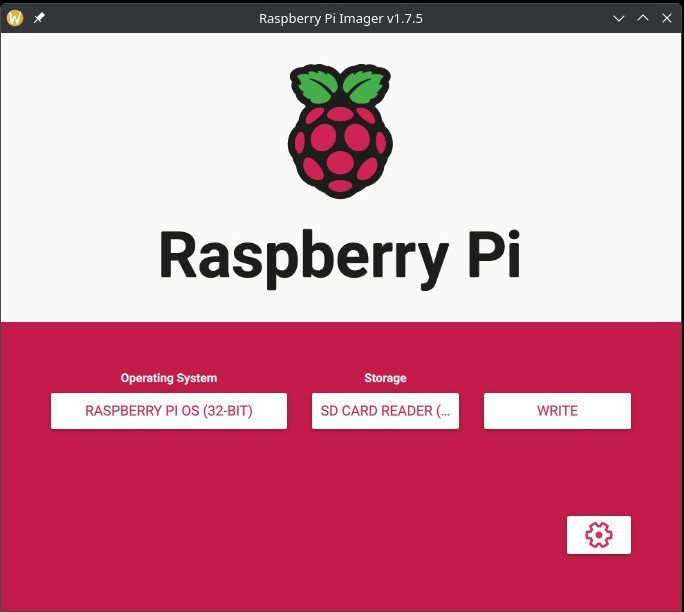
To get started with setting up the Raspberry Pi, I use the Raspberry Pi Imager to configure an appropriate version of RaspberryOS. I can use either the 32-bit or 64-bit options. Watch this quick video from Raspberry Pi on how to use their installer. The Imager can be obtained from their website. Below, I chose to use the default, and very popular, Raspberry Pi OS 32-bit. You can also select the 64-bit option as well as the Lite versions which are designed for headless installations if you don’t need a desktop environment. NodePing PUSH and AGENT checks work with all the different flavors of Raspberry Pi OS.
I intend on using this Pi in a headless configuration, without a keyboard or monitor always connected, so I go into the “Advanced Options” page in the imager and enable SSH. I’ll also need to configure a user, password, and necessary networking. It will need internet access either via wifi or ethernet to send check results to NodePing. I’m going to use one of the Lite versions in this case to reduce the amount of extra software that gets installed.

Enabling SSH, authentication settings, and setting a username and password.

Once the microSD card is imaged, I insert it into my Pi and fire it up… waiting for it to boot. I’m able to SSH in! Good start.

From here, I do some further SSH hardening and require the user I configured to have the password entered when I do any sudo commands.

Additionally, I update the packages on my Pi.

$ sudo apt update
$ sudo apt upgrade

Installing the PUSH Clients

PUSH checks can submit any numeric metrics to NodePing using an HTTP POST, and be used to trigger notifications of the PUSH check. The PUSH payload schema is discussed in the PUSH check documentation. I can also use one of the pre-defined clients available on GitHub. Currently, NodePing provides PUSH clients written in POSIX shell, Python, and Powershell. The POSIX shell scripts and Python scripts will work on the Raspberry Pi. If I want to use a different programming language to create my own client I might want to use the existing code as a reference.

I’m going to go with the POSIX client. To get the PUSH clients code, I can visit the GitHub page to download a zip file or I can use git to fetch the code directly using the following command:

$ git clone https://github.com/NodePing/PUSH_Clients.git

From here, I can either use the clients from the directory that was cloned, or make a copy of the individual client elsewhere. A convention I tend to follow is to create a folder named something like “pi_push_metrics_202306261808OGK26-JEZ6ENNW” where name is the label of the PUSH check in NodePing, and the check ID that is generated when you create that check in the NodePing web interface.

I created those folders using the command:

$ mkdir -p push-clients/pi_push_metrics_2023-06261809OGK26-JEZ6ENNW

You can call your folder whatever you want. I use this so I can easily find the right PUSH check in NodePing that corresponds to this PUSH client.

Configuring a PUSH Check

Now I’m going to copy the POSIX client from the git clone I made into the new folder I created above.

Installation instructions are available for each of the client types. For now, I will show you a quick demo of how to configure a PUSH client that will monitor free memory, and 1 and 5 minute load averages. I configured my check like so in the NodePing web interface:
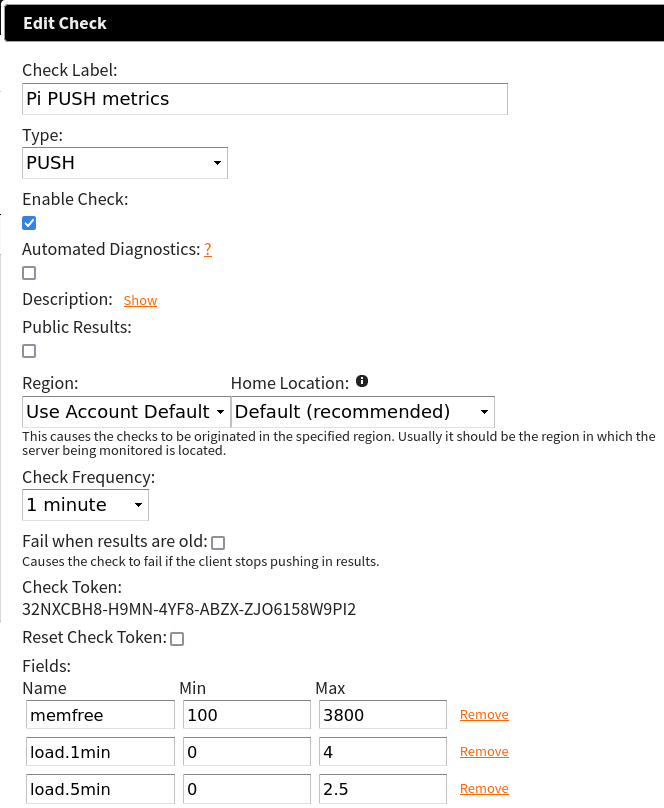
This check will pass so long as the free memory is greater than 100MB and less than 3800MB, 1 min load is between 0 and 4, and 5 min load is between 0 and 2.5. This will help me keep tabs on when my system load is too high, and if my Pi is using more or less memory than expected. For the client on the Pi, I am interested in a few files:

  1. NodePingPUSH.sh
  2. moduleconfig
  3. The modules directory

I have to ensure NodePingPUSH.sh and the other .sh files are executable by this system user. For the moduleconfig file I only want to run the memfree and load module so I simply add those in the moduleconfig file.

The contents of the file are only the 2 lines “load” and “memfree”.

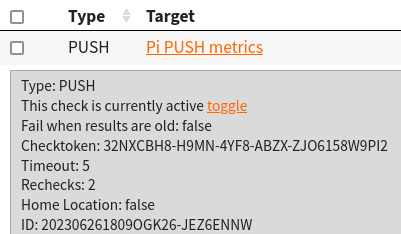
For the NodePingPUSH.sh file, I need to add my check ID and its checktoken. These are found in the check drawer.
The only variables needing editing are CHECK_ID, and CHECK_TOKEN.

After configuring those files I will run:

$ sh NodePingPUSH.sh -debug

This will let me see the data that would be sent to NodePing without actually sending it. This is just for testing and is a good way to make sure I edited those files correctly without impacting any uptime stats for the check in NodePing.

Lastly, I need to set up cron to run my PUSH client on a regular interval. I want this one to run every minute, so the cron line will look like the one below. To edit my cron tab, I run crontab -e and add the following entry:

* * * * * /bin/sh /home/pi/push-clients/pi_push_metrics_202306261809OGK26-JEZ6ENNW/NodePingPUSH.sh -l

The -l at the end of that line will make the script log to a NodePingPUSH.log file in that same directory. You can modify the logfilepath variable in NodePingPUSH.sh if you want to have your logs go to a different folder.

NodePing AGENT

PUSH checks are great for pushing arbitrary metrics into NodePing. However, if I want to run one of our standard check types in my network, without creating ingress holes in my firewall, NodePing AGENT checks are the way to go. Once the AGENT software is installed, I’ll be able to run checks directly on this Pi.

Installing NodeJS

To setup the AGENT, I need NodeJS and npm installed. Raspberry Pi OS makes this simple with a single command on the Pi:

$ sudo apt install nodejs npm

With those pieces of software installed, I can clone the AGENT software git repo to get that code. The instructions can always be found in the GitHub repository, but for now, here’s the short version of the commands I ran as an example:

$ git clone https://github.com/NodePing/NodePing_Agent.git
$ cd NodePing_Agent
$ npm install
$ node NodePingAgent.js install 202306261809OGK26-1QFZPD19 31PF34KZ-JQ4S-43FP-8L6J-20Q46NFRPT07

The Check ID and Checktoken in the forth command example above are used to tie this instance of the AGENT running on my Pi to the AGENT check I created in NodePing. They can be found with the check information on the NodePing site:
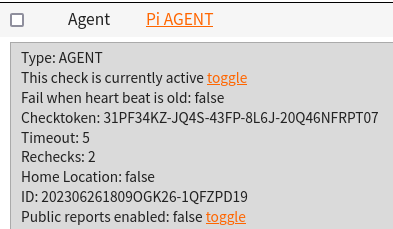
The node NodePingAgent.js install command will set up the AGENT to run, and at this point I can now create checks on NodePing and assigned them to run on this AGENT. To do that, when I create a check in NodePing, in the “Region” dropdown, I select the name of the AGENT I made. When that check starts to run, I should begin to see it is being run from my AGENT, not the normal NodePing probes.

Here’s an example where I’m pinging an interval server, using the private IP address, from the AGENT on my Pi.

Note that the Region is set to the label we gave to the AGENT check. Now with the AGENT running, I can monitor anything I choose from this Pi, whether the servers are internal or external.

Diagnostics

I want to take advantage of NodePing’s Automated and On-demand Diagnostics so I want to start the Diagnostics Client on my Pi as well using the following command:

node DiagnosticsClient.js >>log/DiagnosticsClient.log 2>&1 &

The Diagnostics Client will allow NodePing to get MTRs, DNS, and other diagnostics to send me when my checks assigned there fail. It makes troubleshooting so much faster and easier.

This is Only the Beginning

Now I have a Raspberry Pi all ready to have NodePing collect a wide variety of metrics with my PUSH check and run as a custom NodePing probe with my AGENT check. I can use them to do all sorts of cool things.

In Part 2, I’ll add some hardware sensors to this Pi to measure temperature and humidity of my rack so alerts can be sent if either goes outside of a safe range. Fun stuff coming.

If you don’t yet have a NodePing account, please sign up for our free, 15-day trial.

Using NodePing with Ansible

Ansible is a configuration management and application deployment tool that is designed to help automate IT. NodePing offers a module that allows our customers who use Ansible in their infrastructure to automate tasks such as managing checks and creating ad-hoc and scheduled maintenance with our maintenance feature. For example, you can include setting up monitoring in your Ansible playbook, so new servers or virtual machines are automatically added to your monitoring.  Or, if you have a playbook that automates maintenance, you can have Ansible set ad-hoc maintenance on your monitoring for the affected host before it runs the rest of the playbook.


Getting Started

To get started with the NodePing Ansible modules, you will have to download the modules and copy them to your Ansible modules directory. You may have to edit your ansible.cfg. The path is configured via the library variable and by default is /usr/share/my_modules/. You can download the zip file here with the Ansible modules and extract them to your computer. In the unzipped folder you should find two Python files: nodeping.py and nodeping_maintenance.py. These two files should be copied into your Ansible library (modules) folder. There are also a couple example playbooks that show you a snippet of using the nodeping and nodeping_maintenance modules.

The NodePing Ansible module depends on the nodeping-api library for Python. This can be installed using the pip package manager, like so:

# python2

pip install nodeping-api

# python3
pip3 install nodeping-api

# Alternate python3
python3 -m pip install nodeping-api

# If installed for the user
python3 -m pip install --user nodeping-api

Creating Checks

You can create checks with the NodePing module, and if you need to access any of the values from the result after creation, you can register the result and access it elsewhere in your playbook. Here is an example:


---
- hosts: test
  
  vars:
    nodeping_api_token: secret-token-here
    
  tasks:
    - name: Create a NodePing check for target host
      delegate_to: localhost
      nodeping:
        action: create
        checktype: PING
        target: "{{ ansible_default_ipv4.address }}"
        label: mytest ping
        enabled: False
        interval: 1
        token: "{{ nodeping_api_token }}"
        notifications:
        - group: My Contact Group
          notifydelay: 2
          notifyschedule: All the time
        - contact: 4QT82
          notifydelay: 0
          notifyschedule: All the time
      register: result

Note that the checktype is in all caps. This will be necessary when creating a check. Our API documentation provides a list of check types as well as parameters for creating the check. It is recommended that you delegate the task to localhost if you can. That way your deployment server is the only server that needs the Python library installed. If you wish to create your checks on the target server, be sure to install the nodeping-api package via the pip module. The returned value is registered to the variable result and stored as a dictionary, so you can access the values easily. In this next example, the check id is used to get the check contents from NodePing:


- name: Get a check, run from localhost
  delegate_to: localhost
  nodeping:
    action: get
    checkid: "{{ result.message._id }}"
    token: "{{ nodeping_api_token }}"

Here you can see we queried result.message._id of the result we registered earlier. This is an example of how you can use data returned from NodePing through the rest of your playbook for whatever your needs may be. You can also get check info by providing a label, but note that if you have many checks with the same label, it will grab only the first one.


Maintenance

The Maintenance functionality will let you disable a list of checks while you do work on your server. That way, you can do your maintenance work on your server without it affecting your uptime during planned operations. An example of using this could be running the nodeping_maintenance module to disable your checks. It will take about 30 seconds for the maintenance schedule to start once created. You will want to ensure services aren’t being stopped or servers rebooted while the changes propogate across our distributed service and make sure all of your checks are disabled. At that point you can take your services offline without affecting your uptime metrics. Once the set duration is complete, NodePing will automatically enable those checks again. Here you can see an example of creating an ad-hoc maintenance that lasts for 30 minutes.

tasks:
  - name: Create ad-hoc maintenance
    delegate_to: localhost
    nodeping_maintenance:
      token: "{{ nodeping_api_token }}"
      name: ad-hoc maintenance
      duration: 30
      scheduled: False
      checklist:
        - 201911191441YC6SJ-4S9OJ78G
        - 201911191441YC6SJ-XB5HUTG6

  - name: Pause a minute to ensure checks are disabled
    pause:
      seconds: 30

# ...do stuff

You can also set scheduled to True, and provide a cron-syntax schedule to create a recurring maintenance.

Life is Easier with Automation

Pairing your Ansible automation with NodePing monitoring is a great way to automate processes, making them both easier and increasing reliability and trust in your systems.  We hope this module and other tools for integrating NodePing into your infrastructure management will make life easier and help you get the job done. If you aren’t using NodePing yet, you can sign up for a free, 15-day trial and test out monitoring your services today and take advantage of integrating NodePing monitoring and maintenance in your Ansible playbooks.

PUSH Client Wizard

Last year, we introduced a new feature called PUSH Checks. This check type allows your server to push numeric metrics into our system, track the metrics, send a heartbeat, and receive alerts based on the results. This is a powerful tool, and we use it internally at NodePing to monitor system load, backup processes, gather metrics from logs, and a variety of other things. We’re also glad to hear about customers using this feature in interesting ways as well.

However, until now setting up a PUSH check could be challenging. You would have to create the check, download a copy of the client and configure it with the Check ID and Checktoken as well as configure the metrics. So today we’re releasing a PUSH Client Wizard (available on GitHub) that makes PUSH Checks really easy to configure and deploy across your systems using an interactive command line wizard. This Python 3 client is able to run on any system with Python 3.5 or newer, and has been tested on Linux, Windows 10, and FreeBSD.

Features

So what can it do? The wizard lets you list your existing PUSH checks, create new PUSH checks, and delete PUSH checks you no longer want.

When listing checks, it will show information such as:

  • Your check’s label
  • ID
  • Checktoken
  • If the check will fail when its results are old
  • PASS/FAIL status
  • If it’s enabled/disabled
  • Run Interval

When creating a check you can configure all sorts of information for the check such as:

  • The client you will use (POSIX, Python, Python3, PowerShell)
  • Information about the check (Label, interval, enabled, public reports, fail when old)
  • Metrics to gather for the check (or none for basic heartbeat functionality) and values for pass/fail
  • Contacts and their notification schedules
  • Client configuration
  • Remote/local deployment

Configuring the client is an optional step if you want to do it yourself. When configuring the client, you have the ability to deploy the new PUSH check client locally or remotely over SSH! Once the client has been configured, a cron job or Windows Task Scheduler event information will be provided so you can simply copy/paste the provided information at the end.

This tool will allow you to quickly and easily manage your PUSH checks so you can monitor your systems with PUSH checks in less time.

Give the wizard a try today!

We encourage pull requests for new features so if you make changes you think others would find useful, please do share.

If you aren’t using NodePing yet, you can sign up for a free, 15-day trial and test out our new PUSH checks yourself and give the new wizard a try.

The Best of Times, the Worst of Times

As 2016 is coming to a close, we decided to look back on the past 4 years of data to see if we could find any interesting patterns in the ‘down’ events our customers experience.

Downtimes caused by timeouts have fallen each year from 85% of all ‘down’ events in 2012 to 67% this year while websites 500 errors are on the rise, nearly 80% year-over-year. I suspect it’s due to the increase use of CDNs like CloudFlare that are now kicking back 503s rather than the timeouts the source servers are showing.

Looking at our numbers, if your servers go down, there’s a slightly higher chance it will happen around 3:20 UTC on a Wednesday. Alerts will be most quiet around 16:45 UTC on Sundays.

From our data, a sysadmin’s worse day is around Nov 10 and the best is easily January 1.

So brace yourself for this Wednesday and hang in there… New Years is right around the corner.