Recently, Let’s Encrypt announced they will be ending support for expiration notification emails by June 4, 2025. With this upcoming change, many are looking to alternate ways to monitor certificate expiration dates. At NodePing, we offer the capability to monitor your SSL certificates with our SSL check. Our SSL check lets you monitor certificate validity as well as notify you when your certificate is about to expire, that way you can make sure your certificate renewals are happening as you would expect, and fix it when it’s not.
Using the SSL Check
Our SSL check isn’t just limited to monitoring port 443 on your web server. You can also monitor non-website TLS services by using the URL port convention. For example, setting the target to “https://example.com:8000”. The check can be used to monitor SSL certs on services such as DoH, MQTT, Websockets, email, anything that accepts a TLS connection.
The most popular use for the SSL check is to monitor for an expiration date and alert the user at a defined number of days before expiration. However, the SSL check is also useful for diagnosing certificate chain errors. This can be useful to diagnose missing intermediary certificates or mismatched certificates in the SSL chain, for example.
If you don’t have a NodePing account yet, give it a try! We offer a free, no-obligation 15-day trial. The best way to see if NodePing meets your needs is to try it out.
The following probe server will be added to the Europe region on 2025/01/29:
Madrid, Spain (ES) – ES (23.142.26.105 / 2604:86c0:f503:1::2)
Additionally, we will be adding the following probe server to the East Asia/Oceania region on 2025/01/29:
Brisbane, Australia (BN) – AU (43.245.160.182 / 2407:a080:2000:f::a1)
Lastly, we are also removing the following probe server from the East Asia/Oceania region on 2025/01/29:
Sydney, Australia (AU) – AU (112.213.38.162 / 2404:9400:2:0:216:3eff:fee1:bce0)
Please adjust your firewalls appropriately if you whitelist so your checks do not fail because of the probe IP address changes.
An always current and updated list of all the IP addresses for our probe servers can be found in the FAQ, a text file, and via DNS query, probes.nodeping.com.
[UPDATE – 2025-01-29 16:30GMT-7] – The IP addition for the Madrid, Spain server is complete. The planned changes for the Brisbane addition and Sydney removal did not happen like we expected. We are not going to add the Brisbane server, and we will be keeping the Sydney server. Probe stability is one of our highest goals and in the end, the Brisbane server did not meet our high standards for stability.
NodePing supports OpenID Connect (OIDC) authentication, allowing you to leverage SSO and multi-factor authentication by using an authentication provider that supports them. We support Google and Microsoft OpenID authentication as well as (on Premiere plan accounts) custom OIDC providers.
In a previous blog post we shared how you can get started with using OIDC with NodePing using Keycloak. In this blog post, I will share with you how you can get Microsoft Entra set up to handle authentication for you with NodePing’s custom OIDC provider feature.
Entra User Configuration
Before configuring Entra to work with NodePing, it is important to make sure your users have the proper configuration. The NodePing contact must include the same email address as your user has in Entra. To ensure your email address in Entra is correct for your user, go to Identity -> Users -> All users. Select the user you want to update, click Edit properties and go to the Contact Information tab.
Ensure that the Email field matches the email that you have set for your NodePing contact. Note that if the email is present only in the “Other emails” section in Entra, logging into NodePing will fail. On the NodePing side, the contact records can have multiple emails, and the address from Entra just needs to be present as one of them.
Entra Admin Center
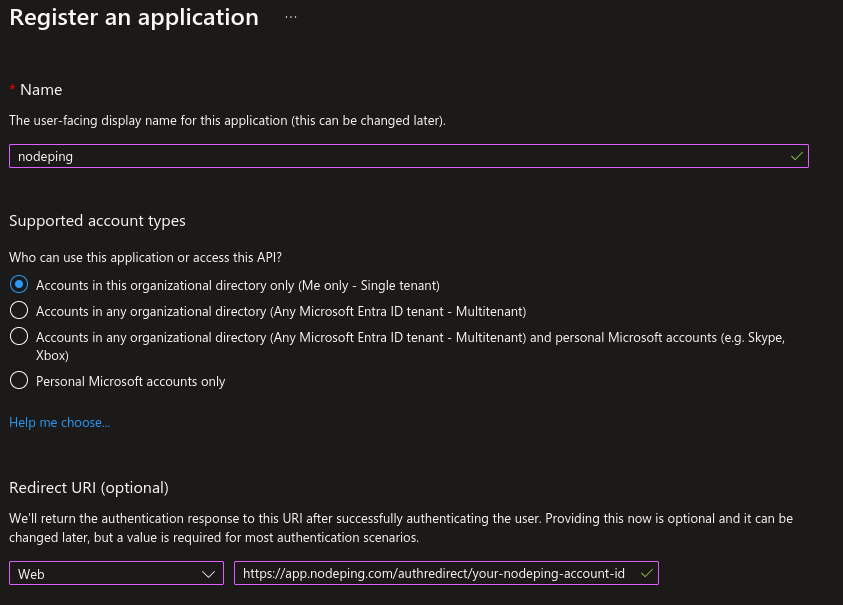
Head to the Entra Admin Center and in the left side panel go to Identity -> Applications -> App registrations. There, select “New registration” to create a new registration. Enter a name, such as “nodeping” and select the supported account types. In this example, I chose “Accounts in this organizational directory only”.
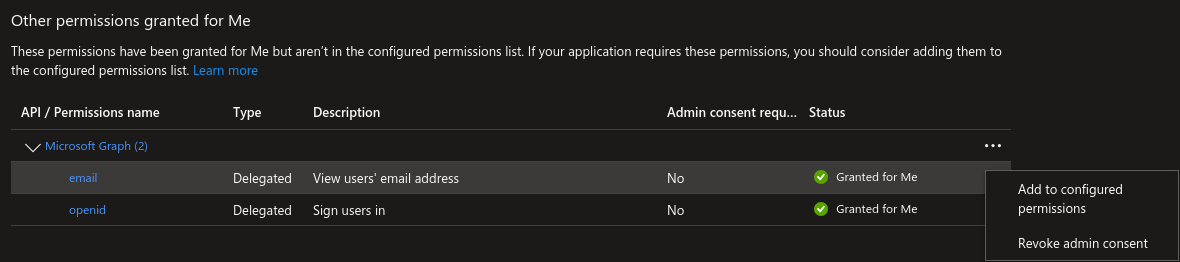
Afterwards, go to “API permissions” and go down to the “Other permissions granted for” section. You should see a Microsoft Graph Permissions name labeled “email”. Click the 3 dot menu and choose “Add to configured permissions”.
You will be prompted to select “Yes, add”.
If the email permission isn’t in the “Other permission” section, select “Add a permission”, and in the right side panel that pops up select Microsoft Graph, then Delegated Permissions, and check the email checkbox in the OpenId permissions section below, and select “Add permissions”.
Following that, you will need to generate a secret. Go to “Certificates & secrets” and select “New client secret”. Give it a description and expiration according to your organizational needs. You will need the Value for the next step.
NodePing Custom OIDC Configuration
On NodePing, sign in and go to Account Settings -> OpenID Connect.
Here you will need:
The Discovery URL
The Client ID
The Client Secret
The Discovery URL can be found in the Overview section, and selecting Endpoints. You will need the URL labeled “OpenID Connect metadata document”. Paste that into the Discovery URL. For the clientID, you need the Application (client) ID displayed in the overview page of your App registration you made on Entra. Lastly, the clientSecret that was generated earlier in the “Certificates & secrets” page in Entra. Note here that the clientSecret is the “Value,” a long string with special characters. There is also a “Secret ID” listed with the secret, but that is not what you need here.
Once complete, click save.
NodePing User Auth Types
Now, configure your NodePing user to sign in with custom OIDC. In NodePing’s webapp, go to Contacts -> List Contacts. Edit the contact you want to permit OIDC authentication with by selecting “Custom OIDC Authentication” as an allowed auth type and save the contact. This option will only be present for those who have a Premiere account. This NodePing contact will need the same email address that corresponds with the email address of the Entra user.
Logging In
To login to NodePing using Entra, visit https://app.nodeping.com/login/[your NodePing account id] and signed in there. This should direct you to Entra where you can sign in. If everything worked, you should be back at NodePing and signed in. Alternatively, on the login page, change the login method to “Custom OIDC Authentication” in the Login Method dropdown menu and enter your NodePing account ID there.
This blog post isn’t intended to address other policies or settings you may have to set up with Entra, or how to make policies for your users. This basic example configuration is a starting point toward integrating Entra with NodePing. Ensure that your configuration of users and other policies are in alignment with your organization’s requirements and adjust as necessary. For additional information, Microsoft provides some resources here and here to guide you through configuring OpenID Connect authentication with Entra.
If you don’t have a NodePing account yet, give it a try! We offer a free, no-obligation 15-day trial. The best way to see if NodePing meets your needs is to try it out.
NodePing supports OpenID Connect (OIDC) authentication, allowing you to leverage SSO and multi-factor authentication by using an authentication provider that supports them. We support Google and Microsoft OpenID authentication as well as custom OIDC providers.
In a previous blog post we shared how you can get started with using OIDC with NodePing. In this blog post, I will share with you how you can get Keycloak set up to handle authentication for you with NodePing’s custom OIDC provider feature.
Server Setup
When setting up Keycloak, I chose to install Keycloak on the current Ubuntu LTS, Ubuntu 24.04. I first made sure everything was up to date on the server, then I installed openjdk and postgresql:
If you have existing SSL certificates, place them on the server. In this tutorial, I am going to assume you already have certificates that Keycloak will use.
PostgreSQL
Next, a database needs to be created for Keycloak. Sign into the postgres user and use psql to access the database. Run these commands in postgres to create the database:
CREATE DATABASE keycloak;
CREATE USER keycloak WITH PASSWORD 'replace-this-with-a-good-password';
GRANT ALL PRIVILEGES ON DATABASE keycloak TO keycloak;
\c keycloak
GRANT ALL ON SCHEMA public TO keycloak;
Since this is on Ubuntu, I created a system unit file to make starting/stopping the server easy. I made this unit file at /etc/systemd/system/keycloak.service
Once the server is successfully started and you are able to login, go back and edit the keycloak.service file and remove the KEYCLOAK_ADMIN and KEYCLOAK_ADMIN_PASSWORD environment variables, then run the above systemctl commands again to make sure everything is working well.
Configuring Keycloak
By default, Keycloak listens on port 8443 for secure connections. Up to this point, the example server would be accessed at https://example%5Bdot%5Dcom:8443.
Keycloak has a master realm for management of other realms. It is best to create another realm for users to have access to. Create a new realm by clicking the “Keycloak” dropdown menu in the upper left corner and select “Create realm”. I entered the name of the realm as NodePing for this example, but it can be anything. Then I selected “Create” and went to the new realm.
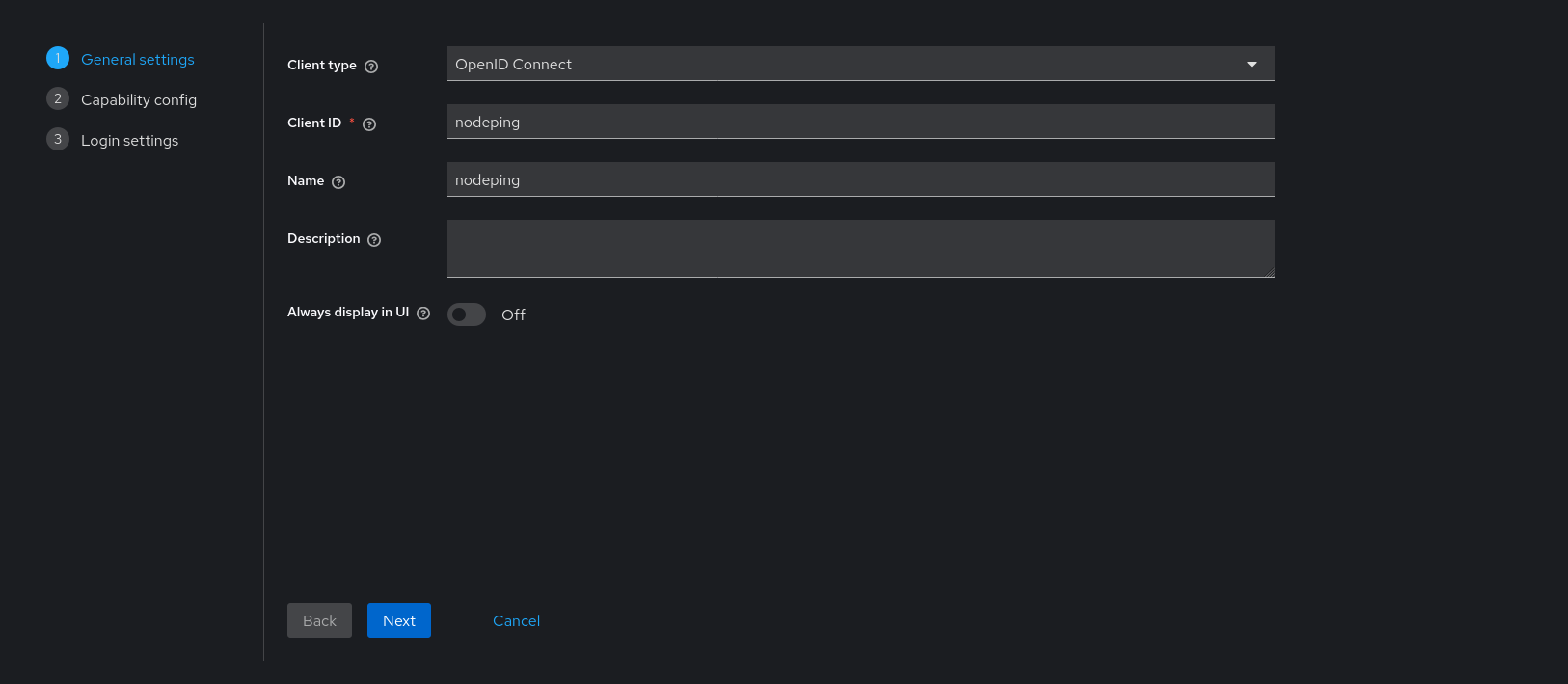
To have Keycloak authenticate with NodePing, a new Client needs to be created that can handle all the proper communications. Go to the Clients page and click “Create client”.
Fill out the first page of the new client. The client ID and name can be anything. The Client ID entered here will be part of configuring NodePing.
Click next. On page 2, set “Client authentication” to On.
Here, only “Valid redirect URIs” needs a value. It should look like this:
Select “Save”. Keycloak is ready to use with NodePing.
NodePing Custom OIDC Configuration
On NodePing, sign in and go to Account Settings -> OpenID Connect
Here, I need:
The Discovery URL
The Client ID
The Client Secret
The Discovery URL can be found in the “Realm Settings” page. Go down to the Endpoints section. Copy the URL named “OpenID Endpoint Configuration”. It should look something like https://example[dot]com:8443/realms/NodePing/.well-known/openid-configuration.
The Client ID is what I entered on the first configuration page when creating the Client. I called it “nodeping”.
Lastly, I need the secret. This is found in the Client information. Go back to Clients -> nodeping -> Credentials. The Client Secret is there. Paste it into the clientSecret section in NodePing and select Save.
NodePing User Auth Types
Now, I can configure a user to sign in with custom OIDC. In NodePing’s webapp, go to Contacts -> List Contacts. I edited the contact I want to permit OIDC authentication with by selecting “Custom OIDC Authentication” as an allowed auth type and saved my contact. This NodePing contact will need the same email address that corresponds with the email address of the Keycloak user.
Next I have to go to a different URL to do my custom OIDC sign in. I visited https://app.nodeping.com/login/[your NodePing account id] and signed in there. This should direct me to Keycloak where I can sign in. If everything worked, I should be back at NodePing and signed in. Alternatively, on the login page I can change the login method to “Custom OIDC Authentication” in the Login Method dropdown menu and enter my NodePing account ID there.
If you run into any troubles, you can reference the previous blog post for information. Additional information is provided in the custom OpenID Connect page to know what information you need to provide and how to login. If any issues arise in configuring Keycloak, Keycloak has a comprehensive server administration guide available.
If you don’t have a NodePing account yet, give it a try! We offer a free, no-obligation 15-day trial. The best way to see if NodePing meets your needs is to try it out.
NodePing supports OpenID Connect (OIDC) authentication, allowing you to leverage SSO and multi-factor authentication by using an authentication provider that supports them. We support Google and Microsoft OpenID authentication as well as custom OIDC providers.
Logging in with Google and Microsoft’s general OpenID authentication is available to all accounts. To get started, select Google or Microsoft from the “Login Method” dropdown on our Login page and follow the prompts. The primary requirement for using OIDC to access your NodePing account is that the email address reported by Google or Microsoft matches one of the email addresses listed in your NodePing contact. NodePing contacts can include multiple email addresses, and any of these can be used to login. If you use different email addresses for your OpenID services, simply add those addresses to the appropriate contact in NodePing as the first step.
For Premier plan accounts, we also support custom OIDC providers. This is particularly useful for integrating with your company’s Microsoft Entra setup, where Microsoft includes the tenant ID in the OIDC discovery URL. NodePing supports any OIDC provider that can deliver an authentication response based on a discovery URL, client ID, and secret. These settings are provided by the third-party OIDC provider and can be configured in NodePing under Account Settings > OpenID Connect. Once these settings are configured, users can log in to NodePing by selecting “Custom OIDC Authentication” from the Login Method dropdown on our Login page and entering your NodePing account ID, or by visiting https://app.nodeping.com/login/[your NodePing account id]. If your provider requires you to specify the redirect URL, that should be https://app.nodeping.com/authredirect/[your NodePing account id].
For both general and custom OIDC authentication, the only permission NodePing requires from the OIDC provider account is access to your email address, which must be present on your NodePing contact. NodePing does not request or use any additional information from the OIDC provider. If you are configuring OIDC with a third-party provider, ensure that you do not grant any additional access. For custom OIDC setups, it’s important to restrict access to only our domains or URLs.
Once your OIDC integration is set up, you may want to require your NodePing contacts to use SSO login. This can be configured individually for each contact. Go to Contacts, click Edit for the relevant contact, set the Allowed Auth Types, and then click Save.
If you don’t have a NodePing account yet, give it a try! We offer a free, no-obligation 15-day trial. The best way to see if NodePing meets your needs is to try it out.
The following probe server will be removed immediately:
Las Vegas, Nevada (NV) – USA (72.46.131.14 / 2605:6f80:0:d::100)
Please adjust your firewalls appropriately if you whitelist.
An always current and updated list of all the IP addresses for our probe servers can be found in the FAQ, a text file, and via DNS query, probes.nodeping.com.
The following probe server will be added to the North America region on 2024/07/09:
Dallas, Texas (TX) – USA (38.114.122.106 / 2604:86c0:4001:2::2)
Additionally, we are changing the following probe server on 2024/07/09:
Sao Paulo, Brazil (BR) – BR (54.232.120.40 / 2600:1f1e:c8d:1c11::100) will change to (148.163.220.117 / 2607:f740:1::c85)
Please adjust your firewalls appropriately if you whitelist so your checks do not fail because of the probe IP address changes.
An always current and updated list of all the IP addresses for our probe servers can be found in the FAQ, a text file, and via DNS query, probes.nodeping.com.
[UPDATE – 2024-07-09 12:40GMT-7] – IP changes complete.
Additionally, we are changing the following probe server on 2024/06/06:
New York City, New York (NY) – USA (185.43.108.84 / 2a01:6c60:1003::2e6a) will change to (169.197.141.113 / 2604:86c0:3001:10::2)
Lastly, we are also removing the following probe server from the North America region on 2024/06/06:
Dallas, Texas (TX) – USA (163.123.204.130 / 2604:fbc0:3f:0:25:90ff:fea5:555c)
Please adjust your firewalls appropriately if you whitelist so your checks do not fail because of the probe IP address changes.
An always current and updated list of all the IP addresses for our probe servers can be found in the FAQ, a text file, and via DNS query, probes.nodeping.com.
[UPDATE – 2024-06-06 14:11GMT-7] – IP changes complete.
For the first time since our launch in 2011, NodePing is rolling out a major user interface update. We’ve continually added features over the years, but now, after 13 years, we’re introducing a completely revamped UI to enhance your experience. At the same time, the UI Refresh also brings a number of often-requested feature enhancements.
Why the Change?
Aside from the obvious fact that the old one looks like it was designed in 2011, our new UI is designed to streamline your workflow and improve usability, and scale better for handle large numbers of checks more easily. That will be particularly important for our customers with thousands of checks.
While the visual design has been updated this isn’t just a visual change. We have taken advantage of the opportunity to add or enhance several features, and implement some features previously only accessible through our API.
Some New Features at a Glance:
Dark Mode: For us sysadminy-types that dwell in low light!
API Key Management: Easily manage API keys (available on plans with API access).
Audit Logging: Keep track of all activities with audit logs (Premiere plan – 60 days retention).
Check Tags: Group your checks with customizable tags.
Contact Notification Suppression: Disable messages types on a contact method level.
Location Templates: Create your own “regions” with location templates.
Data Export: Export data easily from most list types.
Improved Authentication: Use Google and Microsoft OpenID Connect, plus support for custom OIDC setups (Premiere plan).
We Want Your Feedback
Your input is crucial to us. Let us know your thoughts on performance, user experience, and functionality. And if you happen across a bug, please let us know at support@nodeping.com.
Not a NodePing User Yet?
Sign up now for a 15-day free trial—no credit card required. Experience NodePing’s powerful monitoring with our enhanced user interface.
NodePing has offered a Python library over the years to support convenient usage with our API in your Python projects. Since our current Python package, nodeping-api, was released, Python 2 has become deprecated and Python 3 has made additions. While looking at using some of those additions and the deprecation of Python 2, we decided it would be better to rewrite a whole new package with an improved design instead of improving the old one. Some improvements include:
Using dataclasses where convenient for data being submitted to the API
Consistent design across the different modules
Changed docstrings to Google Style docstrings from Sphinx style
Typing used throughout the package
Like the nodeping-api package, nodepingpy provides feature parity with the NodePing API and can do the following, and more:
List, create, update, and delete checks
Manage contacts
Manage contact groups
Manage schedules
Get check results and uptime
Get notification information
Get probe information
You can get the code from our GitHub repository or install it from PyPi via pip. Examples are provided in the README as well as useful information provided by the docstrings that will be shown by your text editor’s completion menus.
Installation
To install nodepingpy, you can use the pip package manager:
python3 -m pip install nodepingpy
Examples
Below I will provide a few code snippets to demonstrate how you can use the nodepingpy package to manage your NodePing account via our API.
Get a list of failing checks:
# -*- coding: utf-8 -*-

from pprint import pprint
from nodepingpy import checks


def main():
    """Get failing checks."""

    token = "my-secret-token"
    failing = checks.get_failing(token)

    pprint(failing)


if __name__ == "__main__":
    main()
This is only a small part of what the library can do, and the documentation is detailed to get you started on integrating NodePing into your Python project. Give it a try and see how you can improve your uptime monitoring in your Python projects. This code is free and available to download. We encourage pull requests for new features so if you make changes or have requests, feel free to share.
If you aren’t using NodePing yet, you can sign up for a free, 15-day trial and test out monitoring your services today and take advantage of our API in your own Python projects.
NodePing is an Internet web site and server monitoring service at an amazing price, allowing you to check all your website and servers as frequently as every minute, for as little as $10 a month. Our low prices include unlimited international SMS, slack, and email notifications. The 'Premiere' plan also includes unlimited voice notifications.





 NodePing