Monitoring VPN Connections with NodePing AGENTs
2023/07/06 Leave a comment
In today’s world, VPNs have become more popular and widely used. Some common use cases have been road warrior VPNs when you are on the go, site-to-site VPNs for satellite offices, and remote connections back to the office for those who work from home (WFH). Since VPNs have become so central to many of our activities, it is important to ensure that the VPN setup you are using is both available and working as intended. This sort of monitoring is readily available with our AGENT feature.
The NodePing AGENT is designed to run NodePing monitors on your own private infrastructure. The AGENT allows you to run checks you want from any network, as long as you can stand up a Linux computer to run the AGENT. This includes locations we do not have a public probe, like your local networks, and even over VPN connections. Once you have an AGENT created and running, you can assign checks to the AGENT as the location, and the checks will run on the AGENT automatically. Most of our check types are available to use to monitor services and connectivity, which allows you to monitor your VPN resources without having to allow our public probes into your network. No firewall changes needed!
The AGENT can work with many different VPN setups. For example, configuring your AGENT computer or VM to be a WireGuard peer to monitor a WireGuard VPN. This works with other VPNs as well, such as monitoring OpenVPN connections or you can monitor IPSec or IKEv2 VPNs. With connectivity to your remote network, you can run your checks to ping internal servers, do local DNS queries, which can be useful if you have a split-DNS configuration, or HTTP connections to your local servers, and it can test outbound connectivity to the Internet.
To get started running the AGENT, you need to first create an AGENT check on NodePing. This can be done either by signing into your account on our website, or via the API. You can find this information in our documentation. The AGENT check creates the AGENT instance so you can assign checks to it. The AGENT software also sends a heartbeat so you can ensure the AGENT is running and doing its jobs. To create the AGENT check, follow these steps:
- Click “Add new check”
- Select AGENT from the Check type drop down
- Label the AGENT to identify it, adding a meaningful location to the label. This label is what will appear in the locations list when you assign checks to run on the AGENT
- Set the Check Frequency. 1 minute is recommended
- Optionally set “Fail when heartbeat is old” so you can know if the Agent is not submitting results
- Set notifications for the check
- Then save the check
Next, to run the AGENT software on your computer, install NodeJS on your Linux distribution of choice, then you can proceed with installing the AGENT. The instructions can always be found on our GitHub repository, but for now, here’s the short version as an example:
$ git clone https://github.com/NodePing/NodePing_Agent.git
$ cd NodePing_Agent
$ npm install
$ node NodePingAgent.js install 202306261809OGK26-N68DRNSR SW3UN1KW-5J6K-47SK-8QJH-SJPY9V7EC0IB
The Check ID and Checktoken in the example above are used to tie this instance of the AGENT running on your computer to the check running on NodePing. They can be found with the check information on the NodePing site:
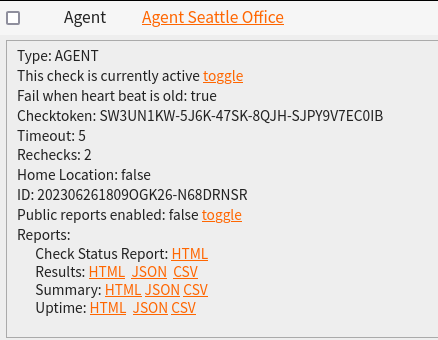
The install command will set up the AGENT to run, and at this point you can now create checks to be assigned to this AGENT. To do that, create a check, and in the “Region” dropdown, select the name of the AGENT you just created. After creation, you should begin to see the checks running on your AGENT.
Additionally, if you want to take advantage of our Automated Diagnostics or our other Diagnostic Tools, you can start the Diagnostic Client on your computer as well:
node DiagnosticsClient.js >>log/DiagnosticsClient.log 2>&1 &Now that you have the AGENT software running on your computer, and the AGENT check set up and connected, we can start assigning checks to run on this AGENT. In this scenario, let us assume we have an internal web server at 192.168.20.150, an internal DNS server we want to query at 192.168.20.100 and make sure it is returning 192.168.20.150 for our internal webserver FQDN internal.example.com, and lastly test to see that we can ping something on the Internet too so we know our clients can connect to the Internet through the VPN.
For the Web server, let’s set up an HTTP check to run on the AGENT

Note the “Region” dropdown and that I selected the AGENT I created earlier.
Next we want to make sure that we are getting the proper internal IP address for that web server:

Here, we configure the check to make a query to the internal DNS server 192.168.20.100 and expecting the answer 192.168.20.150 for internal.example.com.
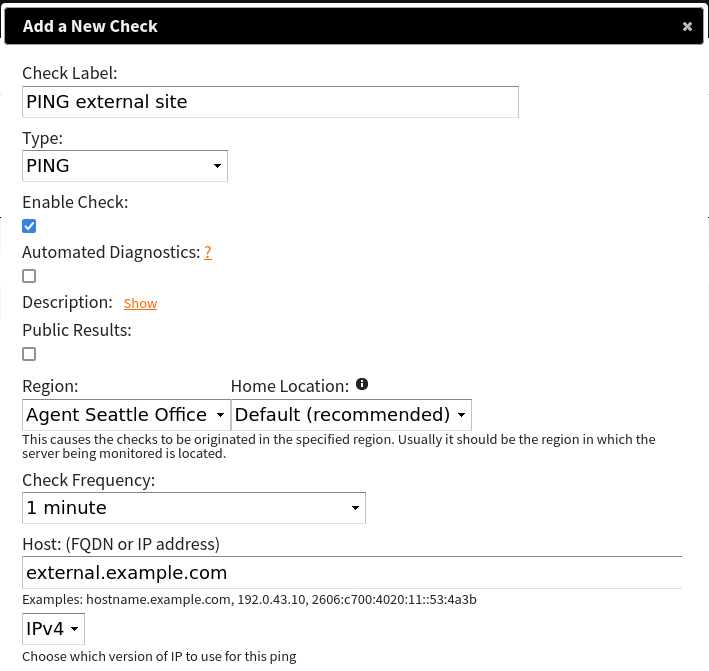
Lastly, we want to ping an external server to see that clients can reach the Internet. This is useful if you do want your VPN clients going out to the Internet too. For this example, we would ping external.example.com (note these aren’t real websites):
This is all only one example of many ways you could configure your VPN monitoring. Our AGENT is capable of handling all sorts of different monitoring tasks you may want to throw at it.
The NodePing AGENT is a robust feature we provide as a part of our Premiere plan. If you don’t yet have a NodePing account, please sign up for our free, 15-day trial and try out our on-premises monitoring and see how our AGENT can help you with monitoring your VPN connections.
 NodePing