Starlink Monitoring with NodePing

With a Starlink antenna on hand, we thought it would be a fun experiment to see what the results would be of monitoring a Starlink connection from a residential connection with our AGENT check type. The AGENT check can be used to monitor any outbound connectivity from your location on any network. Starlink was an interesting case study for us to try our AGENT monitoring from. Some information we wanted to see was:

  1. ICMP reliability
  2. Packet loss out to the internet
  3. HTTP connections
  4. DNS queries

We targeted a handful of popular services, including our own blog page as well as a website that is hosted in Seattle. We targeted these DNS providers:

  • Google DNS
  • Quad9
  • Cloudflare
  • OpenDNS

For popular websites, we targeted:

  • Facebook
  • google.com
  • Our blog (WordPress)
  • An employee blog site in Seattle

These were all tested over IPv4 and IPv6, each website had its DNS record monitored over the different DNS providers, as well as HTTP monitoring directly to an IP address for that site to rule out DNS issues.

Hardware

To connect to Starlink’s network, the standard antenna was used. The computer was a Raspberry Pi 4 running Raspberry Pi OS.

ICMP Monitoring

The route that was taken from my current location was through Starlink’s network and then back down through Seattle and then out to the rest of the Internet. Below is an MTR from the home network to blog.nodeping.com on WordPress:

Start: 2025-06-05T17:10:24+0100
HOST: raspberrypi     Loss%   Snt Drop   Rcv   Last  Best   Avg  Wrst  Jttr Javg Jmax Jint
  1.|-- 192.168.1.1     90.0%    10    9     1    1.0   1.0   1.0   1.0   0.0  0.0  0.0  0.0
  2.|-- 100.64.0.1      30.0%    10    3     7   17.6  17.6  65.5 298.4   5.0 81.7 275. 516.6
  3.|-- 172.16.252.130  40.0%    10    4     6   19.1  19.1  49.6 154.4   5.3 44.0 130. 239.1
  4.|-- 206.224.65.146  40.0%    10    4     6  1192. 654.2 1011. 1192.  55.2 106. 405. 537.7
  5.|-- 206.224.64.37   30.0%    10    3     7   20.5  20.5  30.4  43.6   9.9 10.1 17.5 59.4
  6.|-- 206.81.81.70    40.0%    10    4     6   26.2  19.9  30.2  39.6  13.4  6.0 18.1 32.3
  7.|-- 192.0.78.12     50.0%    10    5     5   27.2  25.0  27.1  29.9   0.6  1.6  4.9  7.2

Each hop is as follows:

  1. Router
  2. SpaceX CGNAT
  3. SpaceX internal IP
  4. SpaceX public IP
  5. SpaceX public IP
  6. Seattle Internet Exchange
  7. automattic

We assigned both PING and MTR checks to our NodePing AGENT. One to have a simple ping to check uptime, and the MTR to monitor packet loss and other networking statistics.

PING Monitors

After a month of monitoring, the results showed that my average ping uptime was roughly around 99.6% for IPv6 and 99.8% for IPv4

The majority of incidents were 1 minute timeouts. Only a few longer outages occurred. A few outages are noteworthy:

  1. A 10 minute outage while the antenna was moved out of the way and obstructed
  2. A 36 minute outage that was consistent with full network downtime shown by the other results
  3. A 7 minute outage that also consistently happened with other checks

The average day showed about 10-20 events when there was typically a 1 minute timeout. This is roughly a 7-day sample of pinging Google’s site:
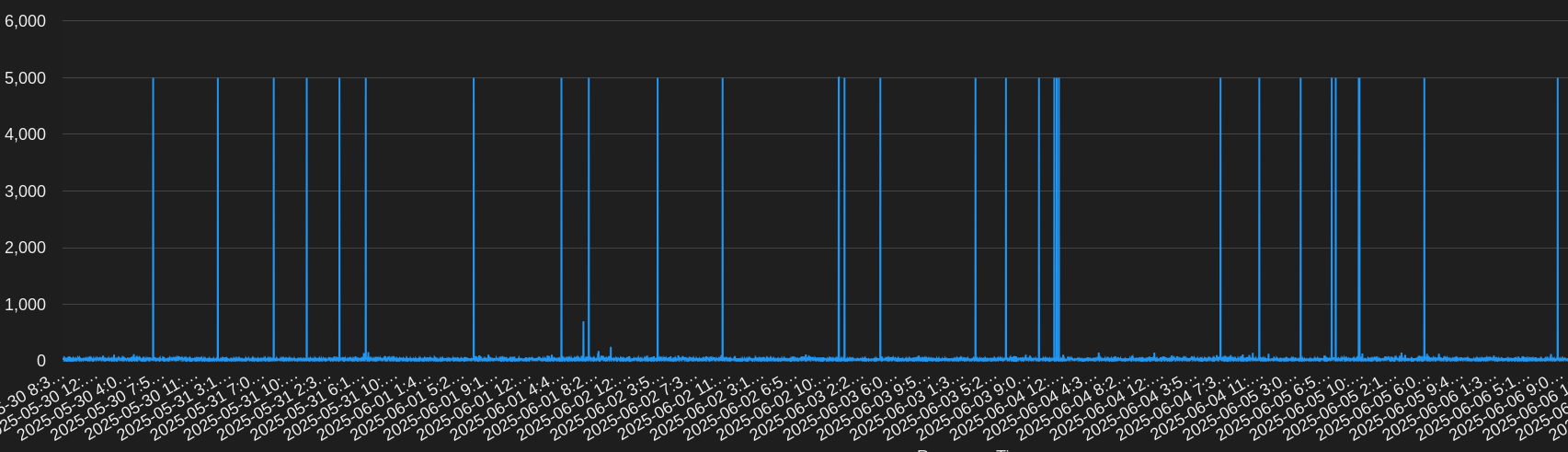
Generally, response times were very good and in the 20-30ms range with some blips up to about 100ms.

MTR Monitors

Our MTR monitoring paints a somewhat similar picture. The average uptime was about 99.7% to 99.9%. This is running an MTR count of 10 and expecting packet loss to be below 5%. Some observations:

  1. A time when Google IPv6 had high packet loss for 9 minutes, at the same time OpenDNS was unreachable for 7 minutes
  2. Moving the antenna was detected just like with the PING checks. This resulted in roughly 10% to 50% packet loss incidents
  3. Like PING, there were quite a few times running an MTR would show packet loss or an unreachable target for a minute
  4. I noticed most of my checks had packet loss more often in the evenings
  5. At one point Google and Facebook had high packet loss or were unreachable for about 40 minutes

Below are some results from the MTR check to Facebook over IPv6:

I noticed that inter arrival jitter was high. The average seemed to be roughly in the 30s, however, it would also frequently go up into the upper 100s. This could potentially impact RTP streams.

Other Monitoring

DNS Monitors

During my testing, DNS checks were rather boring. The overall uptime was 99.9% with minimal timeouts or other issues. One day OpenDNS, Cloudflare, and Google DNS had 3 to 5 minutes of timeouts, but at different times of the day. Some days Quad9 ended up doing worse than others, but overall all the DNS services had that 99.9% uptime. At some times some services would timeout at the same time, but not others. Average responses were around 30-60ms. There were some incidents that happened, but I will expound on those in the next section.

Earlier it was noted that the antenna was moved and obstructed for a little while. All the checks were impacted by this obstruction. However, DNS was not.

HTTP Monitors

Last of all, HTTP monitors. The average uptime was 99.8%. While monitoring HTTP, I was able to use information from my DNS checks to get additional insights into the failures. While an HTTP check will mention it cannot resolve a hostname, the DNS checks provided additional detail into DNS failures and helped me to identify the cause of failed HTTP connections. For example, one day there was about a 5 minute window of failures when some hosts were unable to resolve hostname and others were getting ENETUNREACH errors. My default DNS resolver was Google DNS. At that time, I noticed that the other DNS services were not failing, only Google DNS. With that information, I was able to determine that I was unable to reach my websites because of the DNS provider I was using.

For some of my HTTP checks, I set some of the targets to be the IP address only so DNS was not resolved. At times when failures happened, I could see if the DNS and no DNS checks were failing. If they were, the site was unreachable. If only the DNS checks were failing, then the issue was likely with DNS. There was one outage that was 36 minutes long where my DNS and no DNS checks were failing.

The TLS EACCES errors show that a secure TLS connection could not be established. This often happens when there is a networking issue, since I know that the TLS certificates on the end are correct. This is especially obvious here since the TLS connection failures are happening to multiple services.

Conclusion

After a month of monitoring, it is clear to see that there is some network instability with Starlink. The service could not quite reach three 9s outbound. This could be perfectly sufficient for some, however, mission critical services will likely have frequent reachability issues.

Using AGENTs to monitor my Starlink connection provided me with some interesting results. While using our public probes, there were no incidents with the services I monitored. Using an AGENT to monitor outbound connections to services provided useful data to determine connectivity issues to commonly used services. This is useful when you need to monitor for incidents from a Starlink or any other remote connection and respond to them.

If you have any remote POPs that you need to monitor, try out our NodePing AGENTs today. We offer a free, no-obligation 15-day trial. The best way to see if NodePing meets your needs is to try it out.


SMTP Monitoring with NodePing

In the world of email communication, Simple Mail Transfer Protocol (SMTP) plays a crucial role in ensuring the seamless delivery of messages. However, like any other technology, SMTP is not immune to issues that can disrupt email flow and affect business operations. To maintain a healthy and reliable email infrastructure, it is essential to monitor SMTP servers continuously. In this blog post, we will explore how NodePing can be used to monitor for SMTP functionality, packet loss, blacklisting, deferred queues, and MX/SPF records.

NodePing is a versatile and powerful server monitoring service that allows businesses to monitor their infrastructure’s performance and uptime. With its extensive range of monitoring checks, NodePing provides an excellent solution for monitoring SMTP servers and ensuring they are operating optimally.

Monitoring SMTP Functionality

Verifying the functionality of your incoming SMTP server is crucial to ensure that it can receive emails without any hiccups. NodePing’s SMTP check allows you to periodically test your SMTP server by trying to send a test email to a designated email address. If the test email is accepted, it indicates that your SMTP server is functioning correctly. In case of failures, like timeouts or server errors, NodePing will promptly alert you, enabling you to troubleshoot and rectify the issues.

Monitoring Packet Loss

Packet loss can severely impact the performance of your SMTP server and lead to email delivery delays or failures. NodePing’s ICMP PING check is a valuable tool to monitor packet loss and routing issues to to your SMTP server. By regularly performing ping tests, you can assess packet loss trends and determine whether network-related issues are affecting your email delivery. If a failure is seen, NodePing automated diagnostics will send you MTR results so you can quickly troubleshoot where the issue originates. Addressing packet loss problems promptly will lead to a smoother email experience for your users.

Monitoring SMTP Blacklisting

Blacklisting can be detrimental to email delivery, as it prevents messages from reaching their intended recipients. NodePing’s RBL check allows you to monitor your SMTP server’s IP addresses against popular DNS-based blacklists (RBLs) such as Spamhaus and Barracuda. By configuring blacklisting checks at regular intervals, you can quickly identify if your server’s IP addresses have been blacklisted, enabling you to take immediate action to resolve the issue and maintain a good sender reputation.

Monitoring Deferred Queues

When your SMTP server is unable to deliver emails to the recipient’s mailbox immediately, it sits in the deferred queue. If emails in your deferred queues are piling up, you likely have a delivery issue. NodePing’s PUSH check can watch your deferred queues and send you notifications if they rise above what you’re comfortable with; allowing you to investigate and resolve the underlying problems before they escalate.

Monitoring MX Records

MX (Mail Exchange) DNS records play a crucial role in email delivery by specifying the mail servers responsible for receiving emails for a domain. NodePing’s DNS check allows you to monitor the MX records of your domain to ensure they are correctly configured and that your DNS servers are responding with those records properly. Regular checks of MX records help you keep incoming mail flowing.

Monitoring SPF Record

Your SPF record is actually a TXT DNS record that specifies which servers are allowed to send email from your domain. If that record is missing, compromised, or your DNS servers aren’t responding, sending email may be blocked or delayed. NodePing’s DNS check will make sure your SPF record is available and hasn’t been hacked. That will keep your outgoing mail flowing.

In conclusion, email monitoring is essential to ensure the reliability and efficiency of your message communications. NodePing provides a comprehensive suite of checks that empower you to monitor for blacklisting, SMTP functionality, packet loss, deferred queues, along with MX and SPF records. By leveraging NodePing’s monitoring capabilities, you can proactively identify and address issues affecting your SMTP server’s availability and performance, leading to better email deliverability and improved customer satisfaction.

Remember, a robust email infrastructure is the backbone of modern businesses, and investing in reliable monitoring tools like NodePing with automated diagnostics is a step towards a smoother and more efficient communication system.

Start monitoring your SMTP servers with NodePing today by signing up for our free, 15-day trial and stay one step ahead of any potential email delivery challenges!

Finding the Best Server Providers

Great services need great boxes to run on. How do we know if a server or VPS host is performant and reliable?

We use dozens of different hosts for NodePing and our standards for performance and reliability are really high. There are many SaaS out there that host only on AWS. Putting all your eggs in one basket is nice for billing but would make our service fragile and vendor-dependent. We spread our boxes around to make it resilient and better represent the Internet’s disperate architecture for monitoring.

We have to take new boxes out and put them through their paces; kick the tires and make sure they’re solid. This is how we test out a new provider before we use a dedicated server or VPS.

Blacklisted

As soon as we have our IP assignments from the provider, we check to make sure the IPs aren’t listed in any spam blacklists using NodePing RBL checks. Most of our hosts don’t send any actual email but our public probes do a lot of SMTP connections to ensure our customers’ mail servers are functioning properly. If the IPs are blacklisted, we’ll need a clean IP from the provider or cancel and look elsewhere.

We’ll leave this RBL check running once an hour to make sure it doesn’t get listed half way through our testing period.

Blacklisted IPs can be a good indicator of provider quality even if the server won’t be sending any email. A provider that can’t keep spammers out of their service is unlikely to be able to keep a reliable network.

Incoming Traffic

Solid networks can be hard to find. We test for inbound packet-loss and routing issues using NodePing PING checks. We’ll sometimes test from a few different geographical regions to ensure global routing is stable. Anything less than 100% uptime for 30 days is unacceptable for us. If the provider had announced planned maintenance well in advance, we’d use NodePing’s maintenance feature to ensure the uptime stats remained accurate despite planned outages. In our decade-plus experience, a network that sees even one episode of packet-loss or route failure is going to continue to see them and isn’t stable enough for our use.

We’ll do the same for IPv6 addresses as routing and packet-loss can be independent of the IPv4 stack. Some providers have a hard time keeping their IPv6 blocks broadcasted and we’ve seen IPv6 completely fail while IPv4 continued to function normally.

We enable automated diagnostics for all our PING checks so we can see where on the route the packet-loss or routing failure is happening. Getting immediate MTRs can show us the weak links in a network and if we see issues with some of the usual suspects, we will for sure dump it. Yes, I’m looking at you, Cogent!

Outbound Traffic

Sometimes a network issue seems to only impact outbound routing. We use the AGENT functionality to assign additional PING checks to originate from the server being tested towards some of the other servers it would be connecting to if it’s moved into production. The AGENT software will run NodePing checks just like the public probes but originating from our test host. It’s a great way to detect outbound packet-loss and routing issues from the server. Again, anything less than 100% uptime on this test and the service isn’t going to make muster.

System Load

The performance of a VPS can be greatly impacted by issues outside our control. Two of the most frequent system load issues we’ve seen on VPS are noisy neighbors and host server backups.

A good provider won’t oversell their VPS host servers and will suspend anyone who is abusing more than their fair share of resources. If we end up on a box with noisy neighbors, the system load on our VPS will likely spike, starving our processes from getting the CPU, memory, networking, or storage I/O they need to function properly.

We’ve also come across providers where we saw system load rise every Saturday around midnight (GMT) for 30 mins or so. Turned out their backup process was overwhelming the disks and causing load issues on all the VPS on the host.

These types of issues are simple to find using PUSH checks that monitor the system load. Since we aren’t using these boxes for anything yet, we have to set the thresholds pretty low to detect load issues caused by resource starvation. This is one test that we’ll give a bit of slack to a provider if it fails though. Noisy neighbors or hungry backups can happen to any provider and we’ll give them a chance to find and address the cause. If it keeps happening though, pull the plug on that provider. It’ll just be worse once you start using the machine and an ongoing headache trying to get their support to do anything about it.

If a server can keep humming along for 30 days without any of the checks above failing, there’s a pretty good chance that provider and network are going to be solid and reliable. I hope this look into our vetting process will help you with your provider search for those elusive reliable networks and servers.

If you don’t yet use NodePing, please sign up for our free, 15-day trial and see for yourself how our monitoring can increase your uptime.

NodePing badges from Shields.io

Shields.io recently released an update that adds NodePing badges to their service. We’re grateful and honored to be included and wanted to drop a few instructions on how you can configure your customized badges for your NodePing checks from shields.io.

Example badges:

NodePing status badge

Status badge (up/down)

NodePing uptime badge

Uptime badge


For the badge to work, you need to make sure your NodePing check has public reporting enabled. Once enabled, you’ll need the UUID (unique ID) of the check.  To find the UUID, open one of NodePing’s reports.  The UUID is shown in the URL.

Example public results report URL:
https://nodeping.com/reports/results/rrwb28un-c0kl-4d7h-8n2u-xcosuprs2439/100

The “rrwb28un-c0kl-4d7h-8n2u-xcosuprs2439” part is the unique random id part.  Yours will be the same length, but different from mine.

Now that you’ve got your check UUID, head over to the shields.io site and click on your choice of badge type:  “NodePing status (customized)” or “NodePing uptime” to open the shields.io badge customizer modal.

You can set all kinds of customizations like:

  • up message e.g. Online
  • up color e.g. green
  • down message e.g. Offline
  • down color e.g. lightgrey 
  • style (lots to choose from)
  • label shown
  • background color for the label

Click on the ‘Copy badge URL’ button to get the URL into your clipboard. You can also get the code for Markdown or HTML – easy peasy. Paste it into your website or .md file and feast your eyes on your freshly minted badge.

Cool new visibility for your uptime with shields.io and NodePing. If you don’t have a NodePing account yet, sign up for our 15-day, free trial today over at https://nodeping.com and let us handle your monitoring and notifications.