NodePing Authentication with Microsoft Entra OpenID Connect

NodePing supports OpenID Connect (OIDC) authentication, allowing you to leverage SSO and multi-factor authentication by using an authentication provider that supports them. We support Google and Microsoft OpenID authentication as well as (on Premiere plan accounts) custom OIDC providers.

In a previous blog post we shared how you can get started with using OIDC with NodePing using Keycloak. In this blog post, I will share with you how you can get Microsoft Entra set up to handle authentication for you with NodePing’s custom OIDC provider feature.

Entra User Configuration

Before configuring Entra to work with NodePing, it is important to make sure your users have the proper configuration. The NodePing contact must include the same email address as your user has in Entra. To ensure your email address in Entra is correct for your user, go to Identity -> Users -> All users. Select the user you want to update, click Edit properties and go to the Contact Information tab.

Ensure that the Email field matches the email that you have set for your NodePing contact. Note that if the email is present only in the “Other emails” section in Entra, logging into NodePing will fail. On the NodePing side, the contact records can have multiple emails, and the address from Entra just needs to be present as one of them.

Entra Admin Center

Head to the Entra Admin Center and in the left side panel go to Identity -> Applications -> App registrations. There, select “New registration” to create a new registration. Enter a name, such as “nodeping” and select the supported account types. In this example, I chose “Accounts in this organizational directory only”.

Set the Redirect URI https://app.nodeping.com/authredirect/<your-nodeping-account-id&gt; and select Web from the dropdown menu.
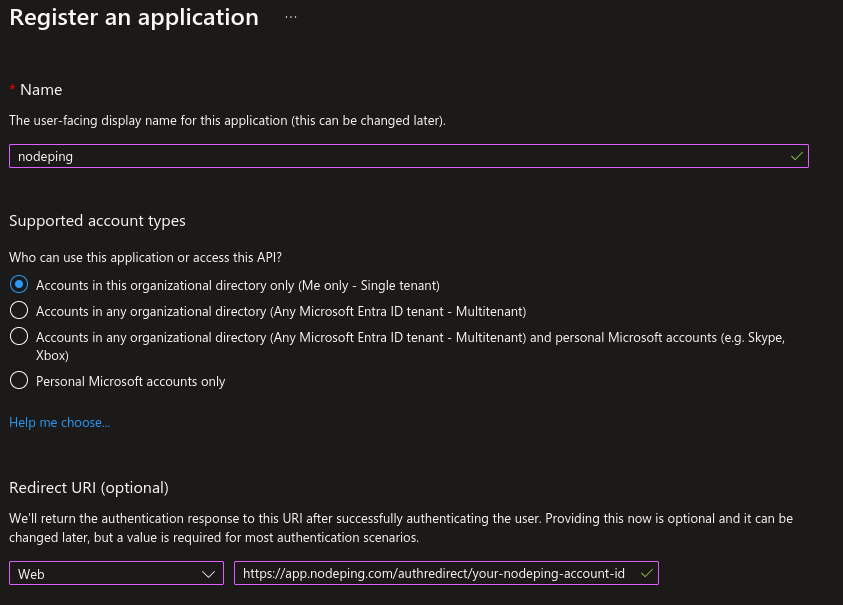
Next click “Register” at the bottom of the page.

Afterwards, go to “API permissions” and go down to the “Other permissions granted for” section. You should see a Microsoft Graph Permissions name labeled “email”. Click the 3 dot menu and choose “Add to configured permissions”.
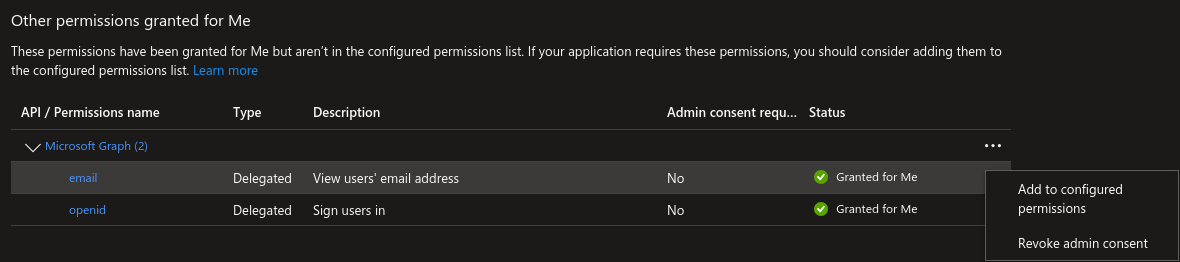
You will be prompted to select “Yes, add”.

If the email permission isn’t in the “Other permission” section, select “Add a permission”, and in the right side panel that pops up select Microsoft Graph, then Delegated Permissions, and check the email checkbox in the OpenId permissions section below, and select “Add permissions”.

Following that, you will need to generate a secret. Go to “Certificates & secrets” and select “New client secret”. Give it a description and expiration according to your organizational needs. You will need the Value for the next step.

NodePing Custom OIDC Configuration

On NodePing, sign in and go to Account Settings -> OpenID Connect.

Here you will need:

  1. The Discovery URL
  2. The Client ID
  3. The Client Secret

The Discovery URL can be found in the Overview section, and selecting Endpoints. You will need the URL labeled “OpenID Connect metadata document”. Paste that into the Discovery URL. For the clientID, you need the Application (client) ID displayed in the overview page of your App registration you made on Entra. Lastly, the clientSecret that was generated earlier in the “Certificates & secrets” page in Entra. Note here that the clientSecret is the “Value,” a long string with special characters. There is also a “Secret ID” listed with the secret, but that is not what you need here.

Once complete, click save.

NodePing User Auth Types

Now, configure your NodePing user to sign in with custom OIDC. In NodePing’s webapp, go to Contacts -> List Contacts. Edit the contact you want to permit OIDC authentication with by selecting “Custom OIDC Authentication” as an allowed auth type and save the contact. This option will only be present for those who have a Premiere account. This NodePing contact will need the same email address that corresponds with the email address of the Entra user.

Logging In

To login to NodePing using Entra, visit https://app.nodeping.com/login/[your NodePing account id] and signed in there. This should direct you to Entra where you can sign in. If everything worked, you should be back at NodePing and signed in. Alternatively, on the login page, change the login method to “Custom OIDC Authentication” in the Login Method dropdown menu and enter your NodePing account ID there.

This blog post isn’t intended to address other policies or settings you may have to set up with Entra, or how to make policies for your users. This basic example configuration is a starting point toward integrating Entra with NodePing. Ensure that your configuration of users and other policies are in alignment with your organization’s requirements and adjust as necessary. For additional information, Microsoft provides some resources here and here to guide you through configuring OpenID Connect authentication with Entra.

If you don’t have a NodePing account yet, give it a try! We offer a free, no-obligation 15-day trial. The best way to see if NodePing meets your needs is to try it out.

NodePing Authentication with Keycloak OpenID Connect

NodePing supports OpenID Connect (OIDC) authentication, allowing you to leverage SSO and multi-factor authentication by using an authentication provider that supports them. We support Google and Microsoft OpenID authentication as well as custom OIDC providers.

In a previous blog post we shared how you can get started with using OIDC with NodePing. In this blog post, I will share with you how you can get Keycloak set up to handle authentication for you with NodePing’s custom OIDC provider feature.

Server Setup

When setting up Keycloak, I chose to install Keycloak on the current Ubuntu LTS, Ubuntu 24.04. I first made sure everything was up to date on the server, then I installed openjdk and postgresql:

$ apt install openjdk-21-jdk postgresql postgresql-contrib

Next, I created the keycloak user:

$ groupadd keycloak
$ useradd -r -g keycloak -d /opt/keycloak -s /sbin/nologin keycloak

I fetched the latest keycloak tarball and extracted it:

$ wget https://github.com/keycloak/keycloak/releases/download/25.0.4/keycloak-25.0.4.tar.gz
$ mkdir /opt/keycloak
$ tar -zxf keycloak-25.0.4.tar.gz --strip-components=1 -C keycloak/
$ chown -R keycloak: /opt/keycloak

If you have existing SSL certificates, place them on the server. In this tutorial, I am going to assume you already have certificates that Keycloak will use.

PostgreSQL

Next, a database needs to be created for Keycloak. Sign into the postgres user and use psql to access the database. Run these commands in postgres to create the database:

CREATE DATABASE keycloak;
CREATE USER keycloak WITH PASSWORD 'replace-this-with-a-good-password';
GRANT ALL PRIVILEGES ON DATABASE keycloak TO keycloak;
\c keycloak
GRANT ALL ON SCHEMA public TO keycloak;

Keycloak Conf

Edit the /opt/keycloak/conf/keycloak.conf file:

db=postgres
db-username=keycloak
db-password=replace-this-with-a-good-password
db-url=jdbc:postgresql://localhost/keycloak
https-certificate-file=/path/to/cert/file.pem
https-certificate-key-file=/path/to/cert/file.key
hostname=example.com

Systemd Service Unit

Since this is on Ubuntu, I created a system unit file to make starting/stopping the server easy. I made this unit file at /etc/systemd/system/keycloak.service

[Unit]
Description=Keycloak Authorization Server
After=network.target

[Service]
User=keycloak
Group=keycloak
ExecStart=/opt/keycloak/bin/kc.sh --config-file=/opt/keycloak/conf/keycloak.conf start
ExecStop=/opt/keycloak/bin/kc.sh stop
Restart=always
RestartSec=3
Environment="KEYCLOAK_ADMIN=admin"
Environment="KEYCLOAK_ADMIN_PASSWORD=very-strong-admin-password"
[Install]
WantedBy=multi-user.target

Then start the server

$ systemctl daemon-reload
$ systemctl enable keycloak.service
$ systemctl start keycloak.service

Once the server is successfully started and you are able to login, go back and edit the keycloak.service file and remove the KEYCLOAK_ADMIN and KEYCLOAK_ADMIN_PASSWORD environment variables, then run the above systemctl commands again to make sure everything is working well.

Configuring Keycloak

By default, Keycloak listens on port 8443 for secure connections. Up to this point, the example server would be accessed at https://example%5Bdot%5Dcom:8443.

Keycloak has a master realm for management of other realms. It is best to create another realm for users to have access to. Create a new realm by clicking the “Keycloak” dropdown menu in the upper left corner and select “Create realm”. I entered the name of the realm as NodePing for this example, but it can be anything. Then I selected “Create” and went to the new realm.

Follow the documentation to create a new user.

Create a Client

To have Keycloak authenticate with NodePing, a new Client needs to be created that can handle all the proper communications. Go to the Clients page and click “Create client”.

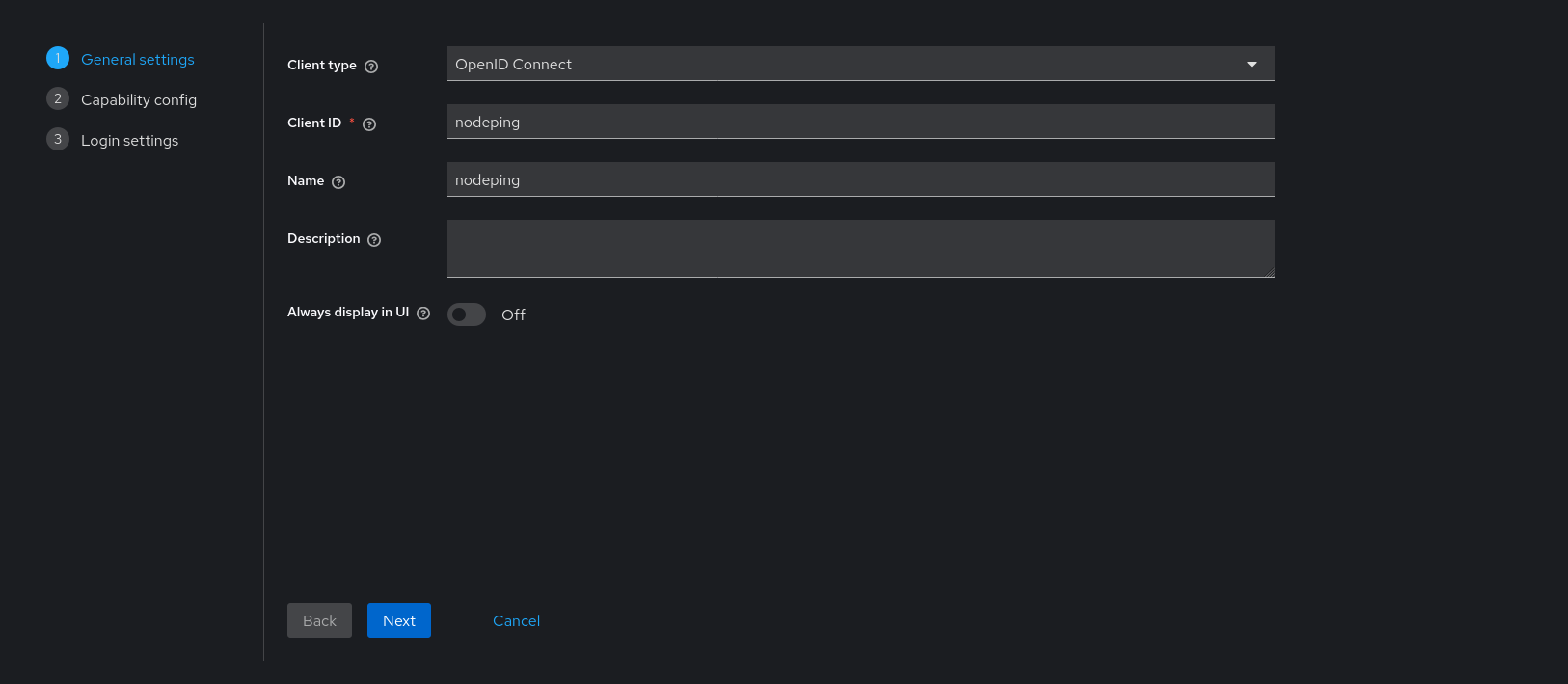
Fill out the first page of the new client. The client ID and name can be anything. The Client ID entered here will be part of configuring NodePing.

Click next. On page 2, set “Client authentication” to On.

Here, only “Valid redirect URIs” needs a value. It should look like this:

https://app.nodeping.com/authredirect/[your NodePing account id]

Select “Save”. Keycloak is ready to use with NodePing.

NodePing Custom OIDC Configuration

On NodePing, sign in and go to Account Settings -> OpenID Connect

Here, I need:

  1. The Discovery URL
  2. The Client ID
  3. The Client Secret

The Discovery URL can be found in the “Realm Settings” page. Go down to the Endpoints section. Copy the URL named “OpenID Endpoint Configuration”. It should look something like https://example[dot]com:8443/realms/NodePing/.well-known/openid-configuration.

The Client ID is what I entered on the first configuration page when creating the Client. I called it “nodeping”.

Lastly, I need the secret. This is found in the Client information. Go back to Clients -> nodeping -> Credentials. The Client Secret is there. Paste it into the clientSecret section in NodePing and select Save.

NodePing User Auth Types

Now, I can configure a user to sign in with custom OIDC. In NodePing’s webapp, go to Contacts -> List Contacts. I edited the contact I want to permit OIDC authentication with by selecting “Custom OIDC Authentication” as an allowed auth type and saved my contact. This NodePing contact will need the same email address that corresponds with the email address of the Keycloak user.

Next I have to go to a different URL to do my custom OIDC sign in. I visited https://app.nodeping.com/login/[your NodePing account id] and signed in there. This should direct me to Keycloak where I can sign in. If everything worked, I should be back at NodePing and signed in. Alternatively, on the login page I can change the login method to “Custom OIDC Authentication” in the Login Method dropdown menu and enter my NodePing account ID there.

If you run into any troubles, you can reference the previous blog post for information. Additional information is provided in the custom OpenID Connect page to know what information you need to provide and how to login. If any issues arise in configuring Keycloak, Keycloak has a comprehensive server administration guide available.

If you don’t have a NodePing account yet, give it a try! We offer a free, no-obligation 15-day trial. The best way to see if NodePing meets your needs is to try it out.